The booking CRM: complete guide
How to track every pitch from first email to the night it plays: leads, deals, stages, tasks, the board, the calendar, the funnel, and how it all connects to your tours.
- The idea in one minute
- Your first deal in five minutes
- Leads: who you could pitch
- Deals: one pitch each
- The stages, and when to move a deal
- Reading the board
- Tasks: the next step on every deal
- Notes: two kinds, on purpose
- List view and changing many deals at once
- Calendar view and Night Pressure
- The Funnel report: what your pipeline is telling you
- Deals and tours
- Doing it by asking
- Questions people ask
The idea in one minute
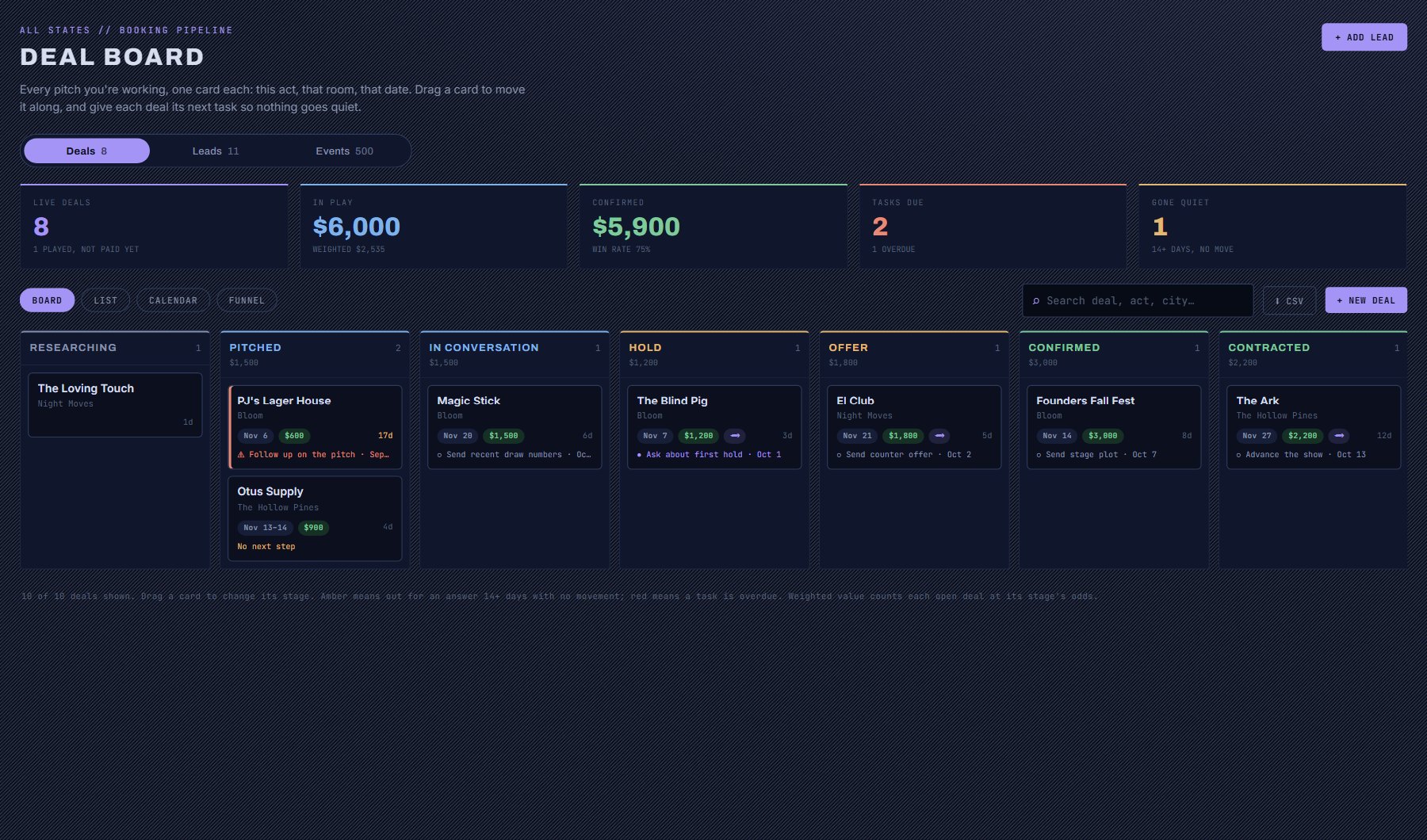
The CRM lives on one screen: My Work > Booking Pipeline. It has three tabs, and they answer three different questions.
A lead is someone you could pitch. A deal is one actual pitch. That difference is the whole system: The Blind Pig is a lead; "Bloom at The Blind Pig on November 10 for $1,200" is a deal. The same lead can carry as many deals as you have dates and acts to pitch, each moving along on its own.
| Tab | What it holds | Use it to |
|---|---|---|
| Deals | Every pitch you are working, one card each. | See where everything stands, move deals along, and find what needs you today. |
| Leads | The venues and acts you have saved, plus leads you typed in yourself. | Look up a contact, read your notes, draft an email, and start a new deal. |
| Events | Community events that hire live music: fairs, festivals, brewery parties. | Find paid dates that never show up on a music calendar, and start a deal from one. |
Your first deal in five minutes
If you only read one section, read this one. It takes you from nothing to a deal on the board with a next step attached.
- Save a venue. Anywhere in the console, press the heart on a venue. That makes it a lead. (For a venue that is not in Cultivate, open Booking Pipeline and press + Add Lead instead.)
- Open My Work > Booking Pipeline and go to the Leads tab. Click the venue.
- Press + New Deal. Type the act you are pitching, pick the show date if you have one, and leave the stage on Researching or set it to Pitched if you have already written to them. Press Create Deal.
- The deal opens. Under Tasks, type the next thing you need to do, such as "Follow up if no reply", pick a due date, and press Add.
- Close the deal. It is now a card on the Deals board. When the venue answers, drag the card to the next column.
Leads: who you could pitch
A lead gets onto the Leads tab in one of three ways. Use the filter chips (All, Venues, Artists, My leads) to narrow the list.
Click any lead to open it. A lead is where the people and the history live; the pitches themselves are its deals.
| How it got there | What it is | How to remove it |
|---|---|---|
| You pressed the heart on a venue or artist | A venue or act from Cultivate's data, with its contact details and show history. | Press the heart on its row. It leaves your leads; its deals stay on the board. |
| You pressed + Add Lead | Something not in Cultivate yet: a venue you are scouting, a referral, someone you met. | Press the heart on its row. This deletes the lead. |
| You opened an event on the Events tab | A community event that hires music. It is not saved until you press its heart or start a deal from it. | Nothing to remove. |
- Deals: every pitch to this lead, with its stage. Press + New Deal to start another.
- Contact: Cultivate's researched booking email, phone and website, with a one-click email link when there is an address.
- Did you send it? When you start an email from a lead (Email This Lead, an address, or Open in email on a draft) and come back, Cultivate asks whether it went. Press Sent and it notes the pitch on the deal, moves a Researching deal to Pitched (or opens a deal if the lead had none), and offers a follow-up task a week out. Press Not yet and nothing changes.
- My Contacts: the people you deal with there. Link someone from your Contacts list, or add a new person on the spot.
- My Notes: a dated log about the lead in general ("prefers email", "books three months out").
- Draft Outreach Email: tell your AI Assistant what you are asking for and it writes a first email from the lead's details and your notes. It costs 3 AI credits, shown on the button. Nothing is sent: you copy it or open it in your own mail.
- Follow-Up Reminder: a single date, shown only while the lead has no deals. Once it has a deal, reminders are that deal's tasks.
Deals: one pitch each
There are four ways to start a deal. Use whichever is closest to hand; they all create the same thing.
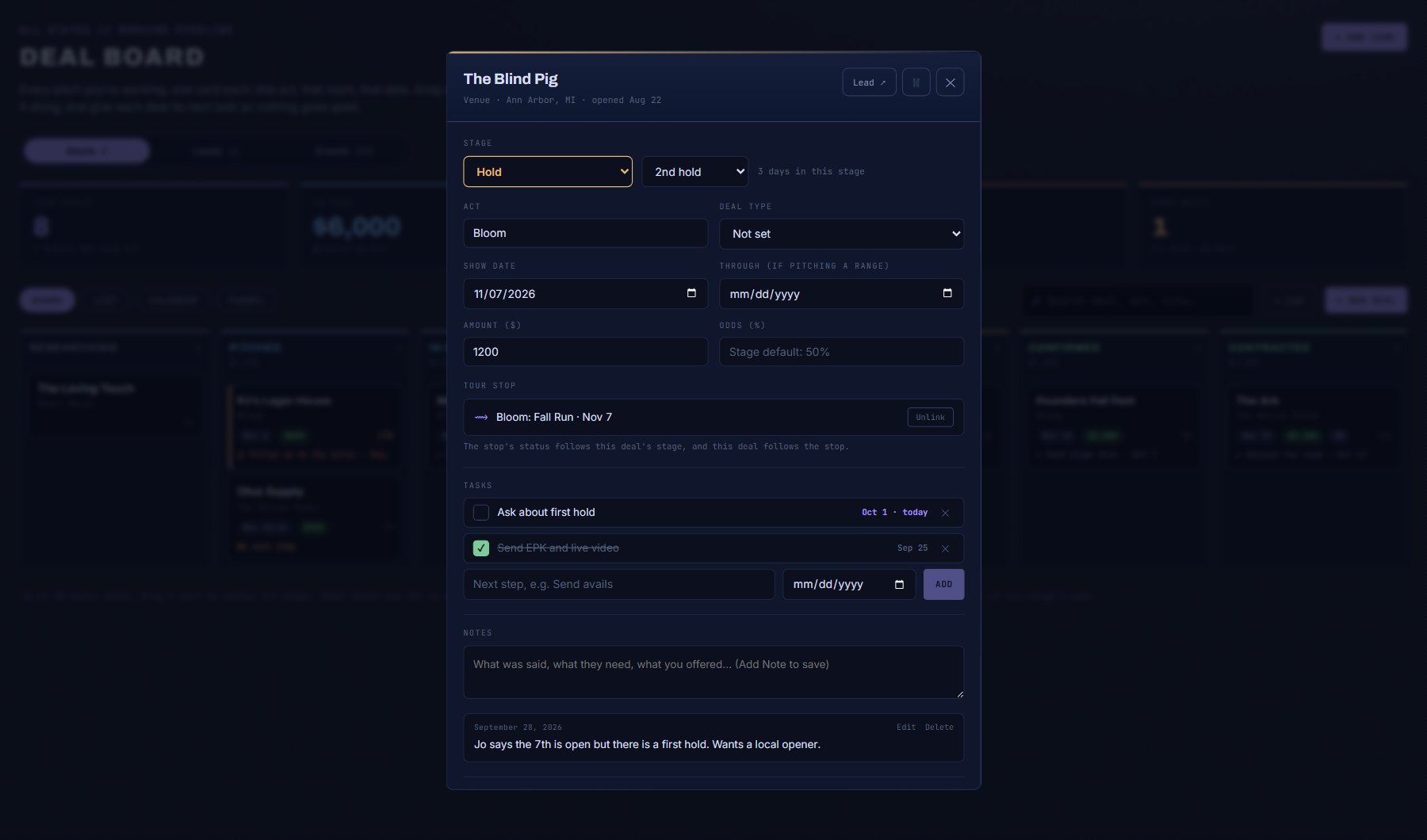
Click a card or row to open a deal. Everything on it saves as you go: typed fields when you click away, everything else the moment you change it.
| Start it from | How |
|---|---|
| A lead | Open the lead and press + New Deal. The lead is filled in for you. |
| The board | Press + New Deal on the Deals tab and choose who it is with. Pick "Someone new" to type a name; it is saved as a lead too. |
| A tour | In the Tour Planner, set a stage on a stop's venue, or press ASK on a venue. A deal opens for that venue and that stop's date. |
| Ask the Data | Say it in words: "open a deal with The Ark for March 14, Bloom, $900". |
- Title: the name on the card. It starts as the lead's name; click it to rename.
- Stage: where the pitch stands. See the next section.
- Act: who you are pitching.
- Show date and Through: the date you want. If you offered a range ("any night the 9th to the 12th"), put the last day in Through.
- Deal type: guarantee, door deal, guarantee versus door, flat fee, or other.
- Amount: the guarantee or what you expect to take. It feeds the money totals on the board.
- Odds: your own estimate that it happens, 0 to 100. Leave it blank and the stage's usual odds are used.
- Hold position: appears when the stage is Hold. First hold, second hold, and so on.
- Until: appears when the stage is Hold. The day the venue releases the hold unless you confirm. The card then says HOLD UNTIL and the date; from a week before, the hold is listed under Needs attention on your Dashboard and in the weekly digest, and once it has lapsed it reads as overdue until you move the deal. Both the position and the date are dropped when the deal leaves Hold.
- Why it didn't happen: appears when the stage is Lost. Worth filling in; the Funnel report groups lost deals by reason.
- Paid: appears when the stage is Played. Tick it when the money is in; untick it if you ticked by mistake.
- Tour stop: put a venue deal on a stop of one of your tours. See "Deals and tours" below.
The stages, and when to move a deal
A deal moves left to right. You can skip stages, and you can move a deal backwards. Every move is recorded with its date in the deal's Stage history.
Lost is not a failure state to hide. Moving a deal to Lost with a reason is how the Funnel report learns where your deals fall over.
| Stage | It means | Move it here when |
|---|---|---|
| Researching | You are looking at it. Nobody has been contacted. | You start thinking about a venue or a date. |
| Pitched | You have asked. The ball is in their court. | You send the first email or make the first call. |
| In conversation | They answered and you are talking. | You get any real reply. |
| Hold | They are holding a date for you. | They confirm a hold. Set your hold position and, if they gave you one, the day it lapses (Until). |
| Offer | Money and terms are on the table. | An offer is made, by either side. |
| Confirmed | The date is agreed. | Both sides say yes. |
| Contracted | The paperwork is signed. | The contract or written confirmation is back. |
| Played | The show happened. | Nothing to do: a confirmed or contracted deal moves here by itself the day after its show date. Then tick Paid on the deal when the money is in. |
| Lost | It is not happening. | They pass, the date goes, or you walk away. Add the reason. |
Reading the board
The Board view is the default on the Deals tab. Drag a card to another column to change its stage. Use the search box to narrow the board to an act, a venue or a city.
Each card tells you five things at a glance.
| On the card | What it tells you |
|---|---|
| Title and the line under it | Who the deal is with, and the act (or the city when no act is set). |
| Date chip | The show date, or the range you pitched. |
| Green amount chip | The money. |
| HOLD UNTIL chip | A deal on hold with an expiry: the day the venue releases it. Amber, then red within three days or once it has lapsed (HOLD LAPSED). |
| Purple tour mark | The deal is on a tour stop. Hover for the tour's name. |
| Number with a d, at the right | Days the deal has sat in this stage. |
| Bottom line | The next open task and its due date. "No next step" means a deal that is waiting on an answer has nothing scheduled. |
- Red stripe on the left: a task on this deal is overdue.
- Amber stripe on the left, amber day count: the deal has been waiting on an answer (Pitched, In conversation, Hold or Offer) for 14 days or more without moving. It has gone quiet.
- Live deals: everything not Lost or Played. When played shows are still unpaid, the tile says how many.
- In play: the total amount on deals that are not yet confirmed. Weighted counts each one at its odds, so $1,000 at Hold (50%) counts as $500.
- Confirmed: the total amount on deals at Confirmed or later, with your win rate.
- Tasks due: open tasks due today or earlier.
- Gone quiet: the number of amber deals.
Tasks: the next step on every deal
A task is one thing you need to do for a deal, with an optional due date. A deal can have as many as you like. Tasks are what keep a pipeline moving, so the CRM shows them in several places.
- Add one: open the deal, type it under Tasks, pick a due date, press Add (or Enter).
- Finish one: tick its box. It stays on the deal, crossed out, as a record.
- Delete one: press the x on its row.
- On the board, each card shows its next open task. Overdue tasks turn the card's edge red.
- On your Dashboard, due and overdue deal tasks appear under Needs Attention, alongside holds that lapse within a week and deals that have gone quiet.
- In the weekly digest email (Professional plans), tasks due in the next week, holds about to lapse and quiet deals are listed under "Your pipeline needs you".
Notes: two kinds, on purpose
Notes on a lead are about the place or the person in general. Notes on a deal are about that one pitch. Keeping them apart means the history of last year's show does not bury what you need to know about the venue.
Both are dated automatically, newest first. Type in the box and press Add Note; nothing saves until you do. You can edit or delete a note afterwards.
List view and changing many deals at once
Press List on the Deals tab for one row per deal, sorted by stage and then show date. It is the fastest way to scan everything, and the only place you can change several deals in one go.
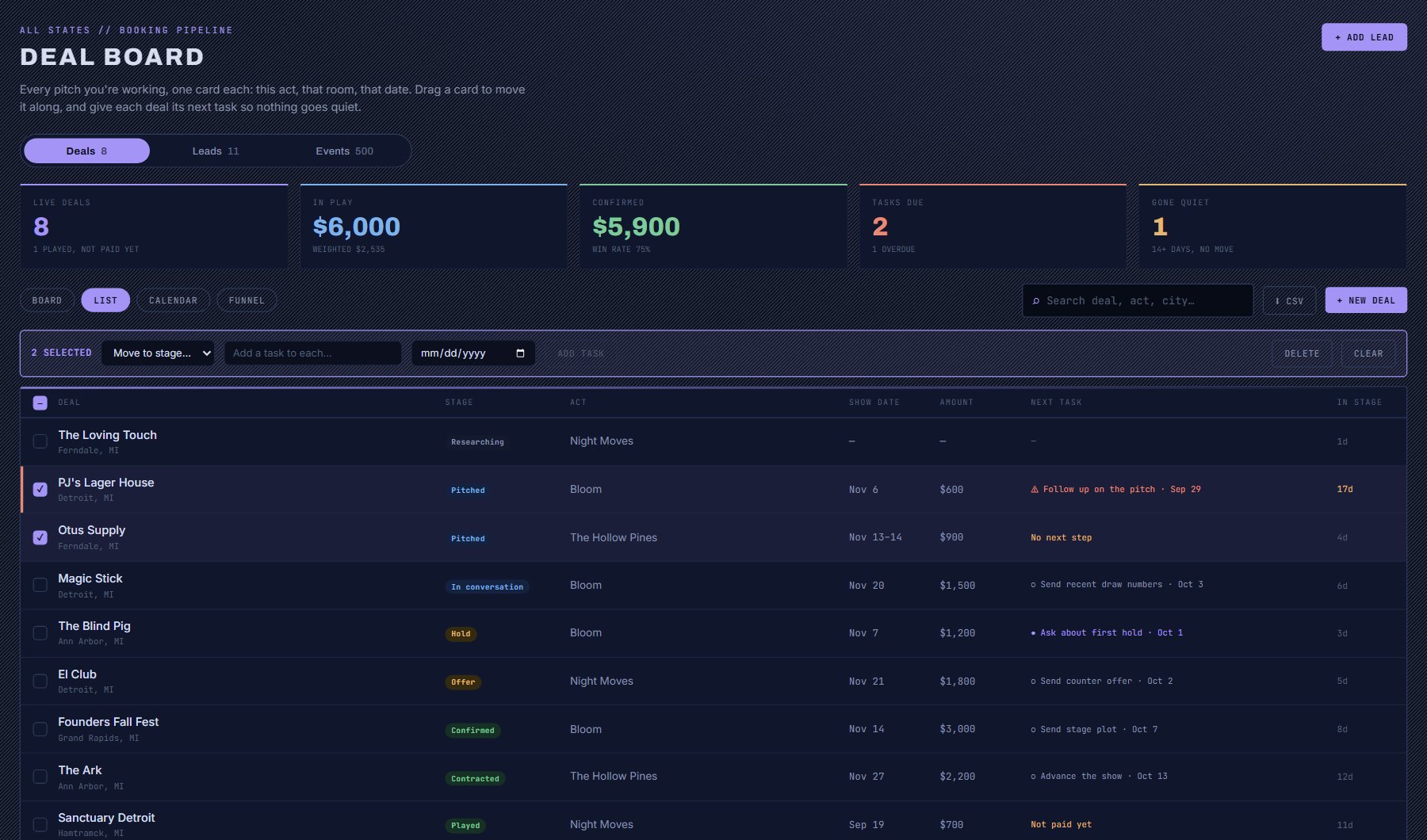
- Tick the box on each row you want. The box in the header ticks or clears every deal shown; search first to tick a group, such as every deal for one act.
- A purple bar appears with the number selected.
- Move to stage: pick a stage and every ticked deal moves there. Each one gets its own entry in its history, and its tour stop follows.
- Add a task to each: type the task, pick a date, press Add task.
- Delete: removes the ticked deals with their tasks, notes and history. It asks first. This cannot be undone.
- Clear: unticks everything.
- CSV, at the top right, downloads the deals shown, with stage, dates, amount, odds, next task and days in stage.
Calendar view and Night Pressure
Press Calendar on the Deals tab to see deals by show date, a month at a time. Each deal is a chip on its date, coloured by stage. A deal pitched for a range of dates shows on every day of the range, lighter after the first. Lost deals are left off. Deals with no date yet are listed under the month.
The number on a chip is Night Pressure for that night in the deal's market: a 0 to 100 score for how crowded the night already is, from the music shows and community events on record there. It is the same score as the Competition Grid. Hover a chip to read the verdict in words. A 96 on a Saturday means you are fighting for the audience; a 20 means the night is open.
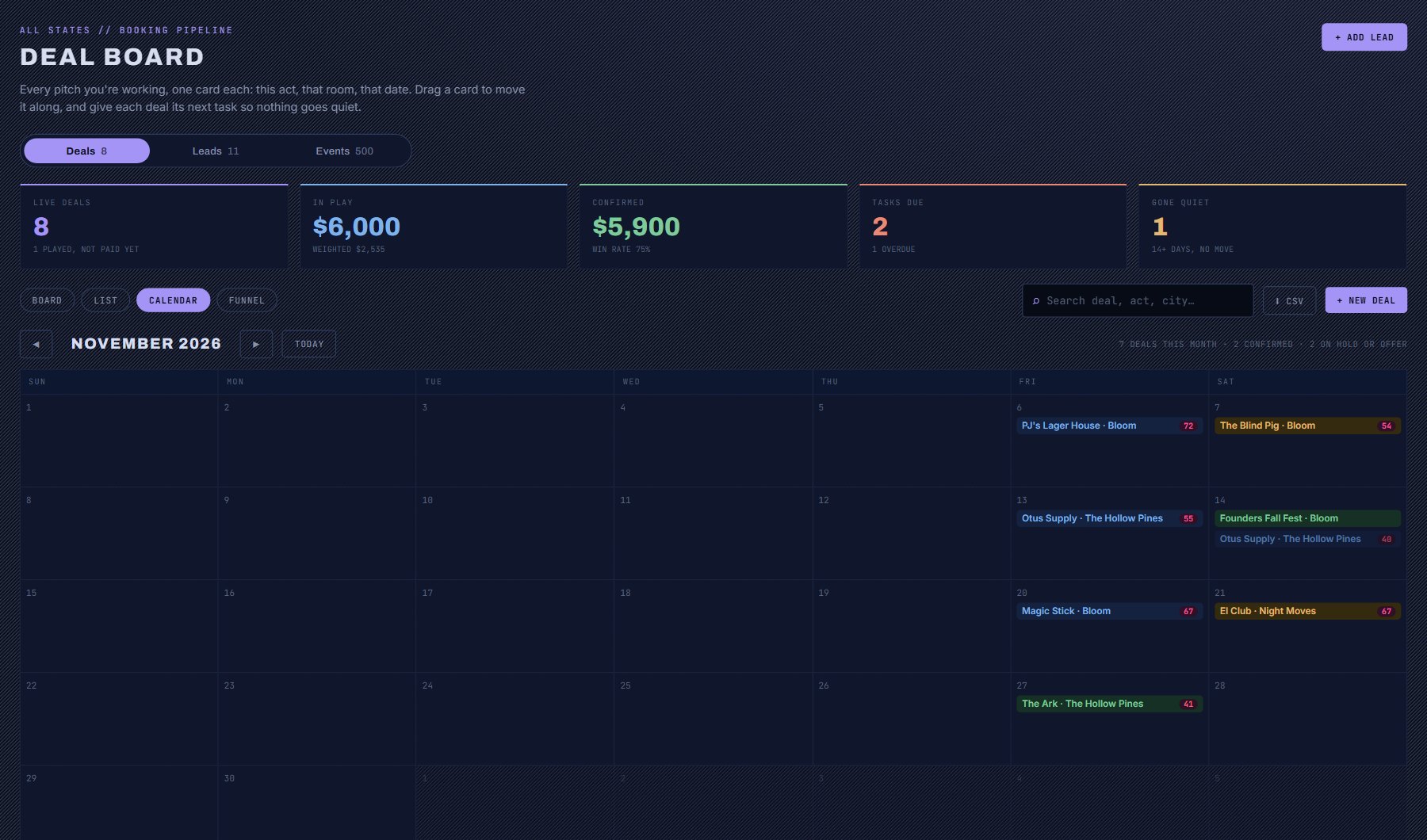
- Use the arrows to change month, or Today to come back.
- When a month is empty, a button offers to jump to the next month that has a dated deal.
- Click any chip to open the deal.
- Use it before you confirm: if a hold sits on a night in the 80s or 90s and the next night is quiet, that is worth a conversation with the venue.
The Funnel report: what your pipeline is telling you
Press Funnel on the Deals tab. It answers four questions: how far do my deals get, where do they stall, how often do I win, and where do I lose?
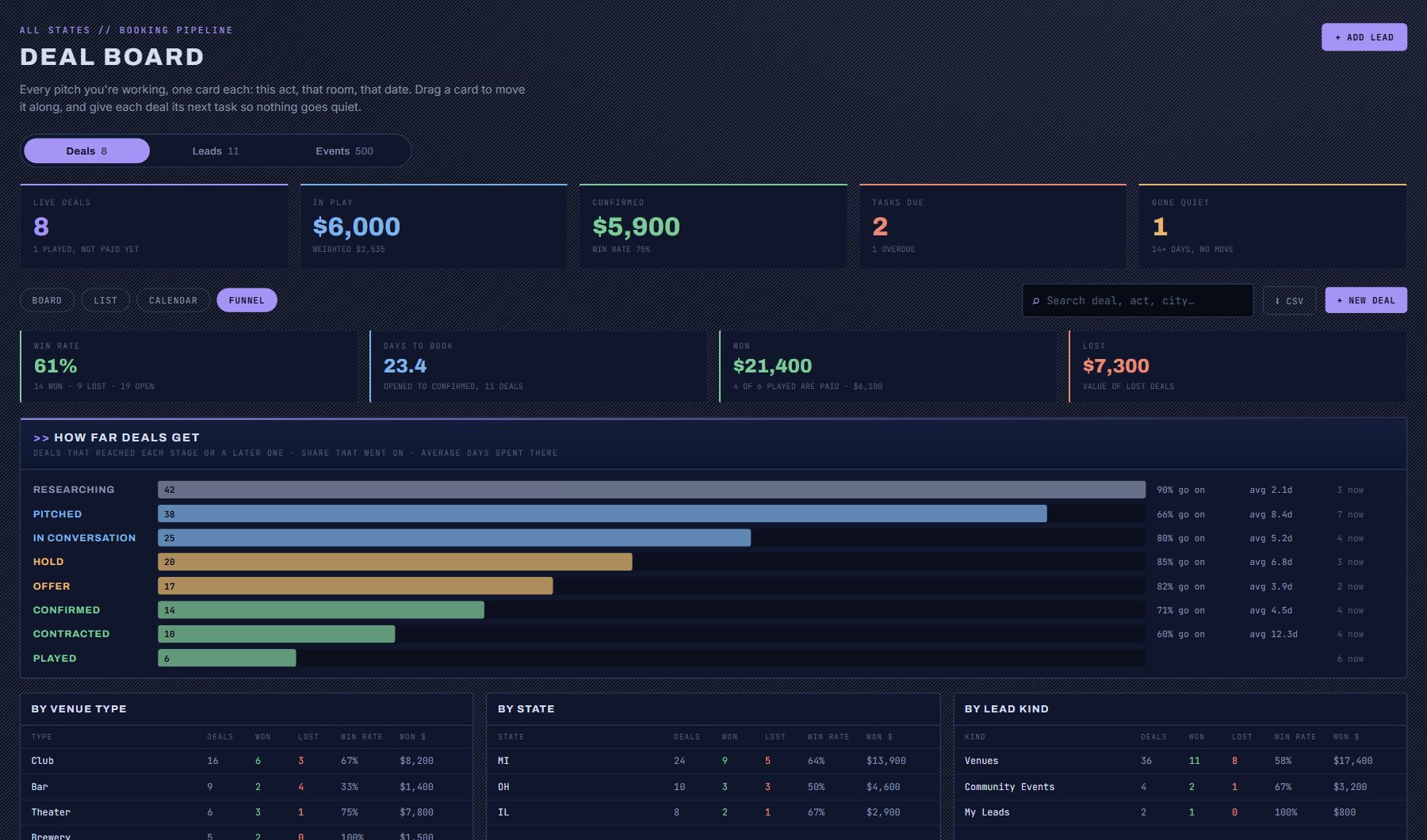
| On the report | How to read it |
|---|---|
| Win rate | Won deals divided by won plus lost. Open deals are not counted either way. |
| Days to book | The average time from opening a deal to its first Confirmed. |
| How far deals get | One bar per stage: the number of deals that reached that stage or went further. |
| "% go on" | Of the deals that reached this stage, the share that reached the next. A low number is where your pipeline leaks. |
| "avg d" | Average days a deal spent in the stage before moving. |
| "now" | Deals sitting in the stage today. |
| By venue type, state, lead kind | Where you win and lose. A venue type with a low win rate may not be worth the emails. |
| Why deals were lost | Your own reasons, counted. Only as good as the reasons you type on lost deals. |
Deals and tours
A deal with a venue can sit on one stop of a tour. Once it does, the two follow each other: you can work from the Tour Planner or from the board, whichever you have open, and the other side keeps up.
You rarely need to link by hand. Setting a stage on a stop's venue in the Tour Planner links the deal to that stop. And when any venue deal with a show date reaches Hold, it looks for a stop on that date in your tours, either already at that venue or an open date in the venue's city, and puts itself there. If the stop had no venue, the venue is filled in.
To link or unlink by hand, open the deal and use Tour stop. Unlinking deletes nothing.
| You do this | This follows |
|---|---|
| Move the deal to Hold, Offer or Confirmed | The stop's status becomes Hold, Offer or Confirmed. |
| Move the deal to Lost | The stop's status becomes Passed. |
| Set an amount on the deal | The stop's guarantee is filled in, if it had none. |
| Set the stop to Hold, Offer, Confirmed or Passed | The deal moves to match. If the stop had no deal, one is opened. |
| Change the stop's date | The deal's show date changes with it. |
| Swap the stop's venue for another | The old deal comes off the stop and stands on its own. |
Doing it by asking
Ask the Data can read and change your pipeline in plain words. A question costs from 1 AI credit. Some things to try:
- "Which of my deals are on hold, and what is the next task on each?"
- "What has gone quiet?"
- "Open a deal with The Ark for March 14 with Bloom at $900."
- "Move the Fillmore deal to Offer."
- "Add a task to the Magic Stick deal: send the stage plot, due Friday."
Questions people ask
| Question | Answer |
|---|---|
| Where did the Contacted / Replied / Booked buttons go? | They became deals. A lead's stage is now the stage of its most recent deal. Leads that already had a stage were turned into deals for you: Contacted became Pitched, Replied became In conversation, Booked became Confirmed. |
| Can I pitch the same venue twice? | Yes. Open the lead and press + New Deal again. Each date or act is its own deal. |
| I moved a card by mistake. | Drag it back. Both moves are kept in the deal's history. |
| A card moved to Played on its own. | Its show date passed. Confirmed and contracted deals move to Played the day after the show. If the show did not happen, move the deal to Lost and say why. |
| How do I get rid of a deal? | If it fell through, move it to Lost and say why; it stays in your record and in the Funnel report. If it was a mistake, open it and press the bin. |
| If I remove a lead, what happens to its deals? | They stay on the board with the name they had. |
| Why is a card amber? | It has been waiting on an answer for 14 days or more. Follow up, add a task, or move it to Lost. |
| Why is there no number on a calendar chip? | Night Pressure needs a market. It shows for upcoming dates on deals with a venue or event. |
| Does anything send email for me? | No. Outreach drafts are written for you to copy or open in your own mail. The only email Cultivate sends you is the weekly digest. |
| Does Cultivate know when I email a venue? | Only when you tell it. Start the email from the lead and answer Sent when you come back, and the pitch is logged on the deal. An email you write from scratch in your own mail is not seen: drag the card to Pitched yourself. |
| Who else can see my deals? | Only the people with a seat on your account. |
Where to find it
In the console: My Work > Booking Pipeline. Press ? on that screen for the short version, or open the screen if you are signed in. The screen's own page: Booking Pipeline.