Send day sheets to the crew
Put the crew on the tour with their emails, fill a stop's day sheet, send it as a phone page, and let the tour send tomorrow's sheet by itself every evening. About ten minutes.
What you will set up
Every stop in the Tour Planner has a day sheet: the day's times, the venue and its contacts, load-in and parking, wifi, the running order, guest list and merch, lodging and the drive in. Sent, it becomes a phone page for each crew member, with a GOT IT button so you know who has read it.
Sending to crew is part of the Professional plan; on other plans PHONE VIEW opens the sheet on your own phone. No AI credits.
1. Put the crew on the tour
- Open the tour in Planning > Tour Planner. In CREW & ROLES on the left, press + ADD CREW.
- Type the name and role, or pick a person from your Contacts, and give each an email address. That address is where the day sheet goes.
2. Fill in a stop's day sheet
- Press DETAILS on the stop's card and open SHEET.
- Work through the tabs: the schedule (van call, load-in, soundcheck, doors, set, curfew), the venue (entrance and load-in, parking, stage, dressing rooms, catering, wifi), the running order, contacts, guest list and merch, lodging on a hotel stop, and travel.
- Everything saves as you type. Leave blank what you do not know; the sheet shows what is there.
3. Send it
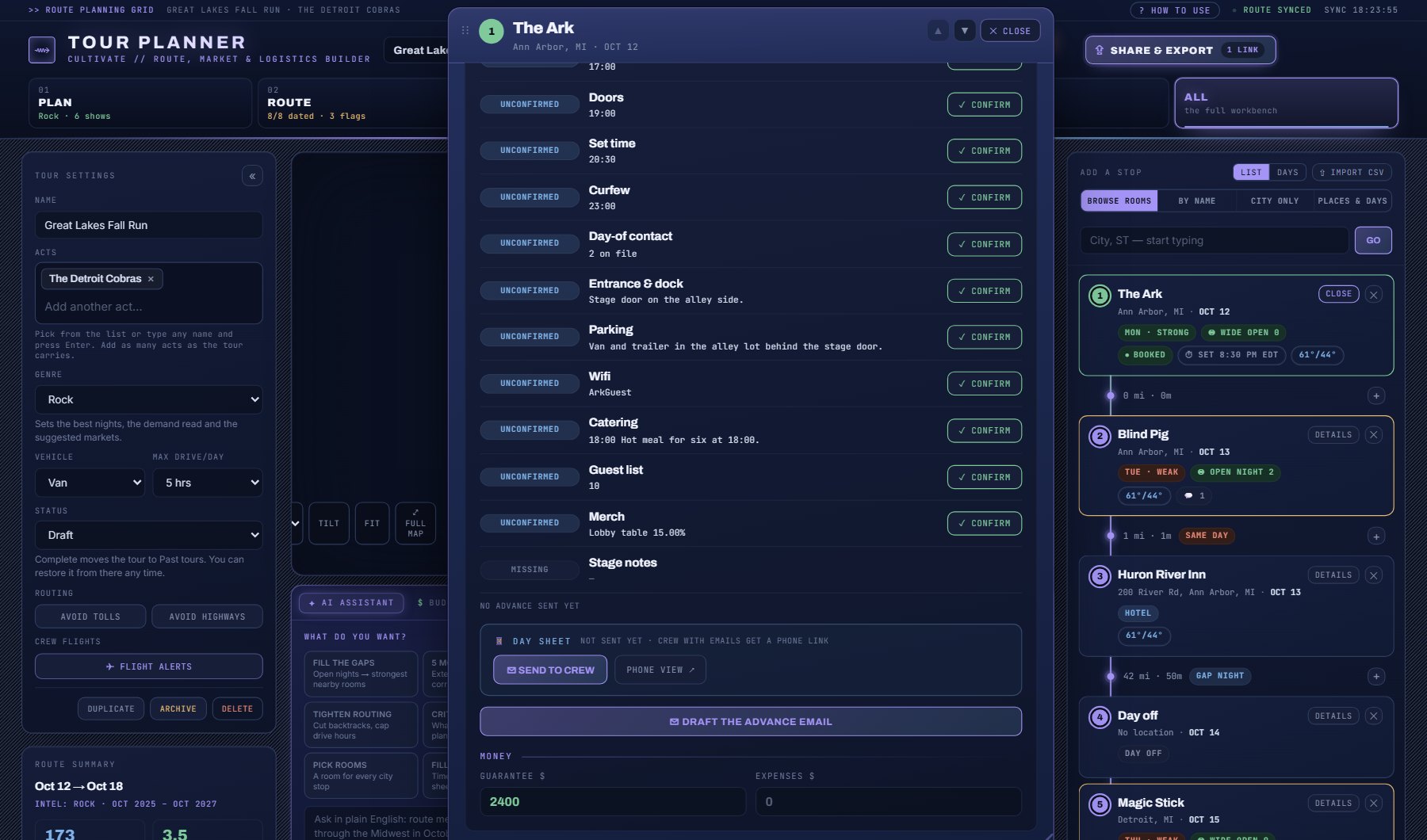
- Open the SHEET's ADVANCE tab (the checklist of what the crew needs) and press ✉ SEND TO CREW. Every crew member with an email gets a link to their phone page.
- The line under the button reads SENT TO 3 CREW, how long ago, and how many pressed GOT IT; each person who has is listed.
- Change something after sending and the tab says CHANGED SINCE THE LAST SEND with what changed; ✉ RESEND TO CREW sends it again.
- Open PHONE VIEW yourself to see the page the crew gets: the times big, tap-to-call contacts, wifi with a copy button, directions, and a WHAT CHANGED note.
4. Let the tour send them by itself
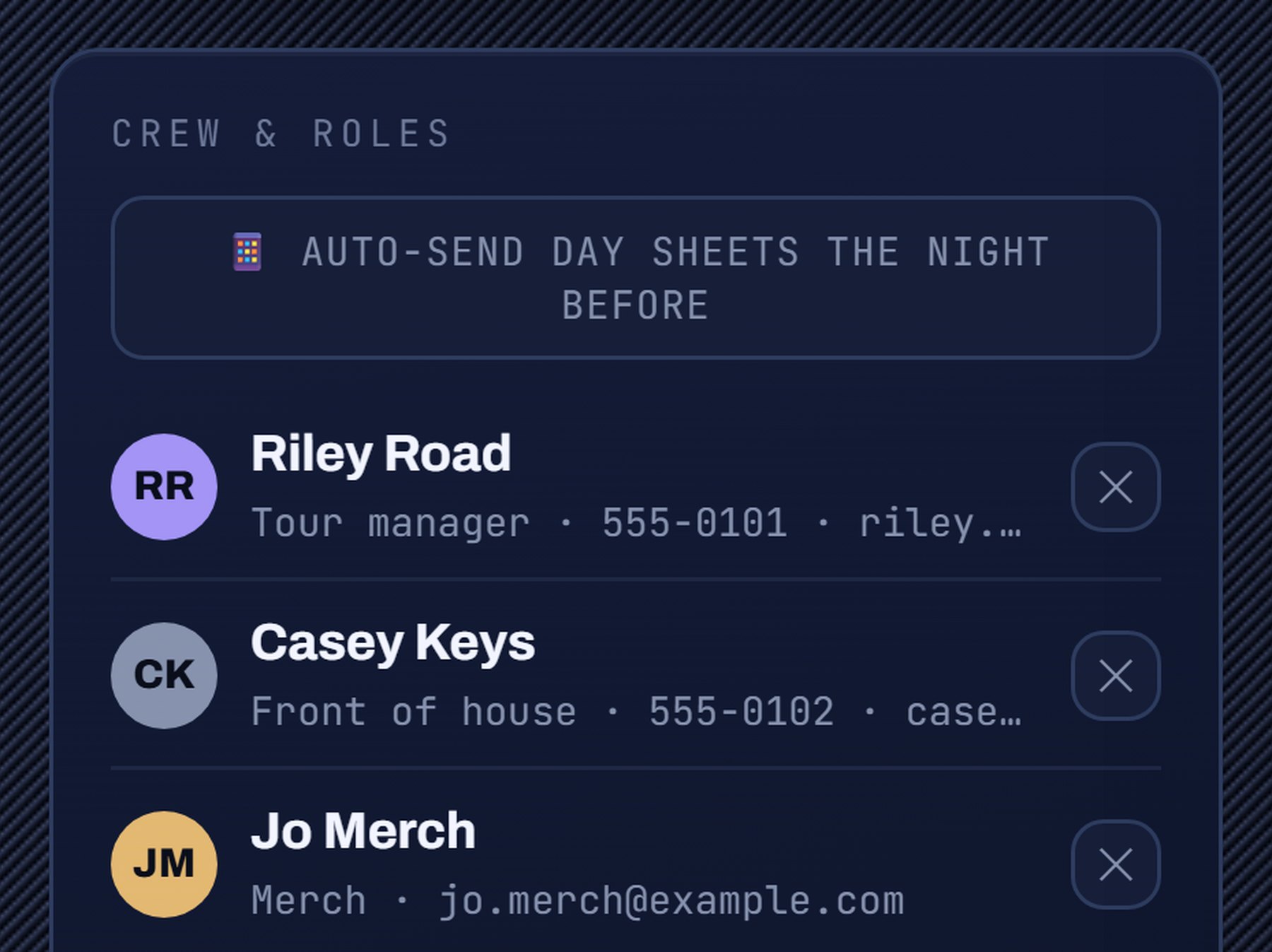
- In CREW & ROLES on the left, press AUTO-SEND DAY SHEETS THE NIGHT BEFORE.
- It turns green: DAY SHEETS AUTO-SEND · 6 PM THE NIGHT BEFORE. Every crew member now gets tomorrow's sheet at 6 PM local, the evening before each stop.
Where to go next
Watch the crew's flights on each stop's TRAVEL tab (see Watch a flight on a tour): the phone page lists who to pick up and when.
The Tour Book's crew edition prints every day sheet in one PDF for anyone who wants paper.
Where to find it
In the console: Planning > Tour Planner. Press ? on that screen for the short version, or open the screen if you are signed in. The screen's own page: Tour Planner.