Export a venue or a project
Get a venue, a project or a tour out of Cultivate as something you can send: a printable report, a share link that opens a brochure, or a PDF. About five minutes.
What you can export
Cultivate hands work over in three shapes. A venue's booking profile is a full-page report you print or save as a PDF. A project becomes a project brief: a magazine-style brochure behind a share link, which anyone can open without signing in and print to PDF. A tour becomes a Tour Book the same way, in crew, pitch and management editions.
Share links are part of the Professional plan. A booking profile costs 3 AI credits the first time; reopening a saved one is free.
| You want to send | Export | Where |
|---|---|---|
| A venue | Booking profile, printed or saved as PDF | The venue's window, Booking tab |
| A project | Project brief: a share link that opens a brochure | SHARE at the top of the project |
| A tour | Tour Book: a share link per audience, print, calendar file | SHARE & PRINT in the Tour Planner |
1. Export a venue
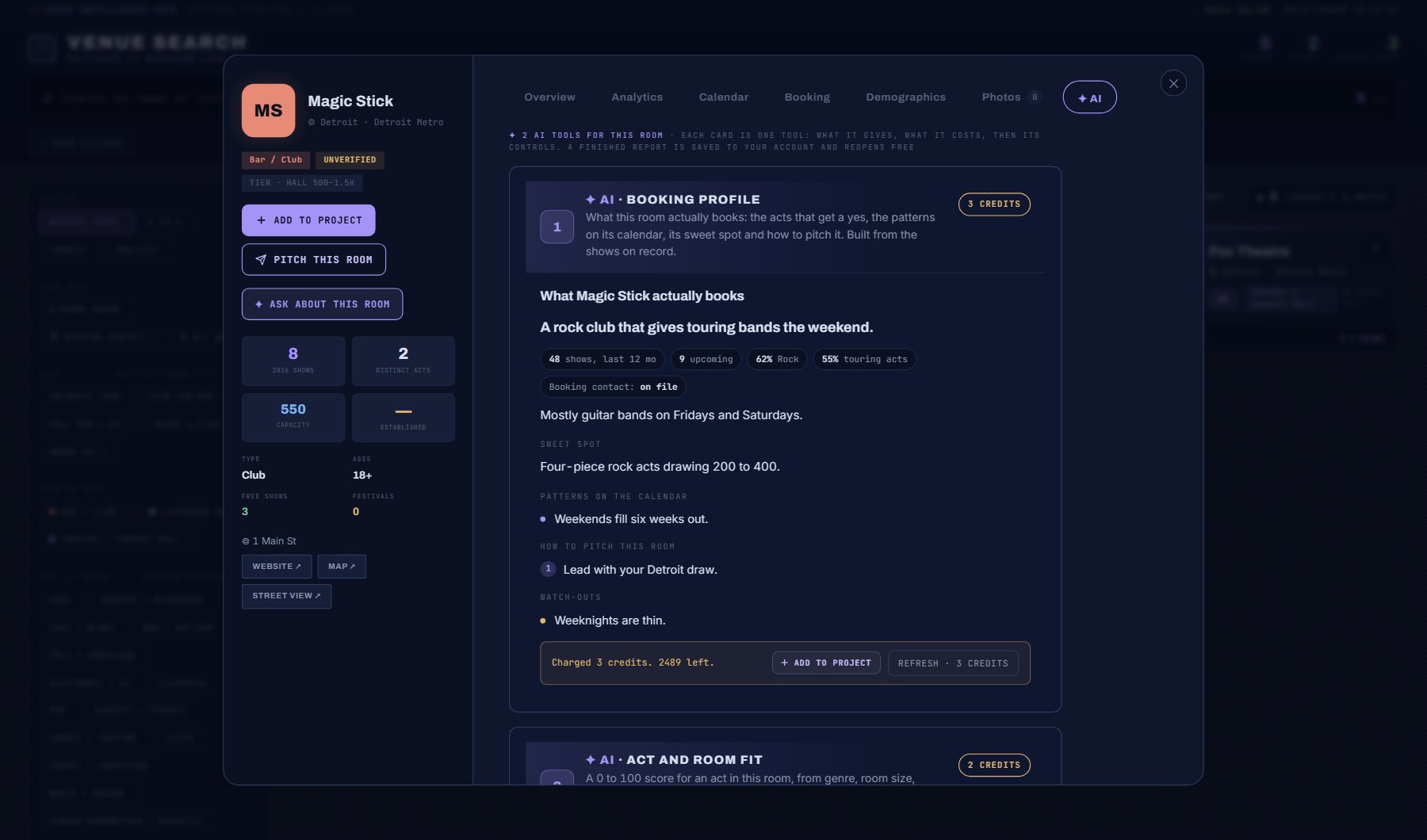
- Open the venue from Discover > Venues (or anywhere a venue is listed) and go to its Booking tab.
- Press Build the booking profile. Your AI Assistant writes it from the venue's record: what it books, the sweet spot, patterns, how to pitch it, watch-outs. It is saved to the venue, so it opens free next time.
- The report opens full-page. Press PRINT / SAVE PDF and choose Save as PDF in the print dialog. Only the report prints.
2. Export a project
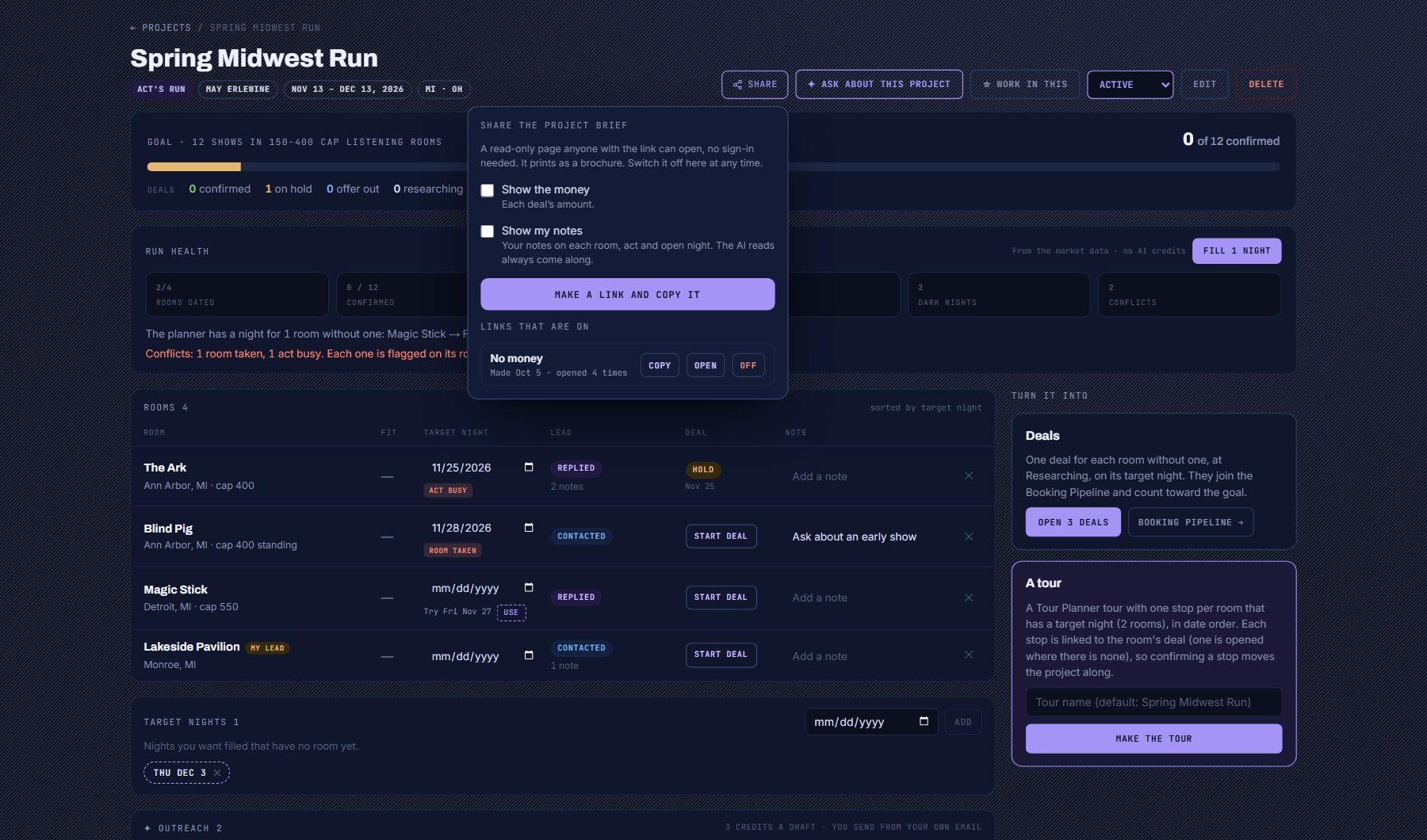
- Open My Work > Projects and the project. Press SHARE at the top.
- Decide what the page shows. Show the money adds each deal's amount; Show my notes adds your notes on venues, acts and nights. Both are off unless you tick them. The AI reads (one-sheets, booking profiles, market entry, fit reports, deal reads) always come along.
- Press MAKE A LINK AND COPY IT. The link is on your clipboard; paste it into an email or a message.
- Open the link yourself to check it. It opens as a brochure: a cover, a contents page by section, one page per read. Press PRINT / SAVE AS PDF at the top for a PDF.
3. Export a tour
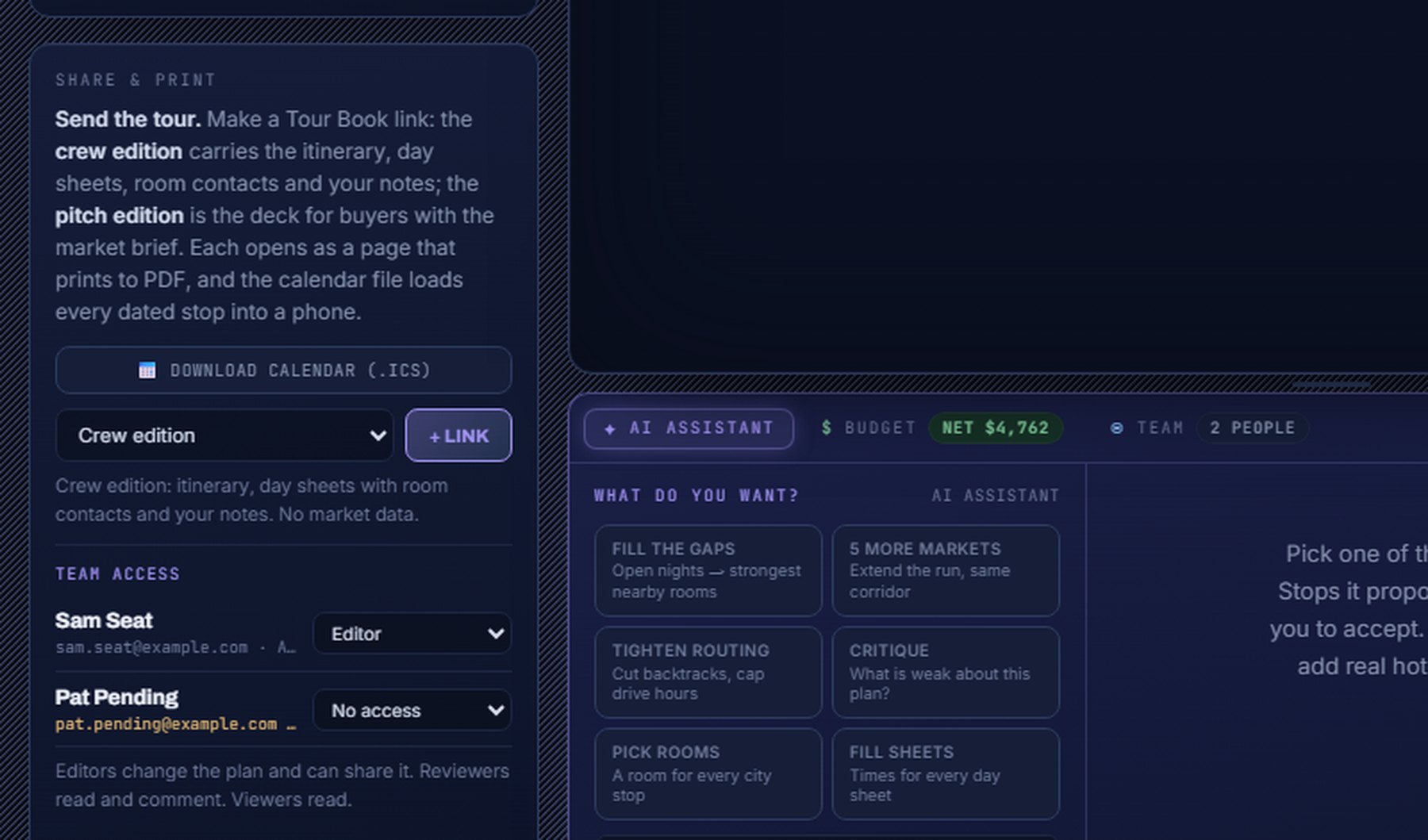
- Open the tour in Planning > Tour Planner and press SHARE & EXPORT in the header (it jumps to SHARE & PRINT).
- Make a link for the audience: crew (contacts and notes), pitch (the market brief, no notes, shows only) or management (everything, budget included).
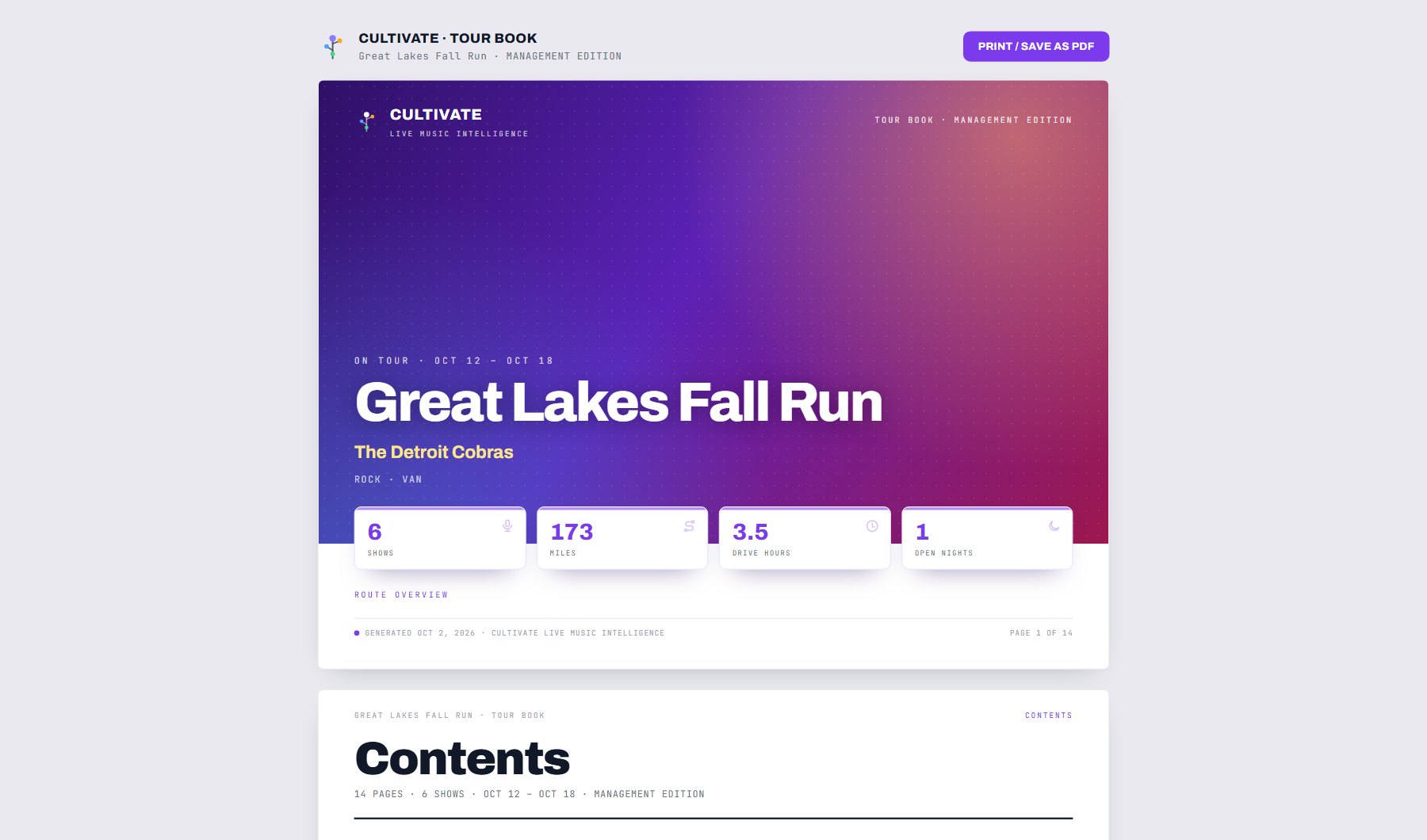
- Open the link: the Tour Book has a cover, a contents page, the itinerary, the crew, the budget on the management edition, and a day sheet per stop. PRINT / SAVE AS PDF prints one page per sheet.
- DOWNLOAD CALENDAR saves the tour as a calendar file (.ics) for a phone or desktop calendar.
Where to go next
A deal has the same SHARE button as a project; its page is a one-deal sheet: the act, the venue, the night and the fit.
The leaderboard reports under Research > Reports print the same way, from the PRINT button on each.
Where to find it
In the console: My Work > Projects. Press ? on that screen for the short version, or open the screen if you are signed in. The screen's own page: Projects.