Projects
A goal and everything you are gathering toward it. An act's tour holds the venues you are aiming at for one act, each on a target night; a venue's calendar holds the acts you want for one venue's open nights. A project links to your venues, acts, leads, saved reports and contacts without owning them, so the same venue can sit in several projects and nothing is lost when a project is deleted. Progress counts the project's confirmed shows against its goal.
Tutorials for this screen
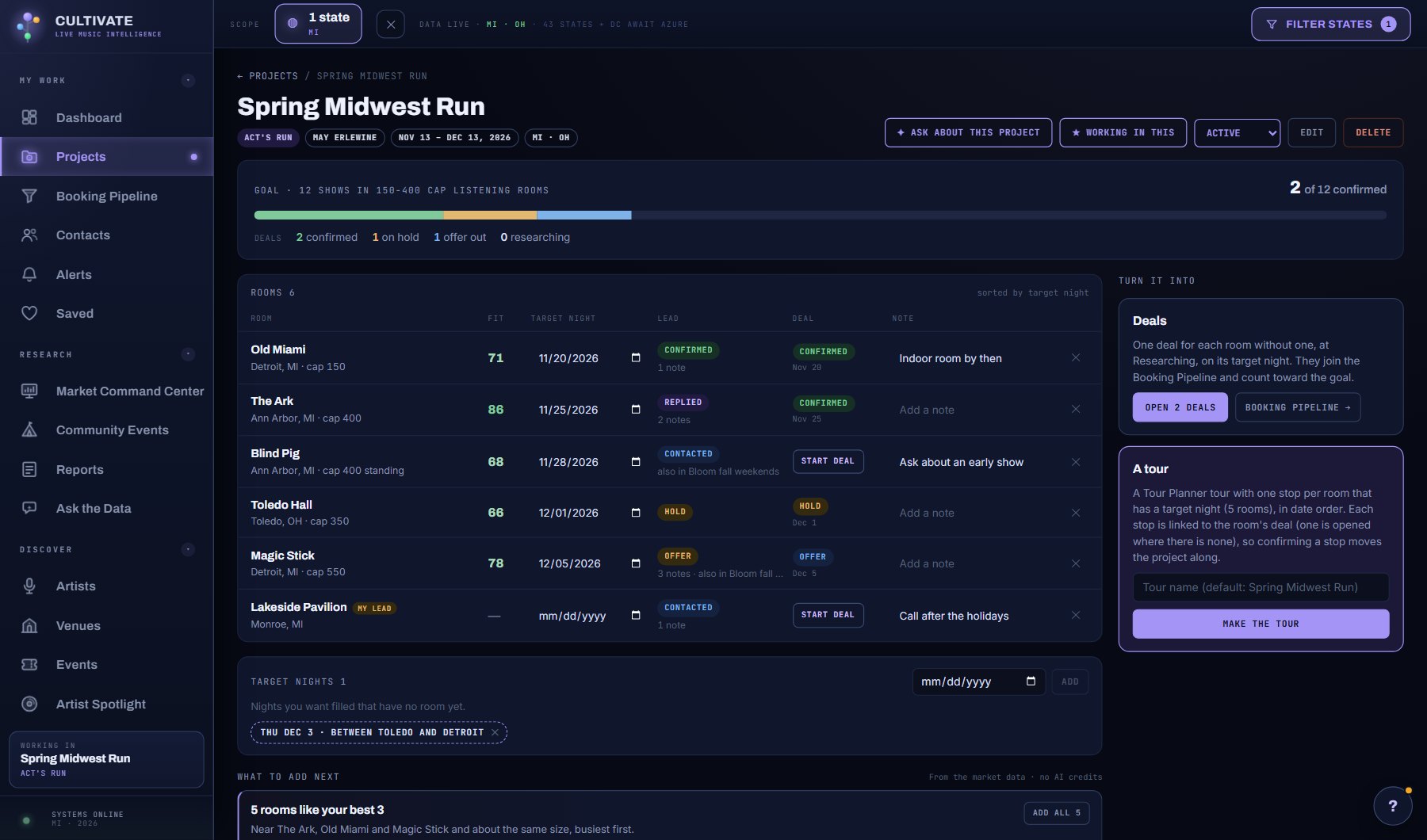
What is on the screen
- The Projects screen: one card per project with its kind, status, goal and confirmed count, status chips, and + New project.
- A project's header: the name, kind, act or venue, window and states, with Ask about this project, Work in this, the status, Edit and Delete.
- The goal with its progress bar and the health strip: venues dated, road miles and drive hours, dark nights and conflicts.
- The table: Venue (or Act), Fit, Target night with its night read and flags, Lead, Deal, Note; then Target nights or Open nights, Reports and Contacts.
- Turn it into on the right (Open deals, Make the tour), What to add next under the rows, OUTREACH, and SHARE.
Try this
- Press + New project. Step 1 is two cards, An act's tour and A venue's calendar, each saying what it holds, what you get out of it and who it is for; the one matching Your AI on your Account page is marked recommended. Step 2 puts the act or venue first: pick it from the list and its record (shows, upcoming, cities, states, or a venue's size and what it books) appears beside the form, with what happens next. Give it a goal like 12 shows and a date window; states sit under More options.
- A new act's tour fills itself: the venues the act has played are offered under What to add next before it has a single venue, most shows first. Press Add all. Set a venue size in the rules (Edit) and every venue suggestion keeps to it.
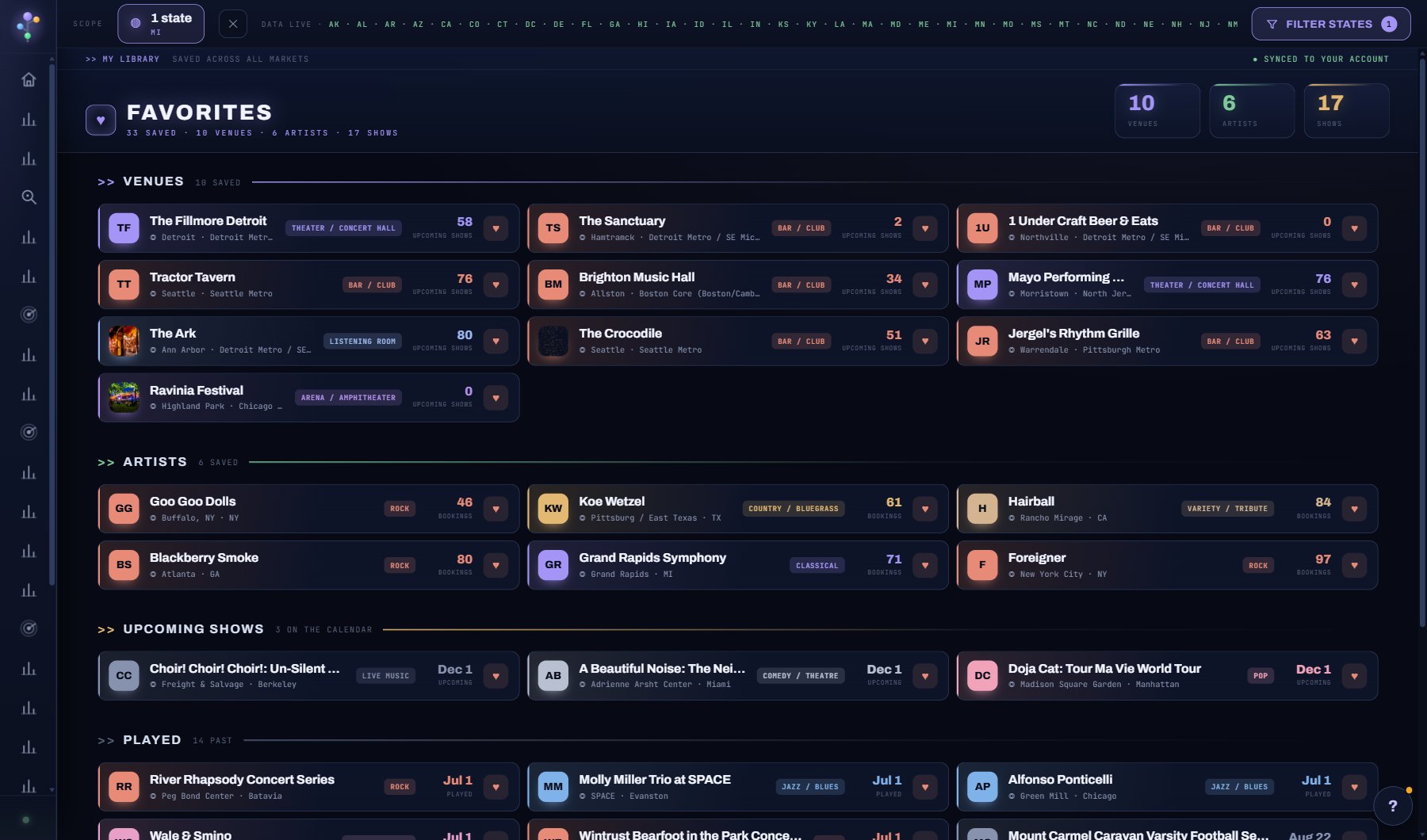
- Fill it from anywhere: + ADD TO PROJECT on any venue or act window, a saved AI report or a Competition Grid night. The project you are working in (Work in this pins it to the bottom of the menu) is ticked for you, and adding a venue or act saves it too.
- Set each venue's target night and a note right in the table. Fit, the lead stage, note count and the other projects that hold the same venue show on every row. A saved report's card opens the report full-page, free.
- Read the health strip under the goal. An act's tour shows venues dated, road miles and drive hours between the dated venues (real drives from Azure Maps, the same legs the Tour Planner uses; the tile says road miles when every leg is one), dark nights and conflicts; a venue's calendar shows acts dated, open nights and conflicts. It comes from the market data and costs no credits.
- Conflicts are flagged on the row: the act already plays elsewhere that night, the act is already aimed at that night in another of your projects, a tour stop or a deal (Act committed, naming where), the venue has another show, two rows on one night, a drive too long for a back-to-back, a weekday your rules avoid. Hover a flag for the reason.
- Every dated row carries the plan's night read: OPEN, QUIET, BUSY, CROWDED or GRIDLOCK, with the live-music shows in the venue's region that night, from the market data. The Competition Grid scores the full night; this is the count the plan has.
- A deal on hold says when the hold lapses beside its stage on the row (Hold until, set on the deal). It turns red within three days or once it has passed, and the Dashboard's Needs attention reminds you a week ahead.
- Rows without a night show a suggested one with why (the venue's usual weekday, how quiet the region is, the drive from the last stop). Press USE on one, or Fill nights on the strip to set them all.
- Set the project's rules in Edit: weekdays to avoid, the longest drive between nights, days between shows, and anything else in words. The planner and your AI Assistant obey them.
- A venue's calendar also shows its mix: planned genres against what the venue books, weekdays against the venue's usual nights, local against touring, Reach bands, and the gaps.
- Read What to add next under the rows: venues like your best ones, venues with a target night free, acts routing through, quiet nights. It comes from the market data and costs no credits; + Add puts one in.
- Press Ask about this project for your AI Assistant with the project already loaded. It reads the plan (legs, conflicts, suggested nights), looks up venues, nights and acts, fills the nights or records a rule when you agree, and adds what you agree to. Each step is 1 AI credit; look-ups are free.
- Press Start deal on one row, or Open deals under Turn it into for every row without one. The deals join the Booking Pipeline at Researching, carry a PROJECT chip there, and move the progress bar as they advance.
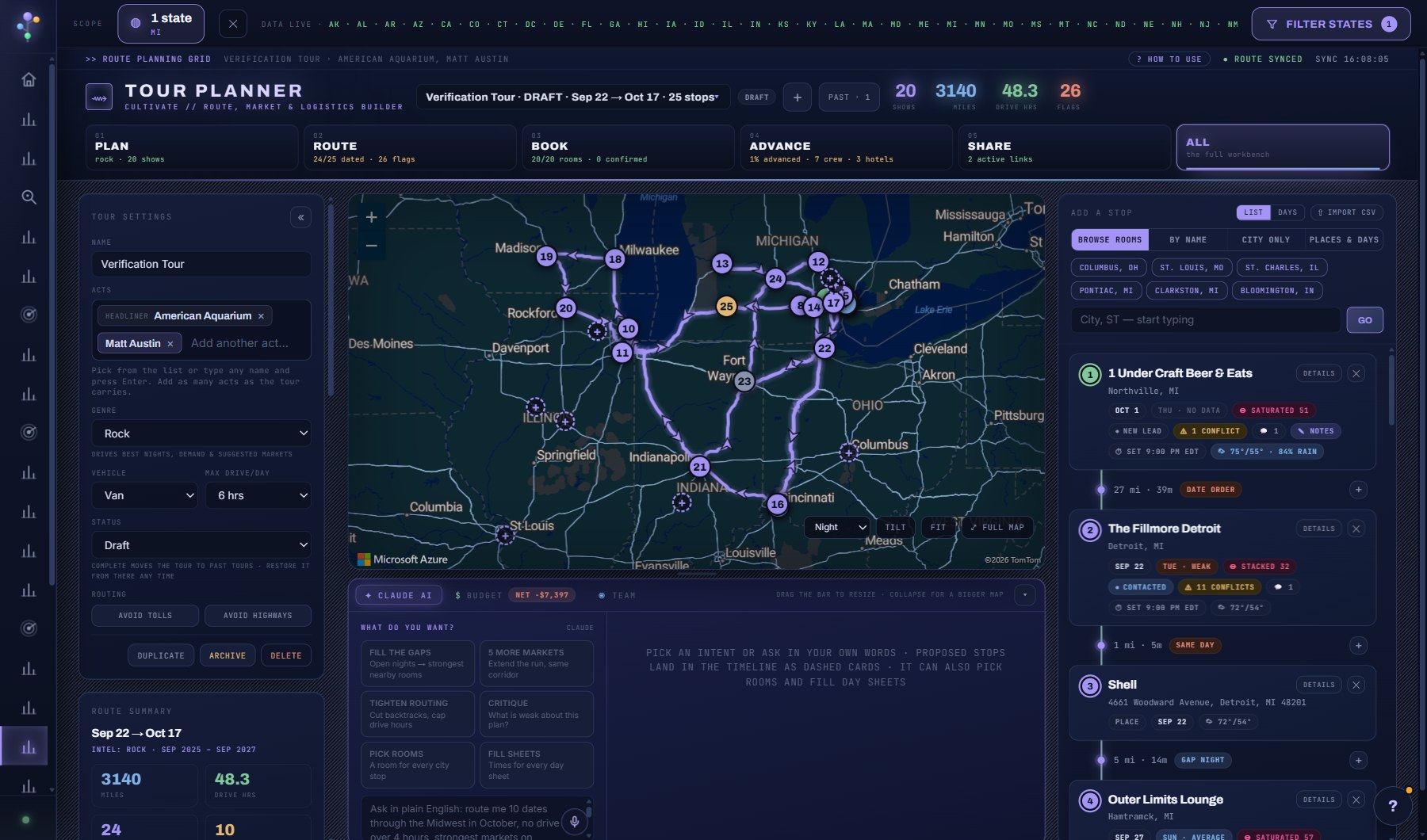
- On an act's tour, Make the tour builds a Tour Planner tour with one stop per venue that has a night, each linked to its deal; Open in Tour Planner takes you there.
- Under the rows, OUTREACH drafts one email per venue or act with your AI Assistant (3 credits each): write the ask, tick who to write to, press Draft. Each draft is grounded in the venue's record, the act, your notes and this project. Edit it, Open in email to send it from your own mail client, then Mark sent, which notes it on the venue or act.
- SHARE in the project header makes a read-only project brief you can send: a cover with a contents page, the goal, the venues or acts and nights in it, where each deal stands, the planner's read of the tour or season, and every AI read saved about the project (one-sheet, booking profiles, market entry, fits, deal reads), as a brochure with page numbers that prints to PDF. Your row notes come along only if you tick Show my notes. Money stays off unless you tick it; switch a link off at any time.
AI on this screen
The cost is on the button before you press it. Reopening a saved report is free, and nothing is charged for an error or an empty answer. See AI credits.
Plan
Every plan. See plans and seats.
Related screens
Where to find it
In the console: My Work > Projects. Press ? on any screen for this guide inside the console, or open the screen if you are signed in.