Draft outreach emails for a project
Have your AI Assistant draft one email per venue or act on a project, read and edit them, and send each from your own mail. About ten minutes.
What you will make
One drafted email for every venue (on an act's tour) or every act (on a venue's calendar) you choose, each grounded in that venue's record, the act, your notes and the project. The drafts live on the project. Cultivate never sends mail: each one opens in your own email program, and you mark it sent.
Each draft costs 3 AI credits; up to 12 are drafted at a time.
1. Get the project ready
- Open My Work > Projects and the project. Make sure the venues or acts you want to write to are on it (+ ADD TO PROJECT from any window).
- Set a target night on each row and type a note where you have one ("ask for a Thursday", "they had us in 2024"). The drafts read these.
- Check who the email goes to. A venue with a booking contact on file, or a contact you linked under My Contacts, gets a TO address; a row without one still gets a draft, but you will have to find the address yourself.
2. Draft them
Scroll to OUTREACH under the project's dates.
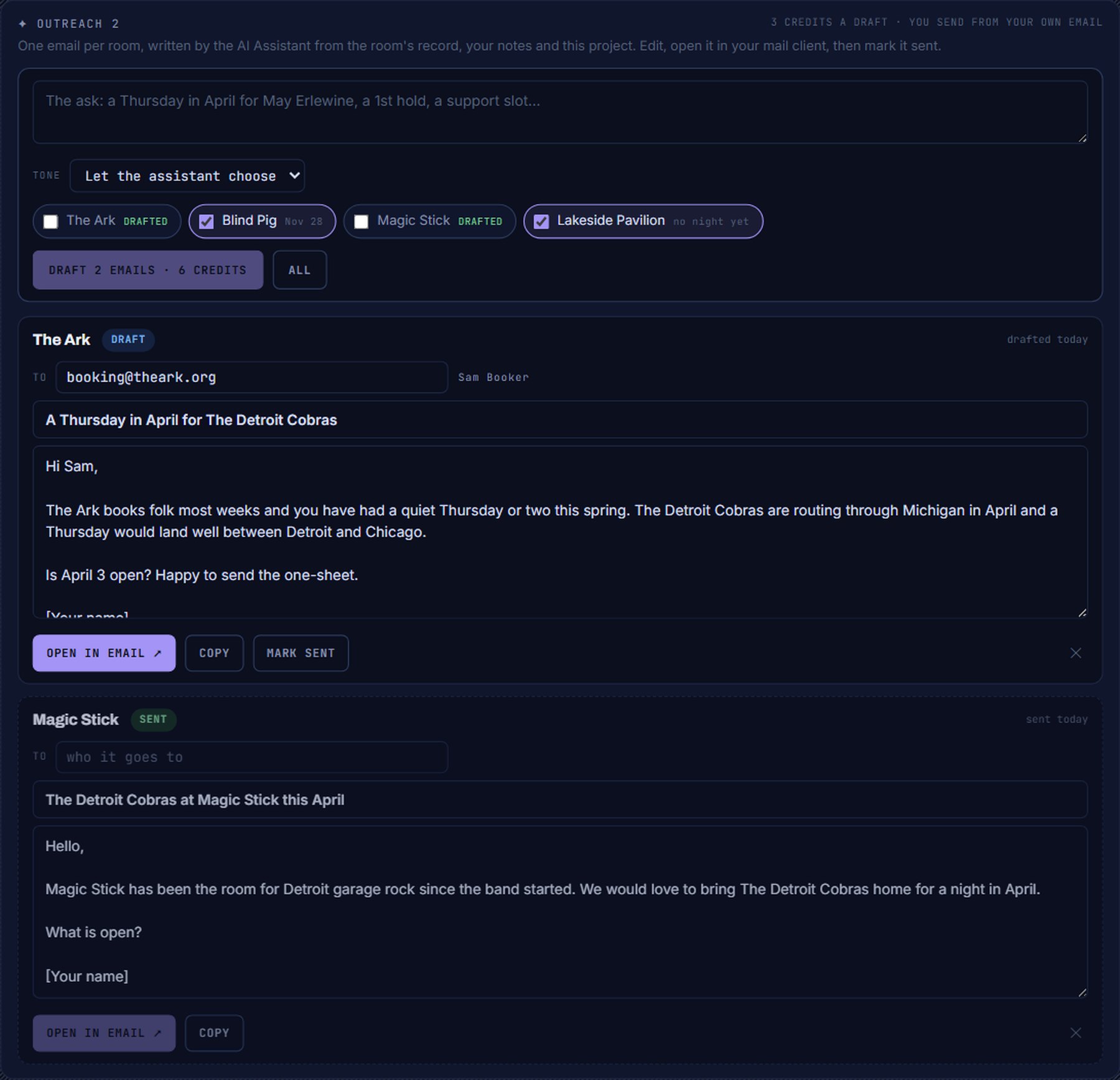
- Write the ask in the box: what you want from each venue, in a sentence or two. One ask covers the whole batch; each draft adapts it to its venue or act.
- Pick a TONE, or leave it on Let the assistant choose.
- Tick the venues or acts to write to. The pills show which already have a draft (DRAFTED) and which have a night; leave a pill unticked to skip it.
- Press DRAFT N EMAILS. The button says the credit cost before you press it. Drafting takes a few seconds per email.
3. Read and edit
- Each draft is a card: TO, subject and body. Read it as the venue would.
- Edit anything in place. Changes save when you click away; SAVED confirms it.
- Drop a draft you will not use with the ✕. Drafting again for that row writes a fresh one.
4. Send from your own mail
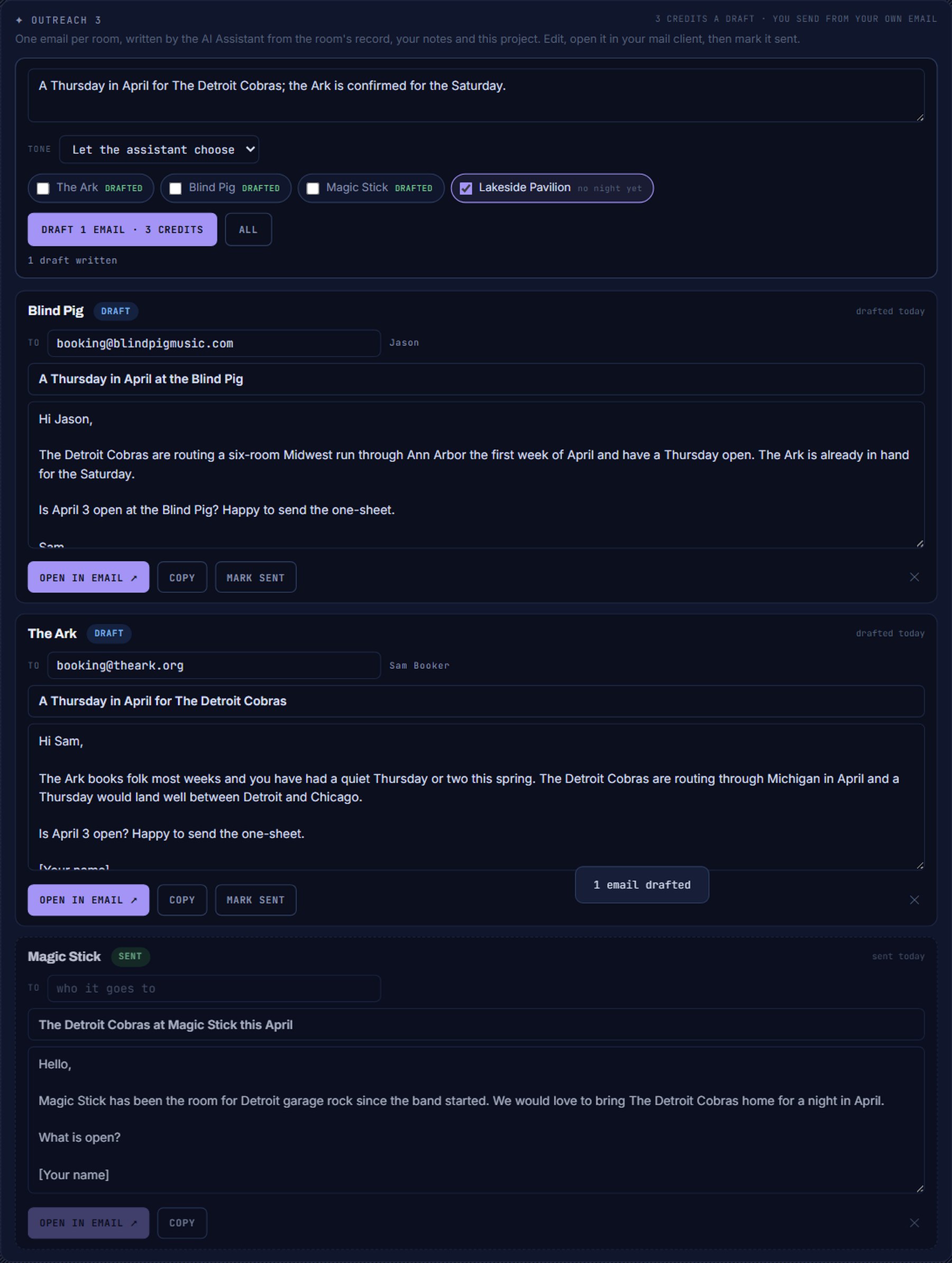
- Press OPEN IN EMAIL on a draft. Your mail program opens a new message with the address, subject and body filled in. (The button is off when the draft has no address; COPY puts the text on your clipboard instead.)
- Send it from there, as you would any email.
- Back in Cultivate, press MARK SENT. The draft is marked sent, and a dated note ("Outreach emailed to ... for <project>") is added to the venue's or act's lead, so the Booking Pipeline knows.
Where to go next
Start a deal for each venue you wrote to (Open deals under Turn it into) so replies have somewhere to land, and set a follow-up task on each deal.
A single lead in the Booking Pipeline has its own Draft outreach button for one email at a time.
Where to find it
In the console: My Work > Projects. Press ? on that screen for the short version, or open the screen if you are signed in. The screen's own page: Projects.