Create a project
Start a project for one act's tour, add the venues you are aiming at, put a night on each, and turn them into deals. About five minutes.
What you will make
A project is a goal and everything you gather toward it. In this tutorial you make one for an act's tour: a named project with a goal, a few venues, a target night on each venue, and a deal for every venue in your Booking Pipeline.
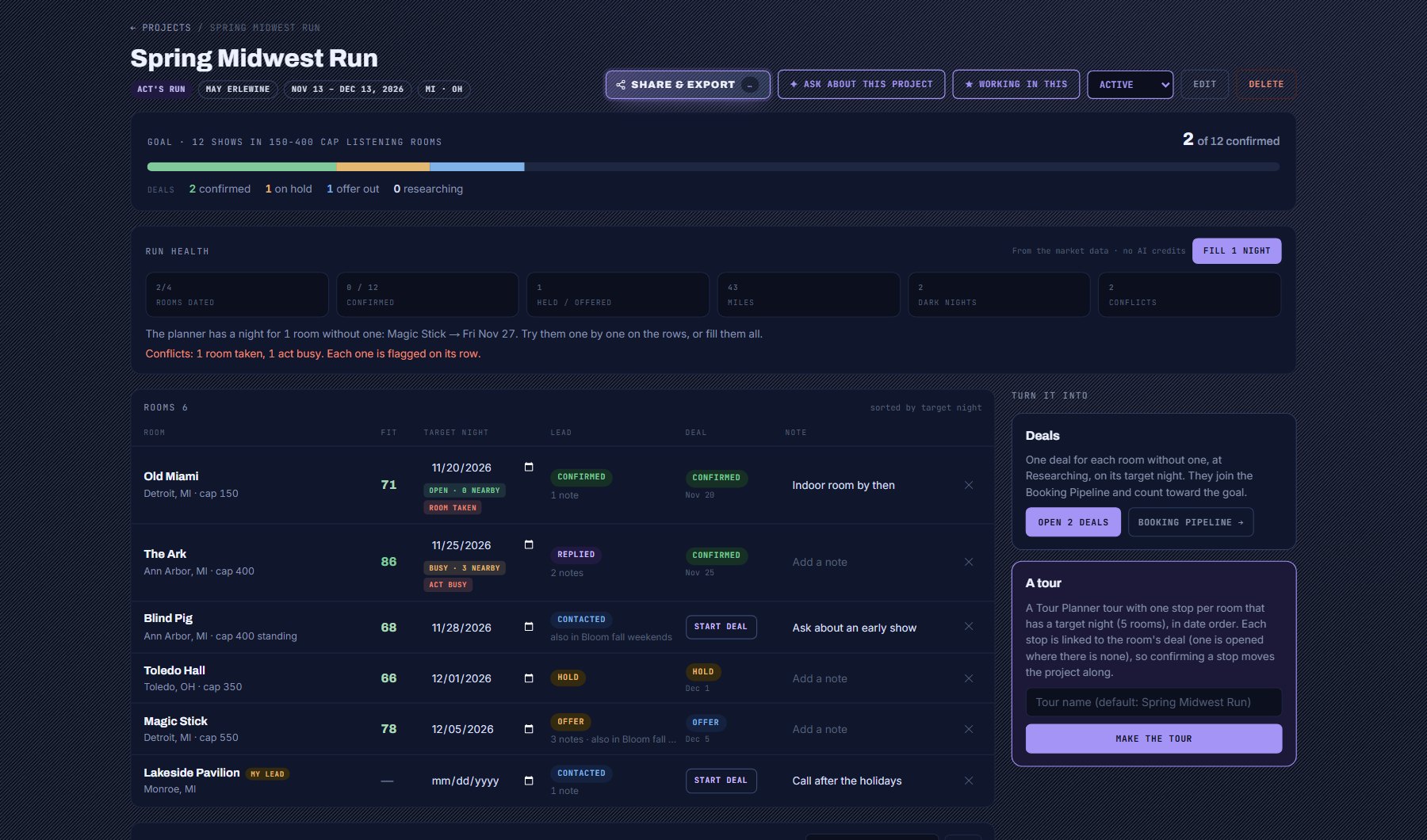
1. Create the project
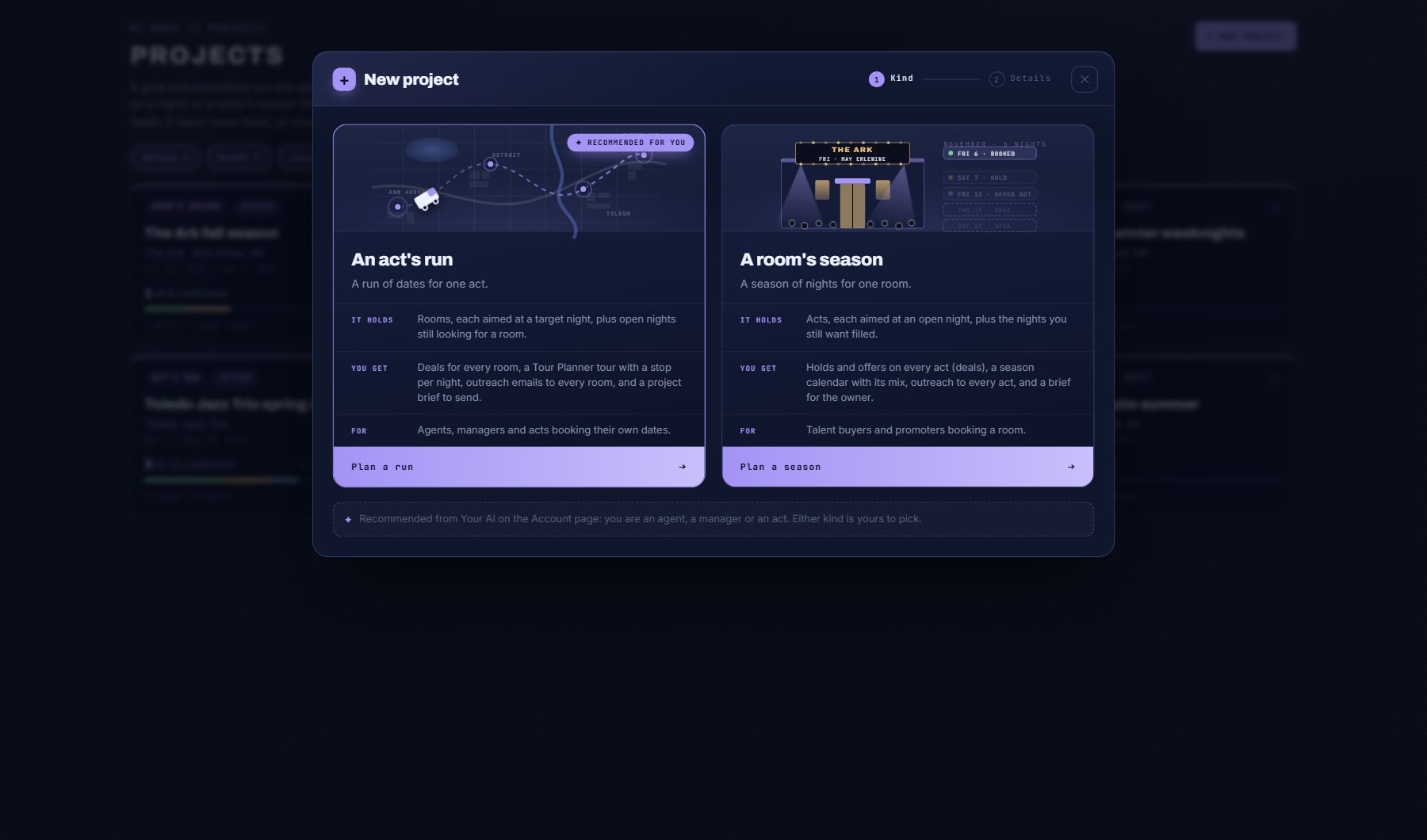
- Open My Work > Projects and press + New project.
- Step 1 shows two cards. Read them: each says what the project holds, what you get out of it and who it is for. Press An act's tour. (If you filled in Your AI on the Account page, the kind that fits your role is marked RECOMMENDED FOR YOU; either is yours to pick.)
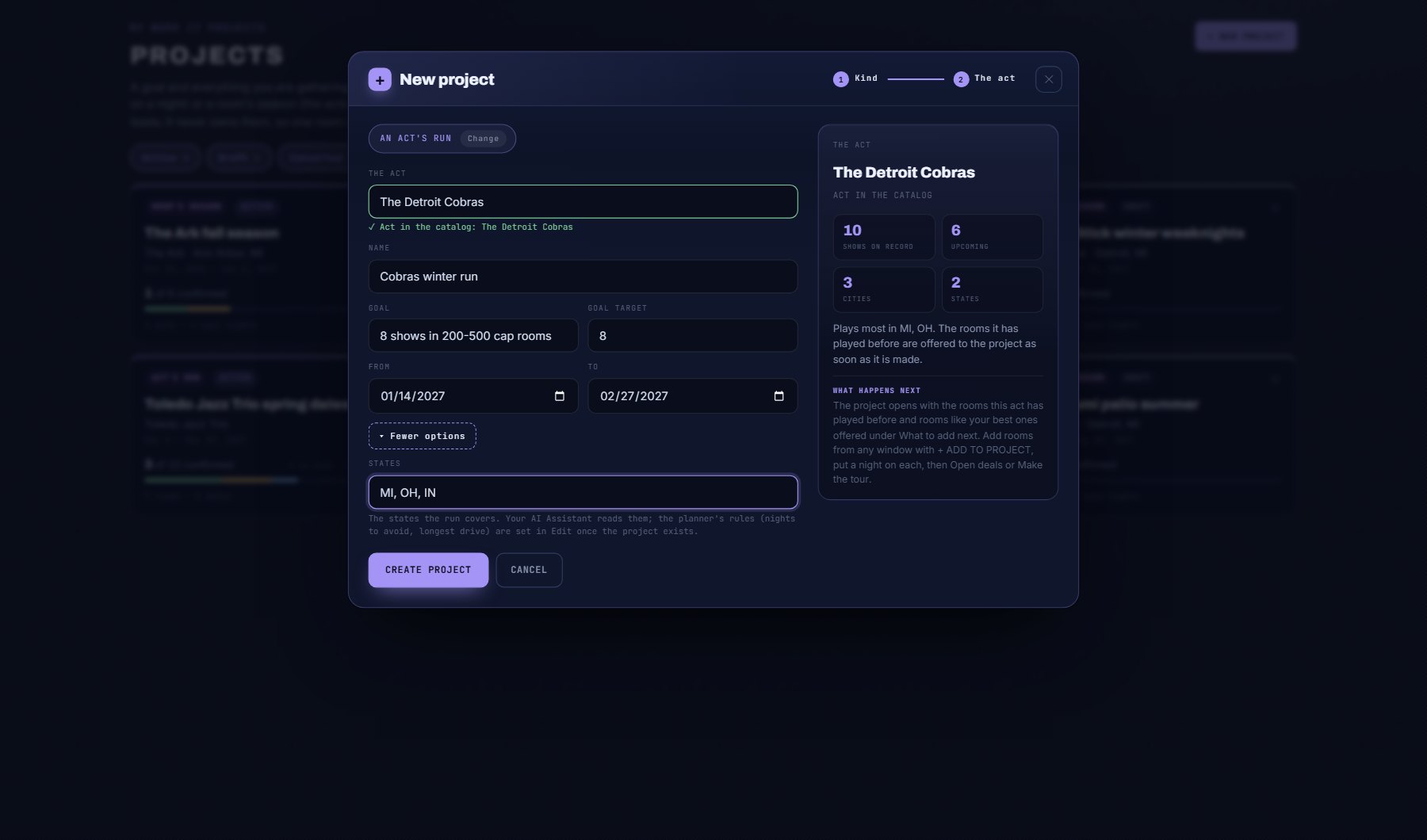
- Step 2 opens with The act at the top. Start typing the act's name and pick it from the list. Its record appears on the right: shows on record, upcoming, cities, states and where it plays most.
- Type a name, for example "Spring Midwest Tour" (the field suggests one from the act).
- Type the goal in words ("12 shows in 150-400 cap venues"), a goal target (12), and the From and To dates of the tour. States, if you want them, are under More options.
- Read What happens next under the preview, then press Create project. The project opens.
The act and the window
Step 2 of + New project, with The Detroit Cobras picked: the act's record on the right and what the project opens with.
2. Add venues
The project opens already offering venues: under What to add next, the venues the act has played before, most shows first. Take those, then add more from wherever you find them.
- Under What to add next, read the card Venues the act has played. Press Add all, or + Add on the ones you want. They join the table at once.
- At the top of the project, press Work in this. The project is now pinned at the bottom of the menu.
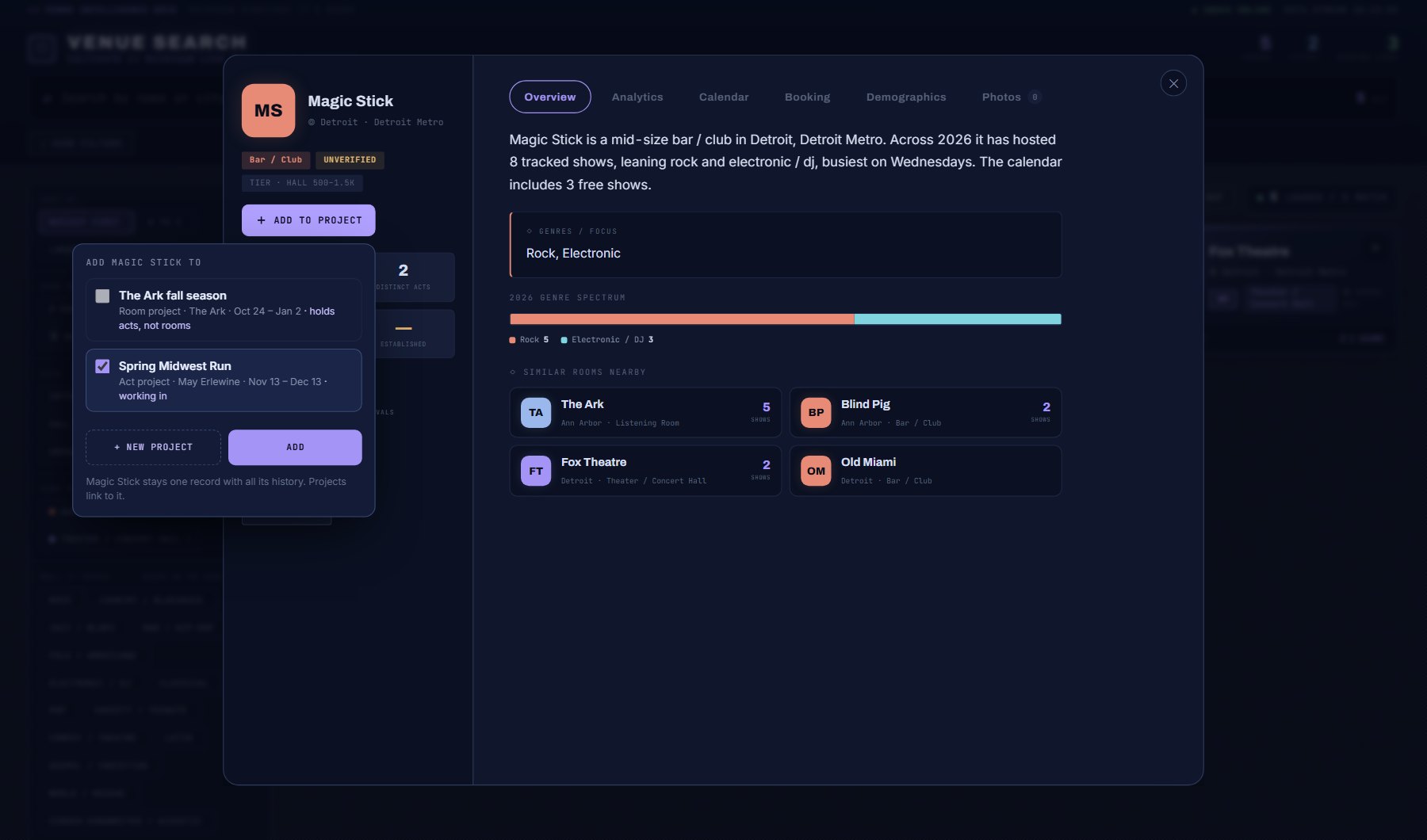
- Go to Discover > Venues and open a venue you want.
- Press + ADD TO PROJECT in the venue's window. Your project is already ticked. Press ADD.
- Do the same for a few more venues.
3. Put a night on each venue
- Come back to the project: click its card at the bottom of the menu.
- In the table, set a target night on each venue. Type a note beside it if you like.
- Under each night, read the night read: OPEN, QUIET, BUSY, CROWDED or GRIDLOCK, with how many live-music shows the venue's region has that night. Move a small venue off a GRIDLOCK night.
- Read the strip under the goal. It counts the venues that have a night and flags conflicts: two venues on one night, the venue taken, the act busy on its record, or Act committed when the act is already aimed at that night in another of your projects, a tour stop or a deal.
4. Turn it into deals
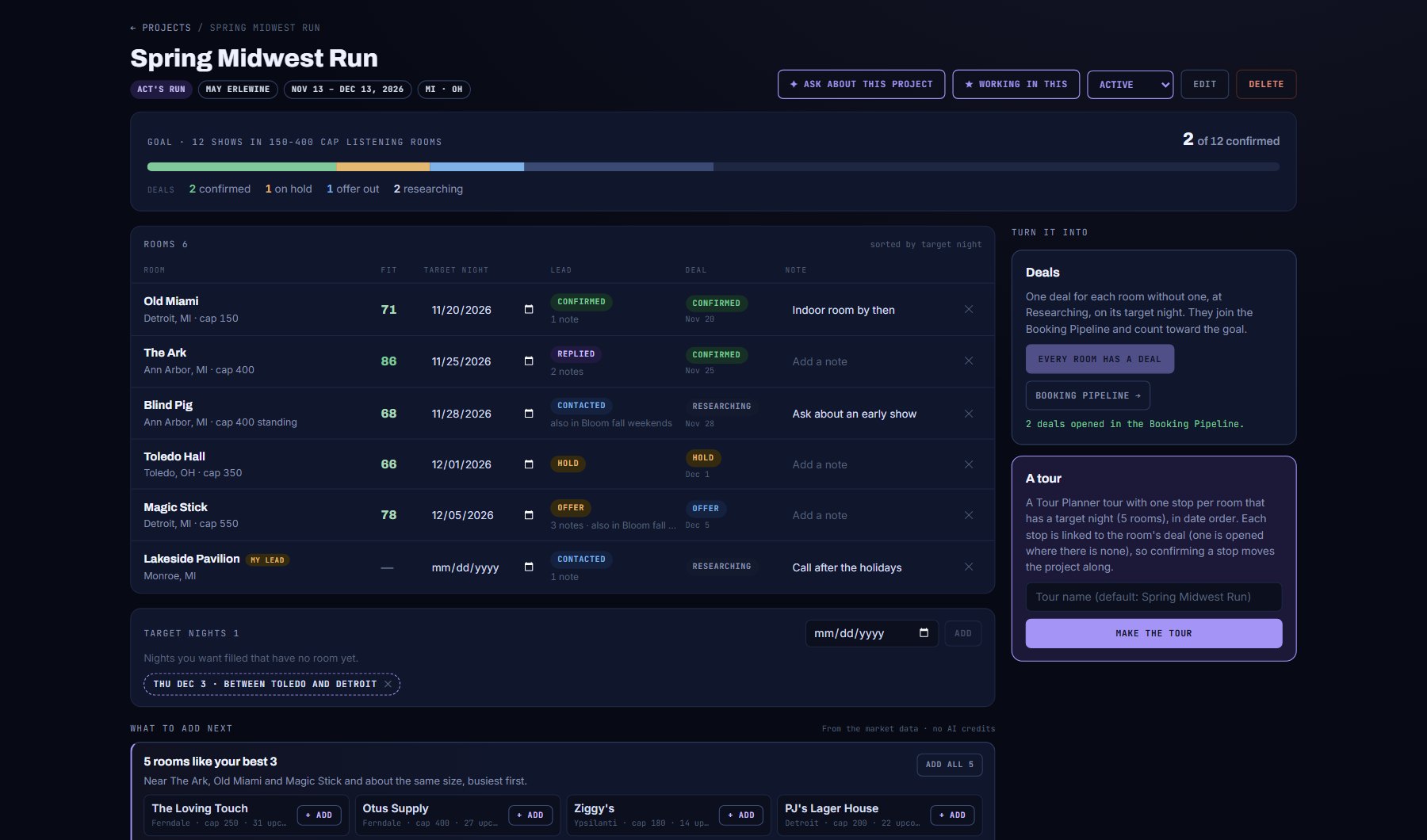
- Under Turn it into, press Open deals. Every venue without a deal gets one, at the Researching stage, on its night.
- Open My Work > Booking Pipeline. The new deals are on the board, each with a PROJECT chip.
- As you move deals along, the project's progress bar counts the confirmed ones against your goal.
- When a venue gives you a hold, move the deal to Hold and set Until: the day the hold lapses. The project row and your Dashboard remind you a week ahead.
Where to go next
Look at What to add next under the table before you search for more venues. It suggests venues like your best ones from the market data, and it costs nothing.
On an act's tour, Make the tour builds a Tour Planner tour with one stop for every venue that has a night. The Create a tour tutorial covers the Tour Planner itself.
The Projects complete guide covers everything else: a venue's calendar, reports, your AI Assistant, outreach and sharing.
Where to find it
In the console: My Work > Projects. Press ? on that screen for the short version, or open the screen if you are signed in. The screen's own page: Projects.