Watch a flight on a tour
Put a crew member's or an act's flight on a tour stop, watch it, and choose who hears when it is late, cancelled or lands. About five minutes.
What you will set up
A flight on a stop's travel list that Cultivate watches from the day before it leaves until it lands. If it runs late, is cancelled or diverted, or a delay means missing load-in, the tour hears about it: a banner at the top of the tour, a row on the Dashboard, the phone day sheet's pickups, and email.
1. Put the traveller on the crew
- Open Planning > Tour Planner and pick the tour.
- In CREW & ROLES on the left, press + ADD CREW. Type the name and role (an act's members go here too) and an email address.
- The email matters: that is where flight alerts and day sheets go. Without one, the person sees alerts only in the app and on the phone day sheet.
2. Add the flight to the stop
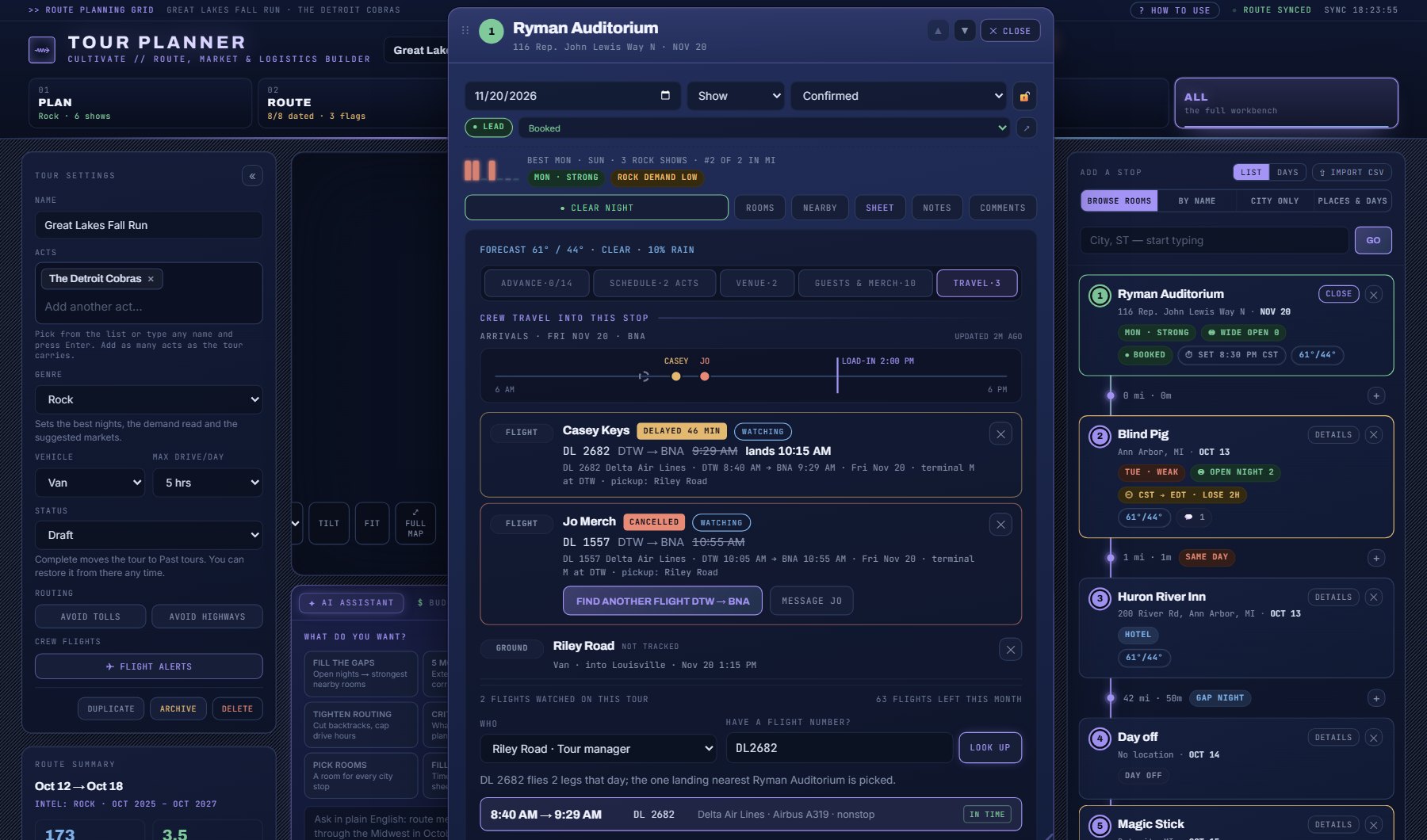
- Open the stop the person is flying into: press DETAILS on its card, then SHEET, then the TRAVEL tab.
- Press + ADD TRAVEL. Under WHO, pick the traveller.
- If you have the flight number, type it under HAVE A FLIGHT NUMBER? and press LOOK UP. Cultivate finds the legs flown under that number on the day and picks the one landing nearest the stop.
- If you do not, use the steps instead: the city they fly from, the airport, the airline, then the flight. Only airports with airline service are listed, and only airlines flying that route that day.
- Read the tag beside each flight: IN TIME means it lands with time to reach the venue for load-in; AFTER LOAD-IN means it does not.
- Press + ADD FLIGHT. The travel row fills in with the carrier, the number and the arrival.
3. Watch it
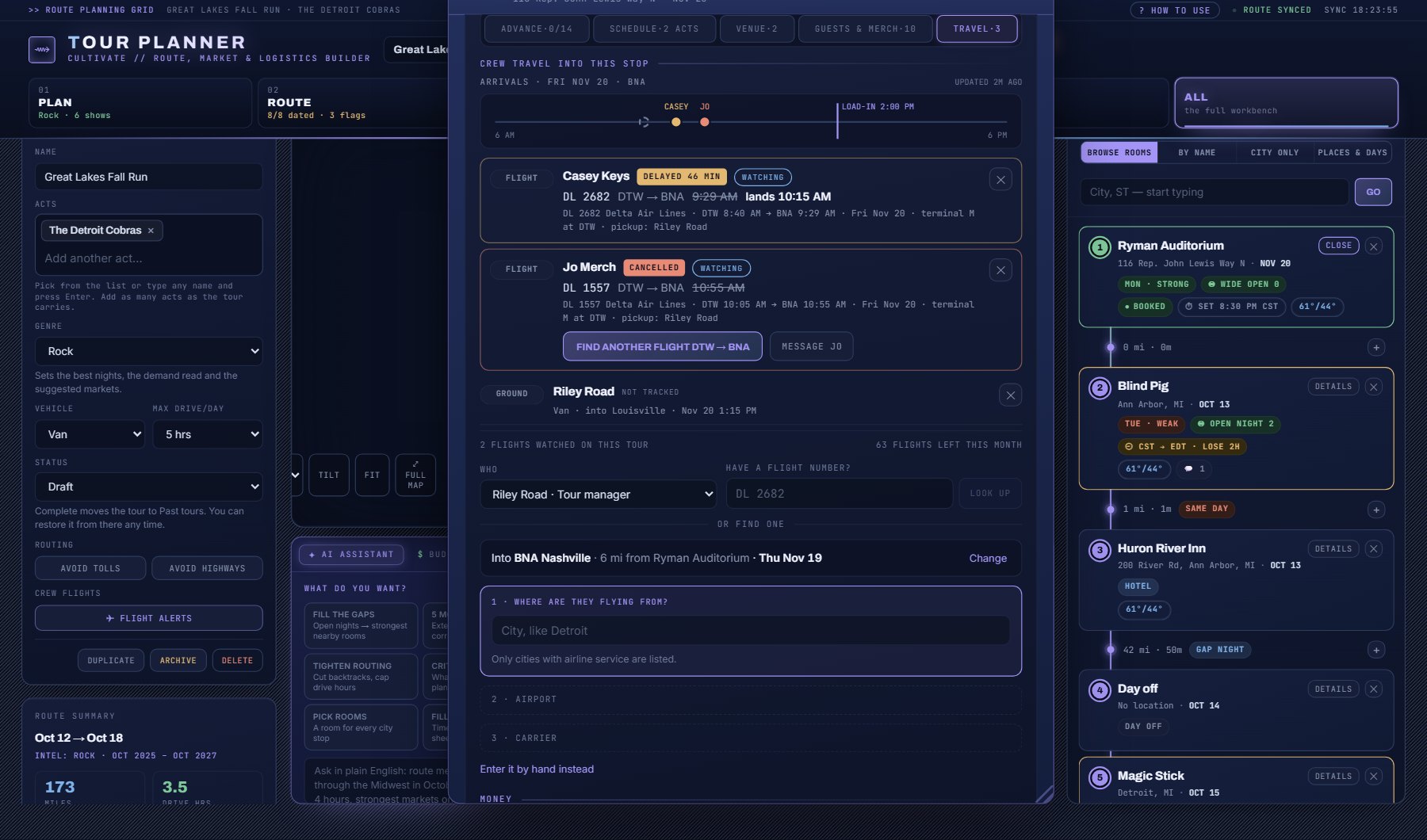
- On the travel row, press WATCH. It turns into a WATCHING chip. Press it again to stop watching.
- From the day before departure the row shows the live status: on time, delayed with the new landing time, cancelled, landed.
- If the flight is cancelled, the row offers FIND ANOTHER FLIGHT on the same route and day; SWAP IN THIS FLIGHT replaces it and keeps the watch.
- Press ✈ FLIGHT PATH on the row for a map of where the plane has been and is: the dashed line is the route between the airports, the solid line the trail flown so far, the plane points the way it flies, and the strip under the map reads altitude, ground speed, heading and the landing time. It refreshes every three minutes while open.
4. Choose what to alert on, and who hears
Open TOUR SETTINGS on the left and press FLIGHT ALERTS. The settings are per tour.
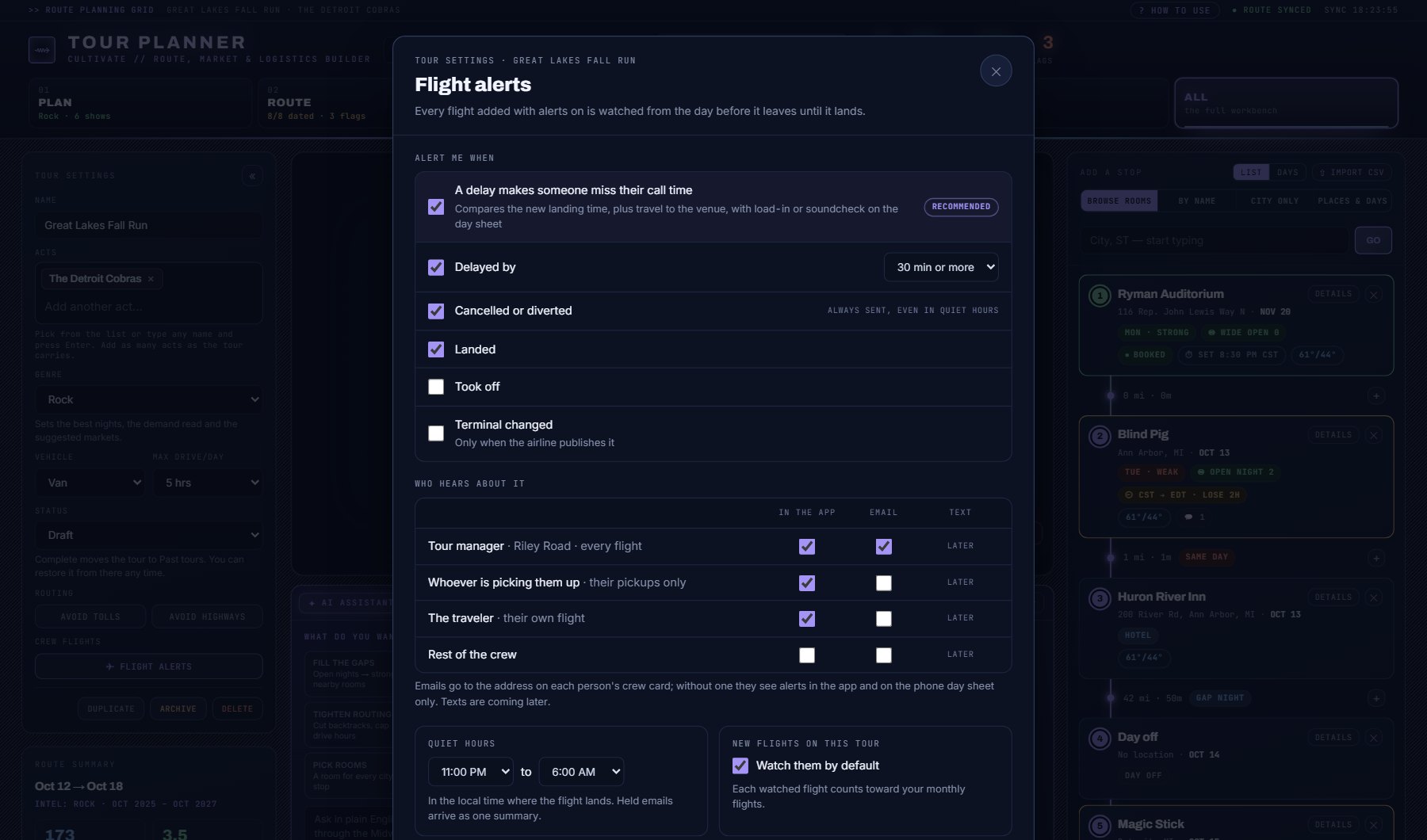
- ALERT ME WHEN: a delay makes someone miss their call time (recommended; it compares the new landing time plus the drive with load-in or soundcheck on the day sheet), delayed by 15, 30 or 60 minutes, cancelled or diverted (always sent, even in quiet hours), landed, took off, terminal changed.
- WHO HEARS ABOUT IT: in the app, by email, or both. Emails go to the address on each person's crew card.
- QUIET HOURS: a window, in the local time where the flight lands, during which emails are held and sent afterwards as one summary.
- NEW FLIGHTS ON THIS TOUR: whether a flight added later is watched by default.
Where to go next
When something changes, the alert appears as a banner at the top of the tour with OPEN TRAVEL, which jumps to the stop's TRAVEL tab, and on the Dashboard under Needs attention. The phone day sheet lists the person under YOUR PICKUPS with the new time.
Dismissing an alert dismisses it for everyone on the tour. Text message alerts are coming later.
Where to find it
In the console: Planning > Tour Planner. Press ? on that screen for the short version, or open the screen if you are signed in. The screen's own page: Tour Planner.