Create a tour
Build a tour with the four-screen wizard: name it, add cities, date the stops, and pick a venue for each show. About ten minutes.
What you will make
A tour in the Tour Planner: stops in route order, a date on each, a venue for each show, and real drive times between them. The wizard takes you there in four screens: Basics, Markets, Nights and Venues.
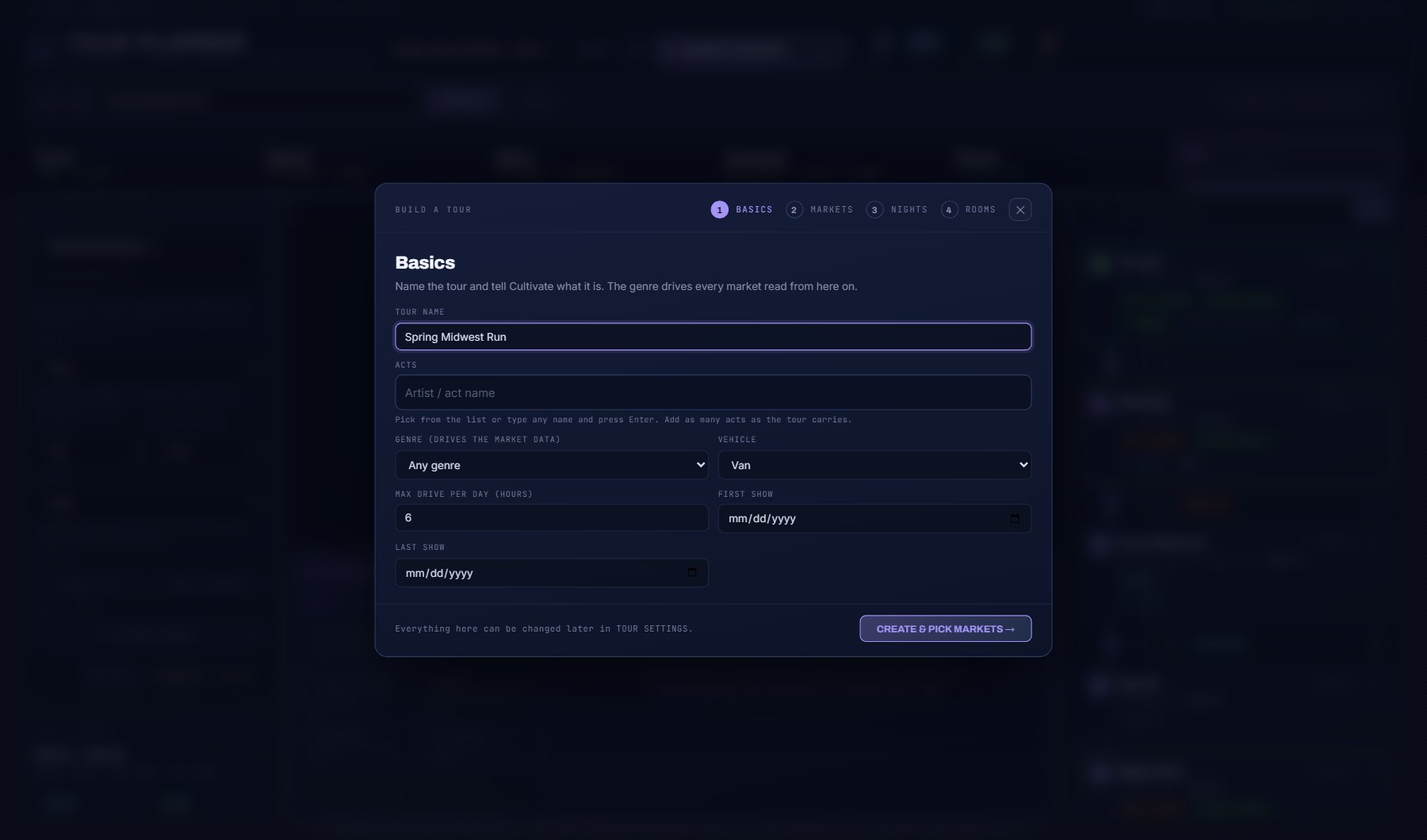
1. Basics: name the tour
- Open Planning > Tour Planner.
- Press + beside the tour switcher in the header, then BUILD IT STEP BY STEP.
- Type a tour name. This is the only box you must fill.
- Under ACTS, start typing the act and pick it from the list. Add more than one if the bill has several.
- Pick the GENRE. It drives every market read from here on: which cities are suggested and how venues are ranked.
- Pick the VEHICLE and the MAX DRIVE PER DAY in hours. The planner flags any leg longer than that.
- Set FIRST SHOW and LAST SHOW.
- Press CREATE & PICK MARKETS. The tour now exists.
2. Markets: add the cities
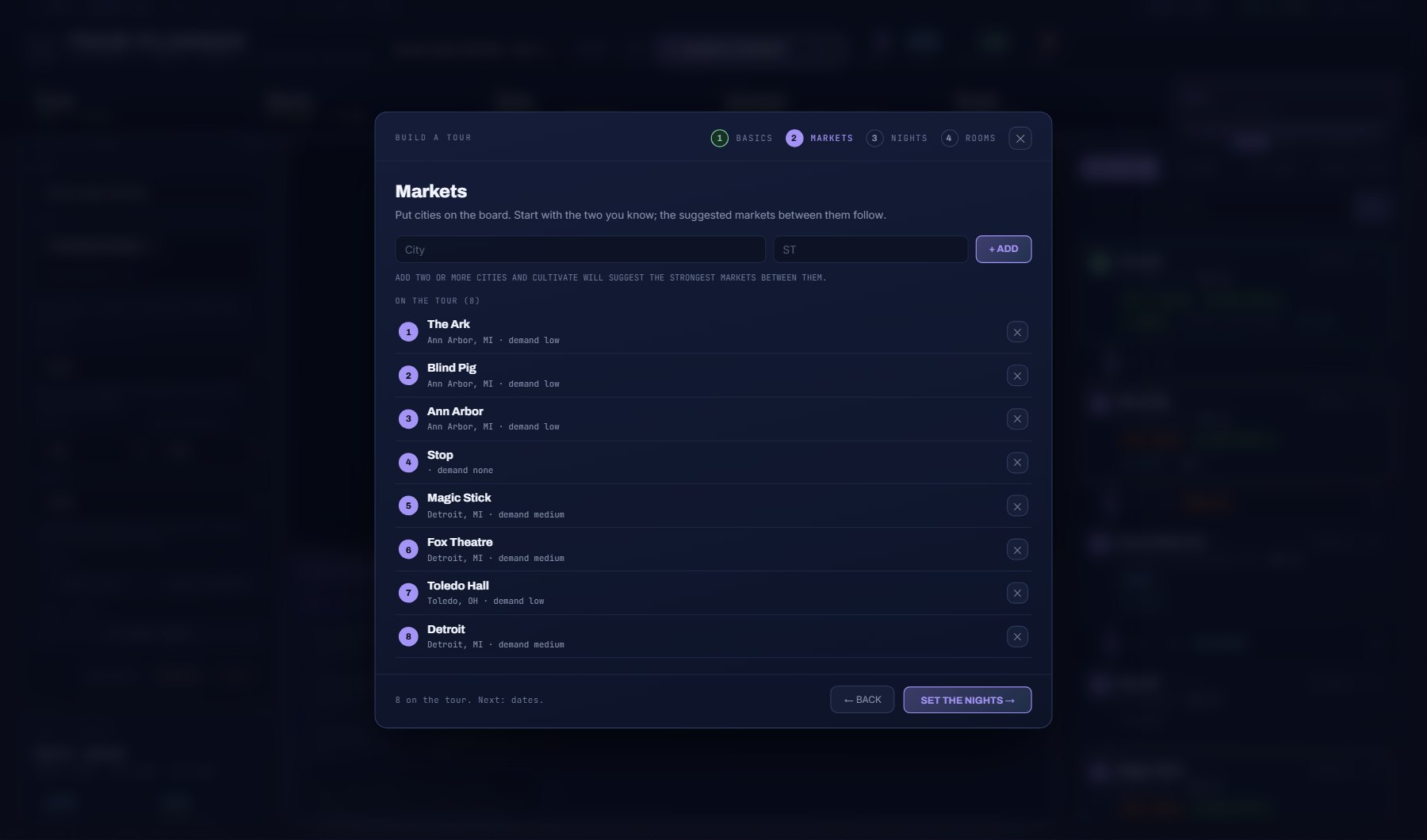
- Type a city and its two-letter state, then press + ADD or Enter.
- Add a second city. With two on the board, Cultivate suggests the markets near your route that book the most of your genre.
- Click a suggested market to add it. Remove a city from its row in the list.
- Press SET THE NIGHTS.
3. Nights: date every stop
- Press AUTO-DATE. It gives every stop one night, in route order, starting from your first-show date.
- Read the line under each city. It says whether that weekday is strong or weak there for your genre, and which nights are best.
- Change any date that lands on a weak night.
- Press PICK VENUES.
4. Venues: pick a venue for each show
- Each show lists the top venues in that city for your genre, with capacity and how many shows of your genre they book.
- Click a venue to assign it. The stop is marked VENUE SET.
- A city with no venues on record stays a city stop. You can add a venue to it later.
- Press OPEN THE WORKBENCH.
5. The workbench
The wizard closes and the full Tour Planner opens on your tour: the map with numbered pins and the real drive, and the itinerary with one card per stop.
The stage bar under the title shows how far along the tour is.
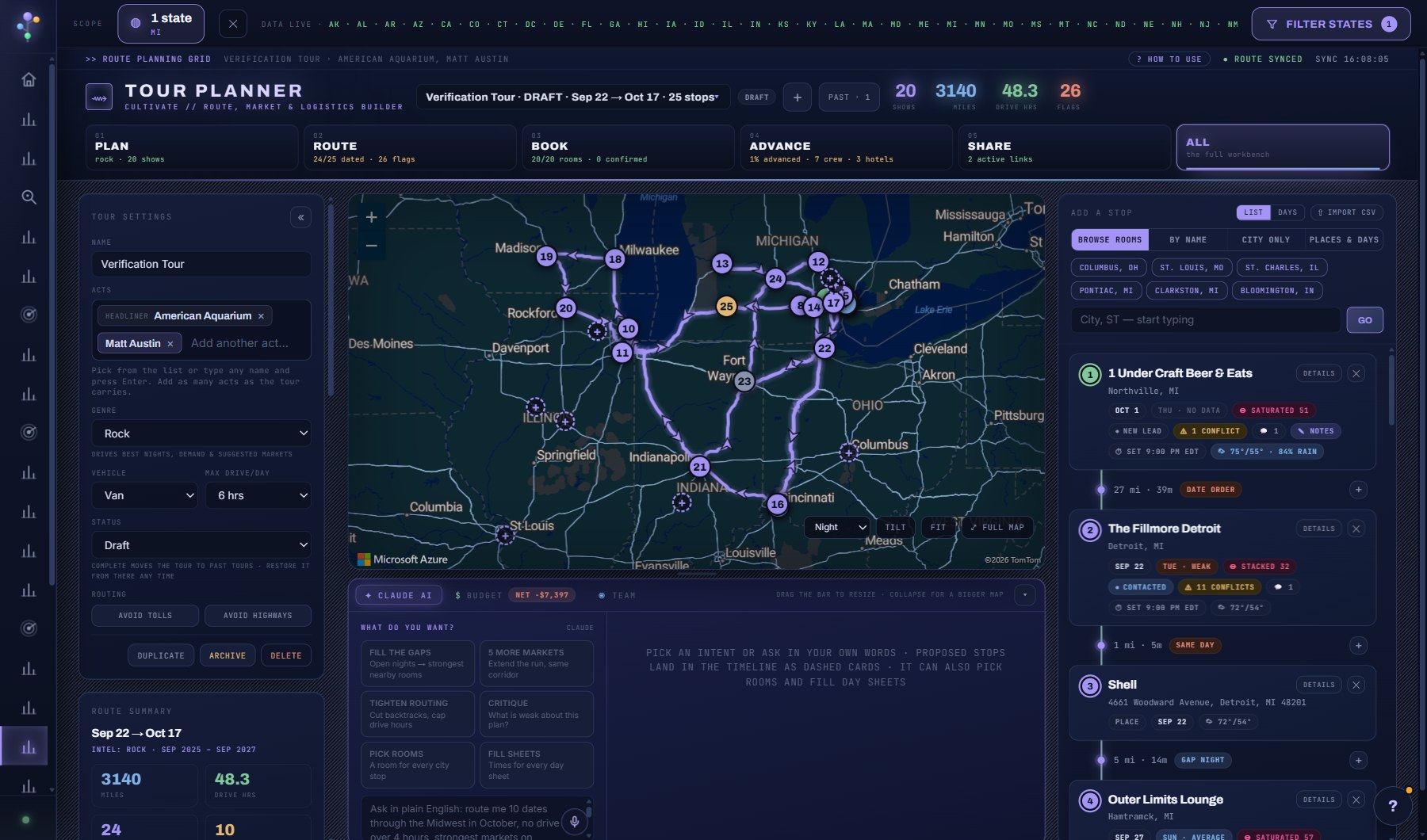
| Stage | What you do there |
|---|---|
| PLAN | Tour settings: acts, genre, vehicle, daily drive limit. |
| ROUTE | The route summary and the optimizer, which reorders stops to cut the drive. |
| BOOK | Venues for the shows that still need one. |
| ADVANCE | Crew, day sheets and travel. |
| SHARE | Tour Book links, print and calendar. |
| ALL | Everything at once. |
Where to go next
Ask your AI Assistant, under the map, to fill a gap or tighten the routing. Every proposed stop lands as a dashed card you can accept or undo. This uses AI credits.
Open DETAILS on a stop for its day sheet, and PHONE VIEW for the page your crew reads on the road.
SHARE & EXPORT in the header makes Tour Book links for crew, for a pitch and for management.
Where to find it
In the console: Planning > Tour Planner. Press ? on that screen for the short version, or open the screen if you are signed in. The screen's own page: Tour Planner.