Find a night with the Competition Grid and add it to a project
Use Night Pressure to pick an open night in a market, add that night to a project as a target, and let the project find it a venue. About five minutes.
What you will do
The Competition Grid scores every night in a region from 0 to 100 for how crowded it is: the music shows, the community events and the size of the venues involved. You will find an open night, put it on a project as a target night, and go back to the project to see it waiting for a venue.
1. Open the market
- Open Research > Competition Grid.
- Pick the state and the region in the picker above the grid. The grid redraws for that market: one cell per night, coloured from OPEN through CROWDED to GRIDLOCK.
- Use the month arrows to reach the month your tour falls in.
2. Find the best night
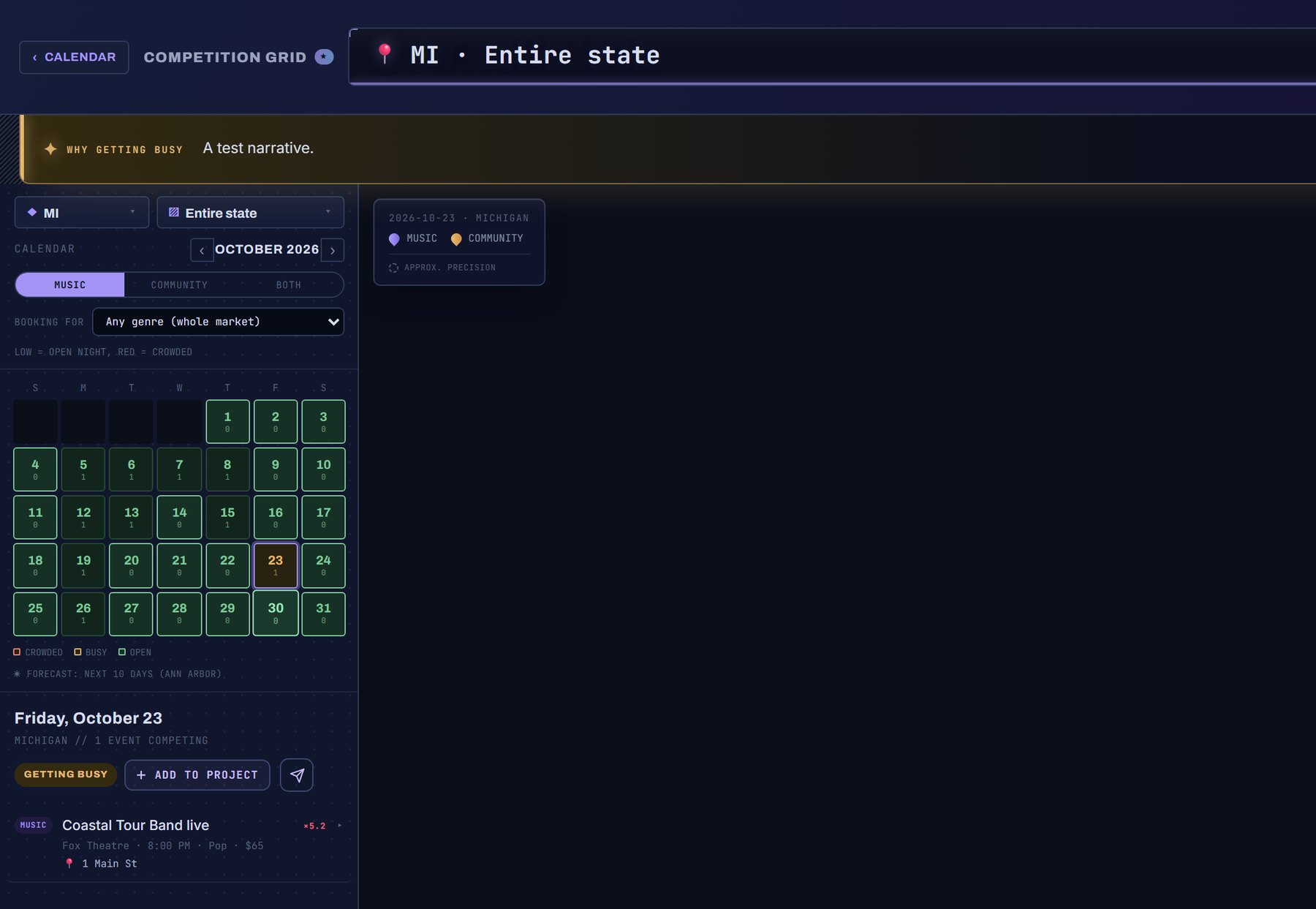
- Read the AI brief at the top of the month. It names the nights to book and the ones to avoid, and lists BEST NIGHTS TO BOOK with a + beside each.
- Or scan the grid yourself: the quietest nights are the lightest cells. Click one to open it: the verdict (OPEN NIGHT, GETTING BUSY, CROWDED...), what is competing on it, and how many venues are busy.
- Press WHY on a night for a one-sentence read of why it scored as it did.
3. Add the night to the project
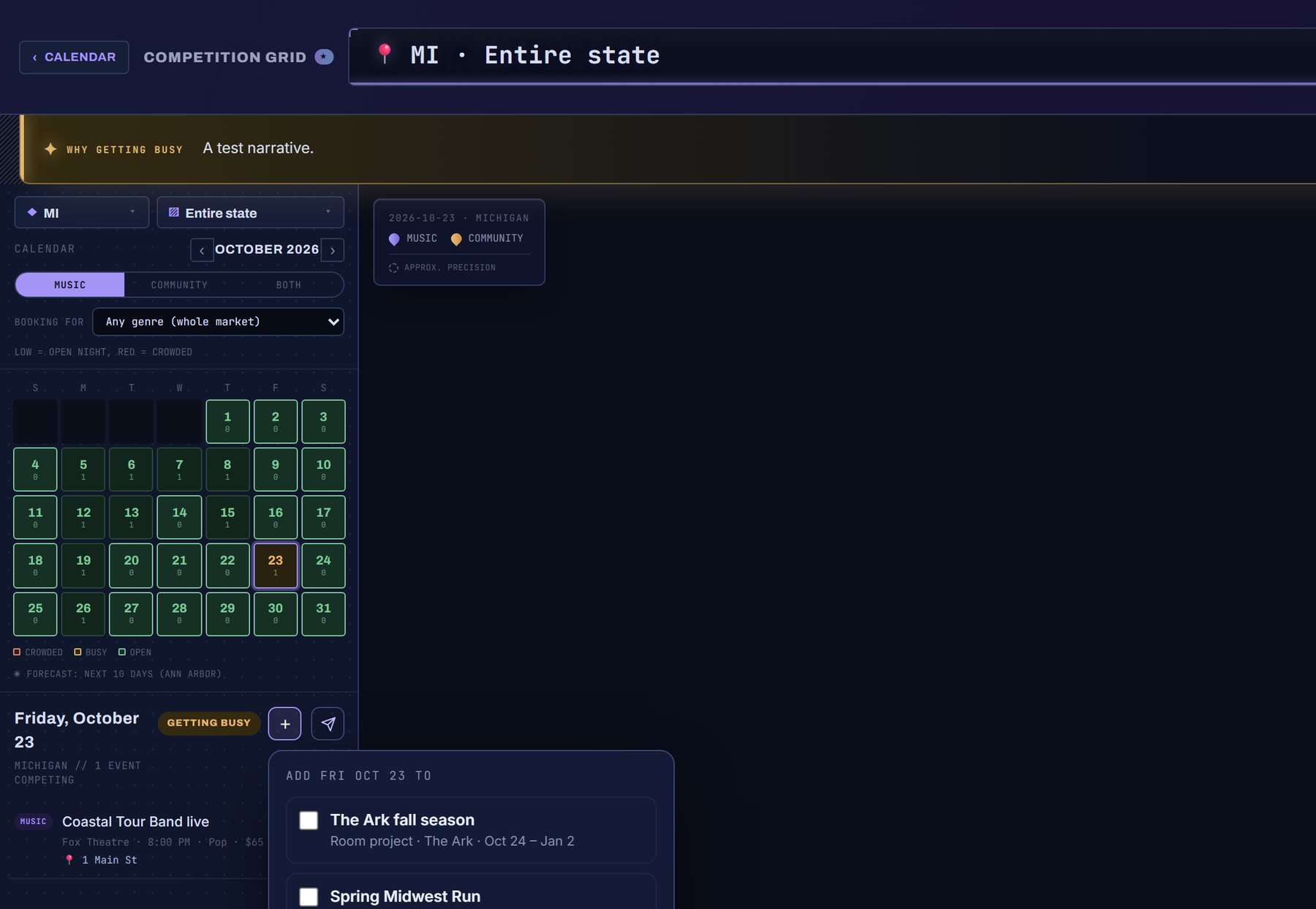
- Press the + beside a best night in the brief, or the + in an open night's drawer (its label reads "Add Fri Oct 23 to a project").
- The picker opens with your open projects. The project you are working in is already ticked; tick another if you want. Press ADD.
- A toast confirms: "Added Fri Oct 23 to Spring Midwest Tour."
4. See it on the project
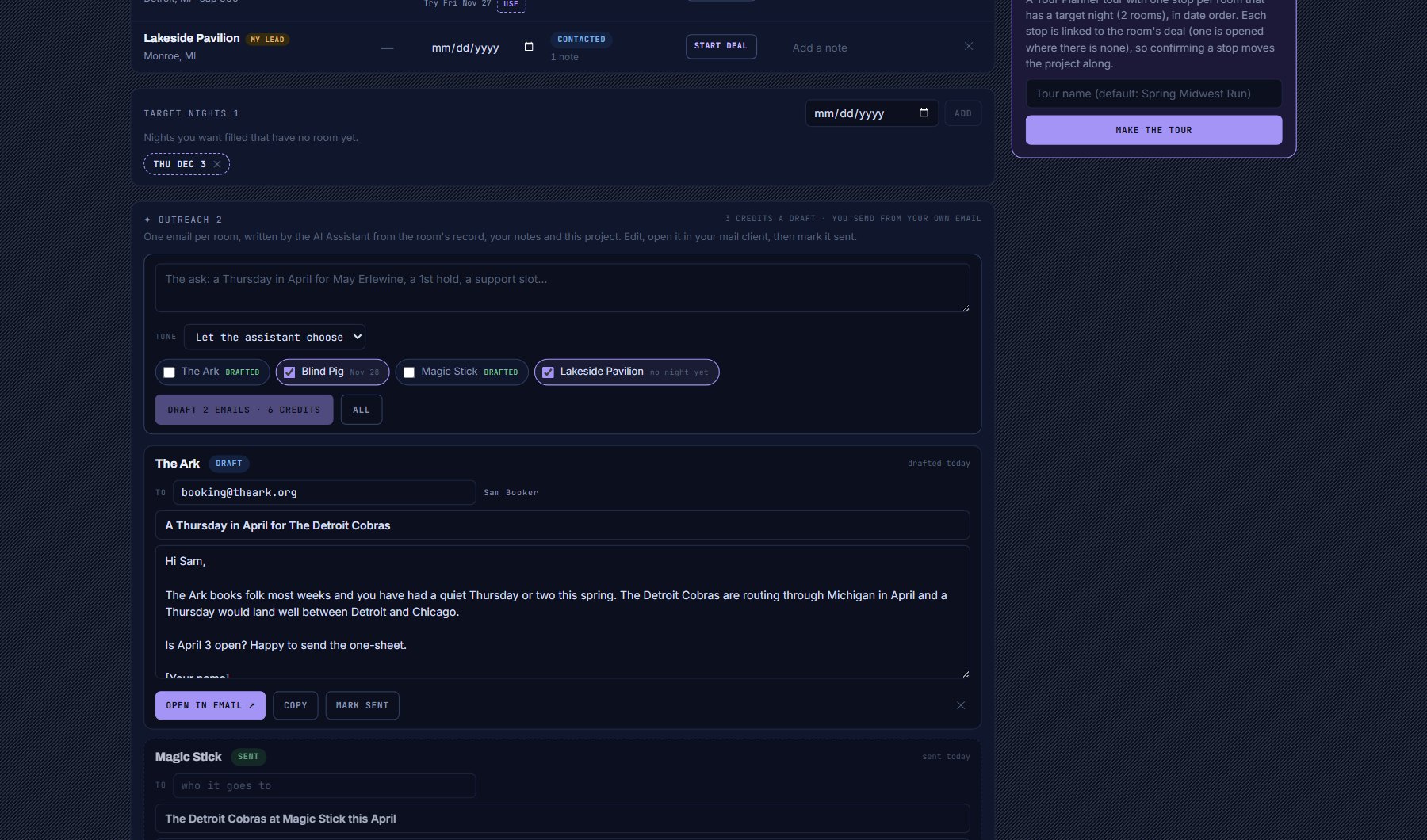
- Open My Work > Projects and the project. The night is under TARGET NIGHTS: a night you want filled that has no venue yet. Once a venue is on it, the row carries the plan's own night read (OPEN to GRIDLOCK, with the shows nearby), so the night keeps its verdict after you leave the Grid.
- Read What to add next under the rows: it suggests venues with that night free, from the market data, free of charge. Press + Add on one, and the venue joins the project on that night.
- Or press Ask about this project and ask your AI Assistant for a venue for that night; it fills the night when you agree.
Where to go next
Once a venue is on the night, Start deal on the row puts it in the Booking Pipeline; the project's progress bar counts it when it is confirmed.
The same + ADD TO PROJECT sits on every venue and act window, so a project can be filled from the grid, from search and from reports alike.
Where to find it
In the console: Planning > Competition Grid. Press ? on that screen for the short version, or open the screen if you are signed in. The screen's own page: Competition Grid.