Projects: complete guide
How to gather the venues, acts, nights, reports and contacts for one goal in one place, see what to add next, ask your AI Assistant about it, and turn it into deals and a tour.
- The idea in one minute
- What goes where
- Your first project in five minutes
- Starting a project
- The act or venue, and the window
- Adding venues, acts and nights from anywhere
- Reading a project page
- The plan: health, conflicts, night reads and suggested nights
- A venue's calendar and its calendar
- Reports in a project
- What to add next
- Ask about this project
- Turning a project into deals and a tour
- Where the deals go
- Status, reminders and finishing
- Who can see and change projects
- Questions people ask
The idea in one minute
A project is a goal plus everything you gather toward it. "Twelve shows for May Erlewine in November and December" is a goal. The venues you are aiming at, the nights you want, the reports you ran and the people you deal with are what you gather.
There are two kinds, one for each side of the business. Pick the one that matches the question you are answering.
A project links to things. It never owns them. The Ark stays one venue with one lead, one set of notes and one history, however many projects it sits in. Take a venue out of a project, or delete the whole project, and nothing else is lost: the venue, its lead, its notes and its deals stay where they were.
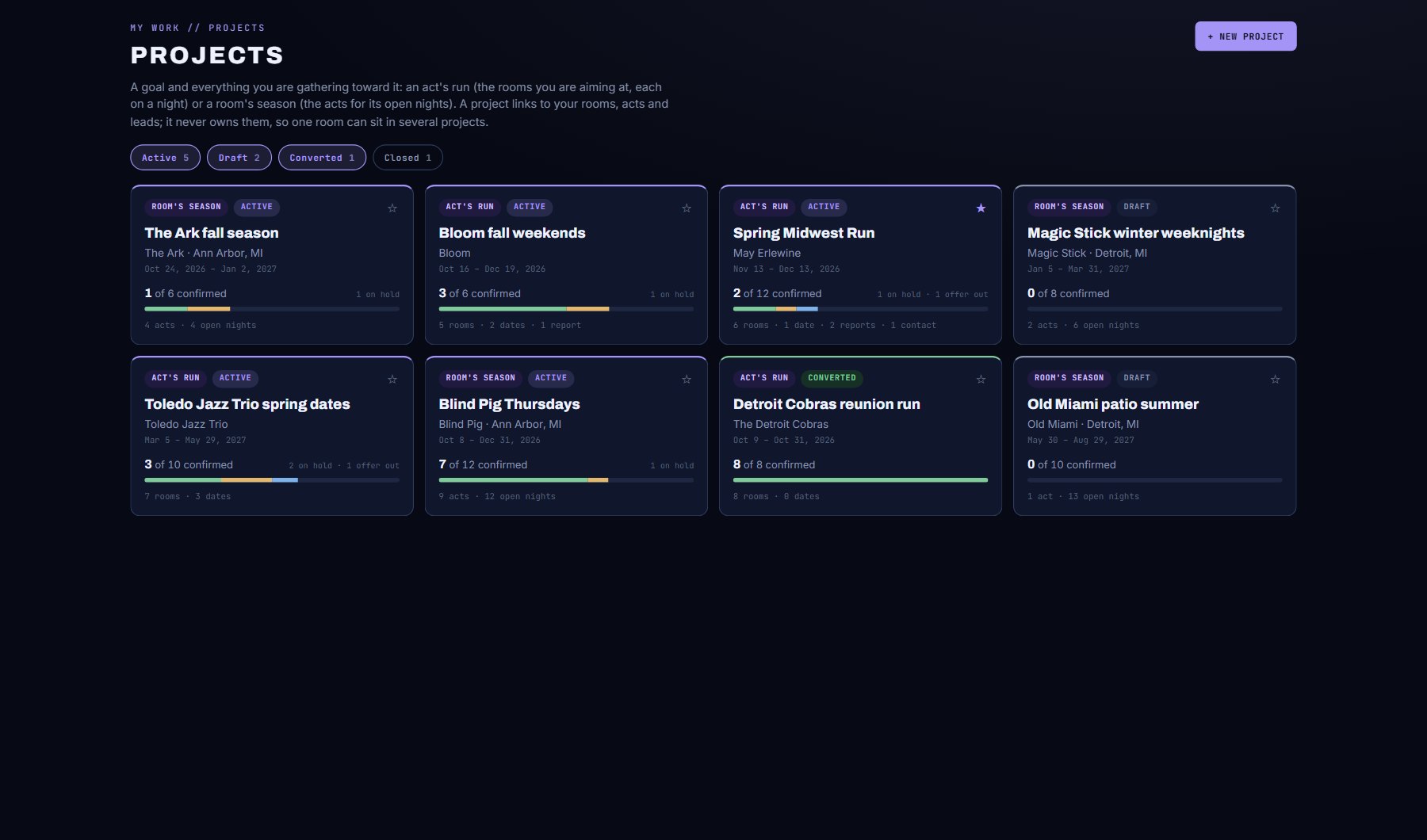
| Kind | Its rows | Its nights | Turns into |
|---|---|---|---|
| An act's tour | Venues for one act. Each venue can be aimed at a target night. | Target nights: nights you want filled that have no venue yet. | Deals, and a Tour Planner tour. |
| A venue's calendar | Acts for one venue. Each act can be aimed at a night. | Open nights: the nights in the season you want to fill. | Deals (holds and offers on the acts). Not a tour. |
What goes where
Cultivate has five places to keep things you care about. Each holds one kind of thing, and they connect in this order: save what interests you, gather it into a project, turn the project into deals, and turn an act's project into a tour.
| Place | It holds | Use it to |
|---|---|---|
| Saved (favorites) | A bookmark: a venue, act or show, saved in a second with the heart. | Keep an eye on something. Saved venues and acts also become leads. |
| Lead | Your relationship with one venue or act: its stage, notes, contacts and follow-ups. | Remember who they are and where you stand, for as long as you work with them. |
| Project | A goal with a window, and the venues, acts, nights, reports and contacts gathered toward it. | Plan one tour or one season in one place. |
| Deal | One pitch: this act, this venue, this date or range, moving from Researching to Confirmed. | Work the pitch in the Booking Pipeline. |
| Tour | The route, stop by stop, with day sheets for the crew. | Run the dates once they are booked. |
Your first project in five minutes
If you only read one section, read this one. It takes you from nothing to a project with venues, a night on each, and deals in the pipeline.
- Open My Work > Projects and press + New project. Press the An act's tour card.
- Under The act, start typing the act's name and pick it from the list; its record appears beside the form. Name the project ("Spring Midwest Tour"), give it a goal ("12 shows in 150-400 cap venues"), a goal target (12) and the dates of the tour. Press Create project.
- The project opens with the venues the act has played before already offered under What to add next. Press Add all, or + Add on the ones you want.
- Press Work in this at the top. It is now pinned at the bottom of the menu, and every "+ Add to project" button will tick it for you.
- Go to Discover > Venues. Open a venue you want and press + ADD TO PROJECT, then ADD. Do the same for a few more venues.
- Come back to the project (click its card at the bottom of the menu). Set a target night on each venue in the table, and type a note if you like.
- Under Turn it into, press Open deals. Each venue gets a deal at Researching on its night, and the deals appear in the Booking Pipeline with a PROJECT chip.
Starting a project
Press + New project on the Projects screen. It asks two things, on two screens: what kind of project, then the act or venue and the window. You can also start one from any "+ Add to project" button with + NEW PROJECT (see the next section): the venue or act you were looking at goes in as its first row.
Step 1 is two cards, one per kind. Each says what the project holds, what you get out of it and who it is for, so you can pick without reading this guide. When you have filled in Your AI on the Account page, the kind that matches your role (an agent, a manager or an act: an act's tour; a talent buyer or a promoter: a venue's calendar) is marked RECOMMENDED FOR YOU. Either kind is yours to pick; the mark is a hint, not a lock.
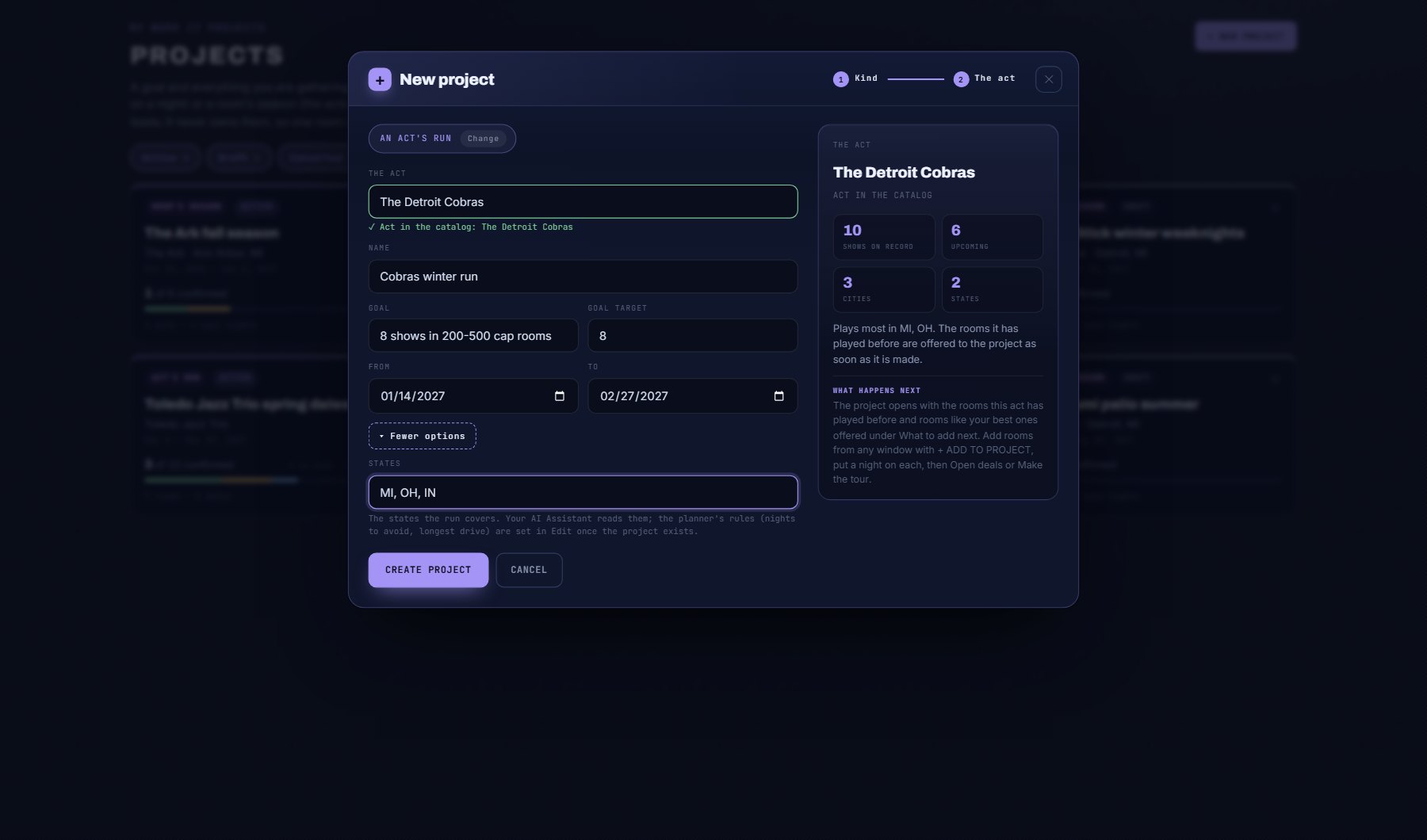
Step 2 is one form with the act or venue first. Pick it from the list and its record appears beside the form: for an act, its shows on record, how many are upcoming, its cities and states and where it plays most; for a venue, its size, what it books most, the shows ahead and the acts booked. Under it, What happens next says what the project opens with. If Your AI names exactly one act or one venue, it is filled in for you.
A new project starts as Active. Everything except its kind and its act or venue can be changed later with Edit.
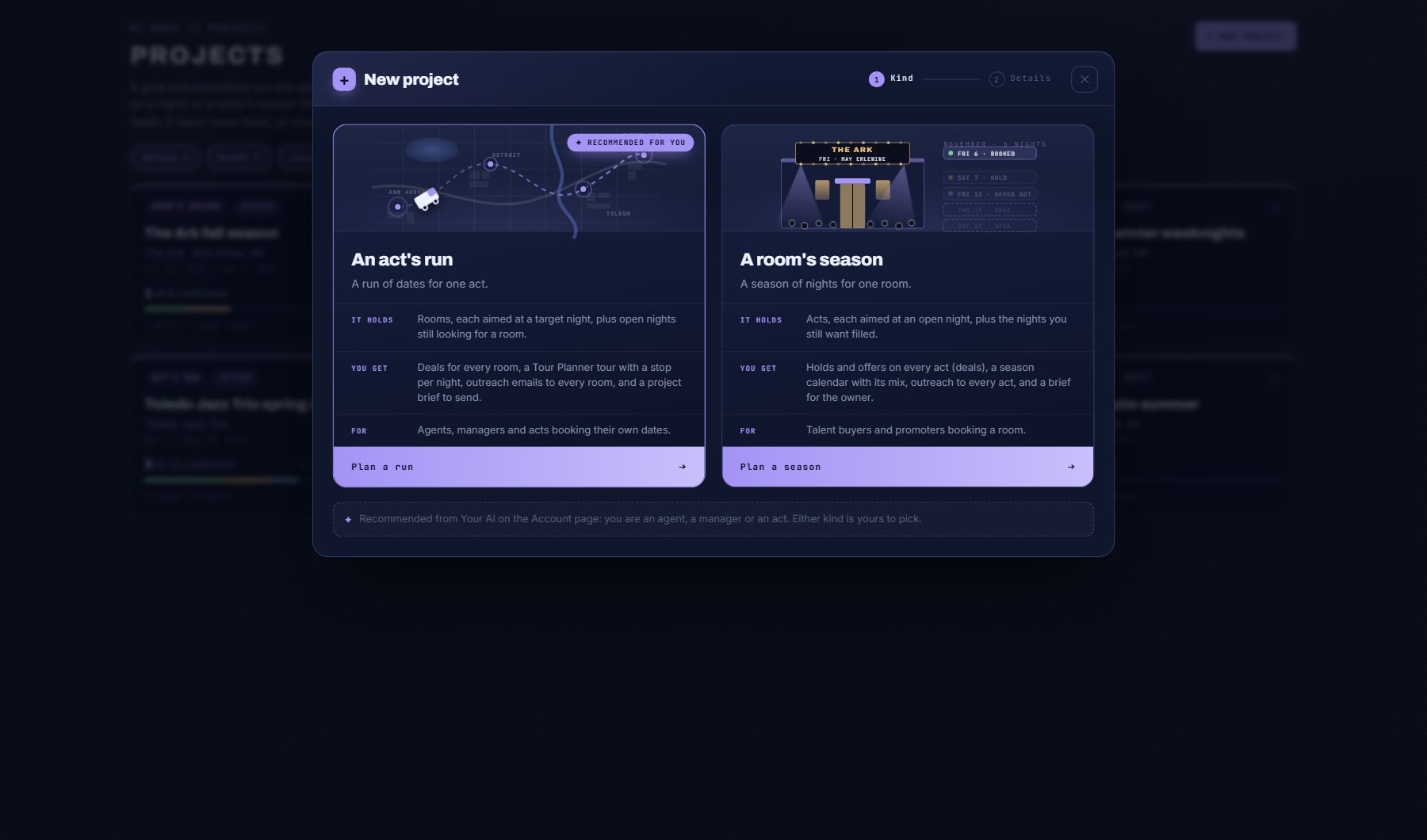
| Card | It holds | You get | For |
|---|---|---|---|
| An act's tour | Venues, each aimed at a target night, plus open nights still looking for a venue. | Deals for every venue, a Tour Planner tour with a stop per night, outreach emails to every venue, and a project brief to send. | Agents, managers and acts booking their own dates. |
| A venue's calendar | Acts, each aimed at an open night, plus the nights you still want filled. | Holds and offers on every act (deals), a season calendar with its mix, outreach to every act, and a brief for the owner. | Talent buyers and promoters booking a venue. |
- The act (an act's tour): start typing and pick the act from the list. If the act is not in Cultivate, type the name and carry on: the project uses the name as typed, and the form says so under the field.
- The venue (a venue's calendar): start typing and pick the venue from the list. It offers venues in Cultivate and venues you added yourself in the Tour Planner (marked YOUR VENUE). A venue's calendar needs a venue from the list.
- Name: what the card says. The placeholder suggests one from the act or venue you picked.
- Goal: the goal in words, shown at the top of the project.
- Goal target: the number of confirmed shows you are aiming for. It is the "of 12" in "2 of 12 confirmed". Leave it blank if you have no number yet.
- From and To: the window. For a venue's calendar this is the calendar the page draws.
- More options: States, the states the tour covers (optional). They show on the project and your AI Assistant reads them. The planner's rules (nights to avoid, the longest drive, venue size) are set in Edit once the project exists.
- Change, beside the kind at the top of the form, goes back to the cards.
The act or venue, and the window
Step 2 of + New project. The act or venue comes first because everything else follows from it: the preview on the right reads its record as soon as it is picked, and the project opens with suggestions drawn from it.
Adding venues, acts and nights from anywhere
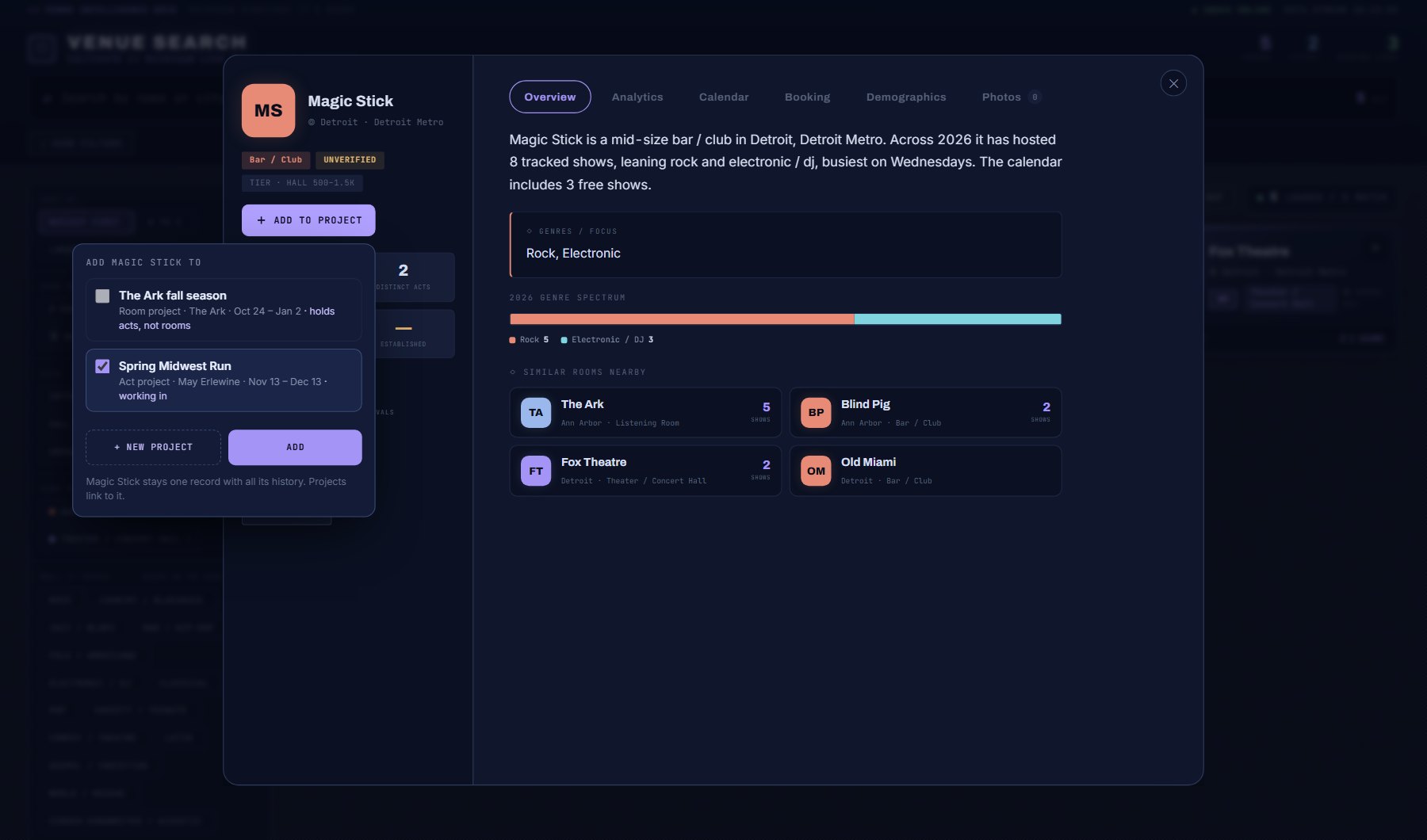
You fill a project from wherever you find things. The same "+ ADD TO PROJECT" button (or a small + on tight spaces) sits on every venue and act window in the console.
Press it and a picker opens with your open projects. The one you are working in is already ticked. Tick any others, then press ADD. A message confirms what went where, with OPEN PROJECT to jump straight there.
| Where | What you can add |
|---|---|
| Venue Search and Artist Search | The venue or act in its window. A Fit report you just ran in the venue's window, or the act's one-sheet, is offered too, under Also add. |
| Artist Spotlight | The act. |
| Market Command Center | Any venue or act window, from any tab. Again, an open Fit report is offered alongside. |
| Saved | Your saved venues and acts, and on the REPORTS tab any saved AI report or one-sheet. |
| Booking Pipeline, Leads tab | Venues, acts and the leads you typed in yourself. |
| Any saved AI report | The report itself: the + in the line at the bottom of a Booking Profile, Fit or Market Entry report, or under an act's one-sheet pitch. |
| Competition Grid | A night: the + next to the day you opened, and next to each quiet night in the list. It goes in as a target night (act's tour) or an open night (venue's calendar). |
| Phone screens | The venue and act sheets on Venue Search, Artist Search and Artist Spotlight. |
- Already in: a project that already holds it shows ticked and greyed, marked "already in". Adding twice never makes two rows.
- Wrong kind: a venue's calendar holds acts, not venues, and an act's tour holds venues, not acts. The picker says so on that project instead of offering a box. A venue's own season says "its own venue", and an act's own tour "its own act".
- Wrong kind, but something else fits: when the window also offers a report under Also add (a venue's Fit report, an act's one-sheet), a project that can't take the venue or act itself can still take the report. It stays tickable and says "adds the Fit report only" (or "adds the One-sheet only"); ADD sends it just the report, and the venue or act still goes to the projects that can hold it. Untick the report and that project greys out again.
- + NEW PROJECT: makes a project with this as its first row, in one go. From a venue you can choose a new act's tour with this venue in it, or a new season for this venue. From an act, a new tour for this act. From a report, a lead or a night, a new act's tour (type the act's name).
- Working in: whatever you add to becomes the project you are working in, pinned at the bottom of the menu. Click the card there to open it from any screen. Press the star on a project card (or Work in this on the project) to pin one yourself.
- Closed projects are left out of the picker.
Reading a project page
Click a project card to open it. Everything on the page saves as you go.
At the top: the name, the kind, the act or venue, the window and the states. On the right: Ask about this project, Work in this, the status, Edit and Delete.
Under it, the goal and a progress bar. Green is confirmed, amber is on hold, blue is an offer out, and the dark part is deals still being researched, pitched or talked about. The big number is confirmed shows against your goal target. Before there are any deals, the bar shows your rows by lead stage instead, so you can still see how far along you are.
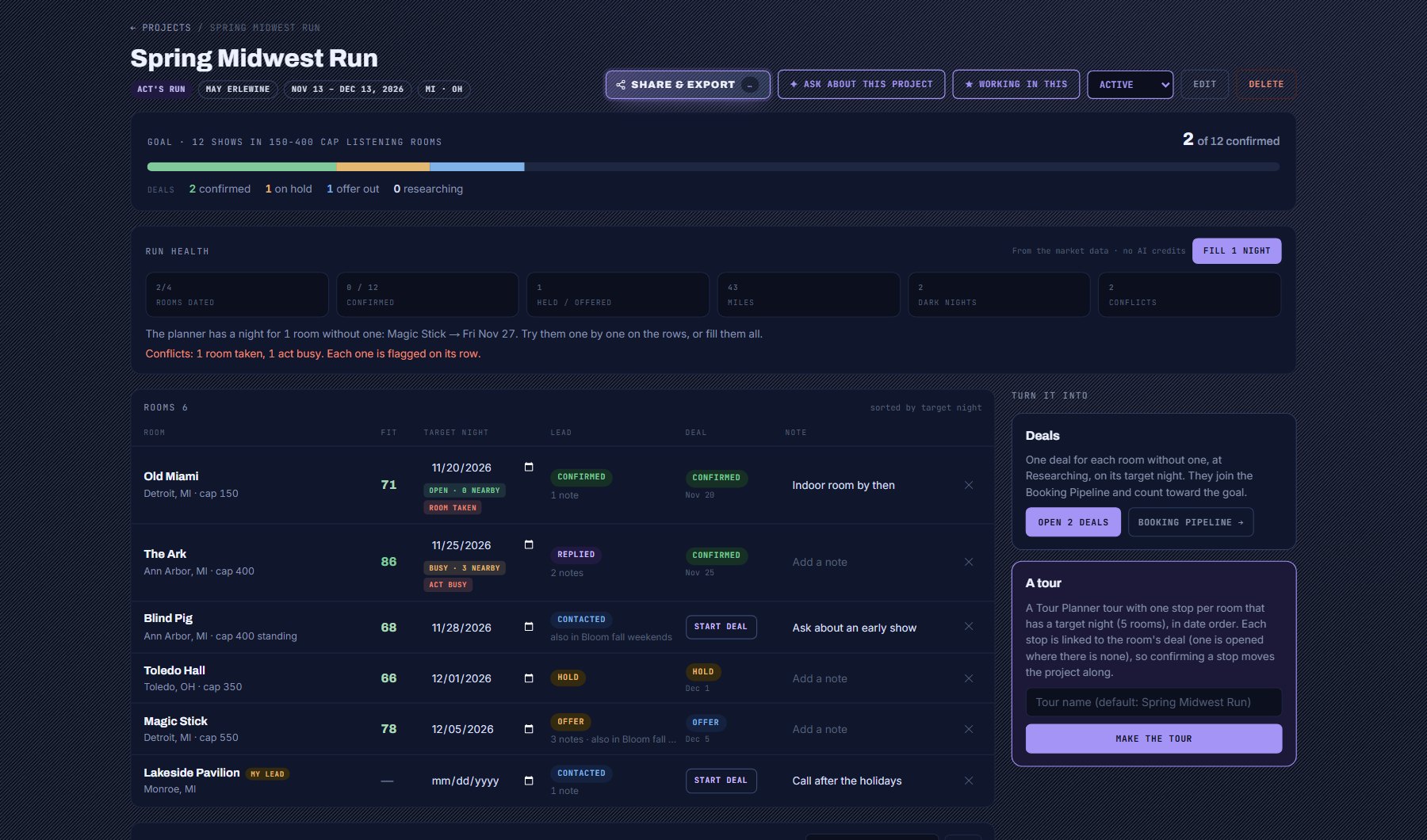
| Column | What it tells you |
|---|---|
| Venue (or Act) | The name, its city and capacity (or genre). MY LEAD marks a lead you typed in yourself. "No longer listed" means the venue or act has left Cultivate's listings; the row stays, greyed out. |
| Fit | The score from your latest saved Act and Venue Fit report for this pair: this project's act with this venue, or this act with this project's venue. Green is 80 and up, light green 65 and up, amber 50 and up, red below. A dash means no Fit report has been run for the pair. |
| Target night | The night you are aiming at. Pick a date; it saves at once. Rows sort by this night. Under a dated night sits the plan's night read (OPEN, QUIET, BUSY, CROWDED or GRIDLOCK, with the number of live-music shows in the venue's region that night) and any conflict flags; see The plan below. |
| Lead | The venue's or act's lead stage, how many notes you have on the lead, and the other projects it is also in. |
| Deal | This project's deal for the row, with its stage and date. A deal on hold also says when the hold lapses ("hold until Nov 10"), in red within three days or once it has passed. With no deal yet, Start deal opens one for just this row. |
| Note | A note about this row in this project. It saves when you leave the field (Enter saves, Escape undoes). |
| ✕ | Takes the row out of the project. The venue or act, its lead, notes and deals stay. |
- Target nights (act's tour) or Open nights (venue's calendar): the nights you want filled that have no row on them yet. Pick a date and press Add; the ✕ on a night removes it.
- Reports in this project: the saved AI reports you added. Click a card to read the report (see Reports in a project below).
- Contacts in this project: the people held in the project, with their role.
- Turn it into, on the right: deals and, for an act's tour, a tour. See Turning a project into deals and a tour.
The plan: health, conflicts, night reads and suggested nights
Under the goal, the health strip is the planner's read of the project, from the market data and your rows, with no AI and no credits. An act's tour shows venues dated, confirmed shows against the goal, held or offered deals, road miles and drive hours between the dated venues (real drives from Azure Maps, the same cached legs the Tour Planner draws; a leg the router cannot answer falls back to the straight line, and the tile's label says which), dark nights and conflicts; a venue's calendar shows acts dated, open nights and conflicts. Notes under the tiles sum up what needs doing, and Fill nights sets the planner's suggested night on every row without one.
Every dated row carries a night read: the live-music shows in the venue's region that night, banded against the busiest night of the window. OPEN is nothing else on, QUIET and BUSY are the middle, CROWDED and GRIDLOCK are the nights to think twice about. Hover it for the count. The Competition Grid scores the full night (venue sizes, headliners, community events); this is the count the plan has, so every target night carries a read without a Grid visit.
Conflicts are flagged on the row with the reason on hover.
| Flag | It means |
|---|---|
| Act busy | The act already plays somewhere else that night, on its record. |
| Act committed | The act is already aimed at that night elsewhere in your account: a dated venue in another of its projects, a show stop on one of its tours, or a live deal with a show date. The flag names where and in which project, tour or deal. The tour this project became, and this project's own deals, do not count against it. |
| Venue taken | The venue has another show that night. |
| Same night | Two rows of this project are aimed at the same night. |
| Long drive | The drive from the night before is over the rules' hours (8 unless you set it). Measured by road where the router has the leg (the flag says "by road"). |
| Avoided day | A weekday the project's rules avoid. |
| Past, Off window | The night has gone by, or sits outside the project's dates. |
- Suggested nights: a row without a night shows Try and a date, with the reason on hover (the venue's usual weekday, how quiet the region is, the drive from the last stop). Press USE to take it, or Fill nights on the strip for all of them. Nights the act is busy or committed elsewhere are never suggested.
- Rules: set them in Edit. Weekdays to avoid, the longest drive between nights, days between shows, the venue size you want (the cap rule), and anything else in words. The planner, the suggestions and your AI Assistant obey them.
- A venue's calendar also shows its mix: planned genres against what the venue books, weekdays against the venue's usual nights, local against touring, Reach bands, and the gaps.
A venue's calendar and its calendar
A venue's calendar works the other way round. Its rows are acts, its nights are the venue's open nights, and it shows a calendar of the window above the table, up to six months at a time.
Read the calendar at a glance. A dashed day is an open night you still want to fill. A filled day has an act aimed at it: green when the deal is confirmed, amber for a hold or an offer, violet when there is no deal yet. Hover a day to see which acts are on it.
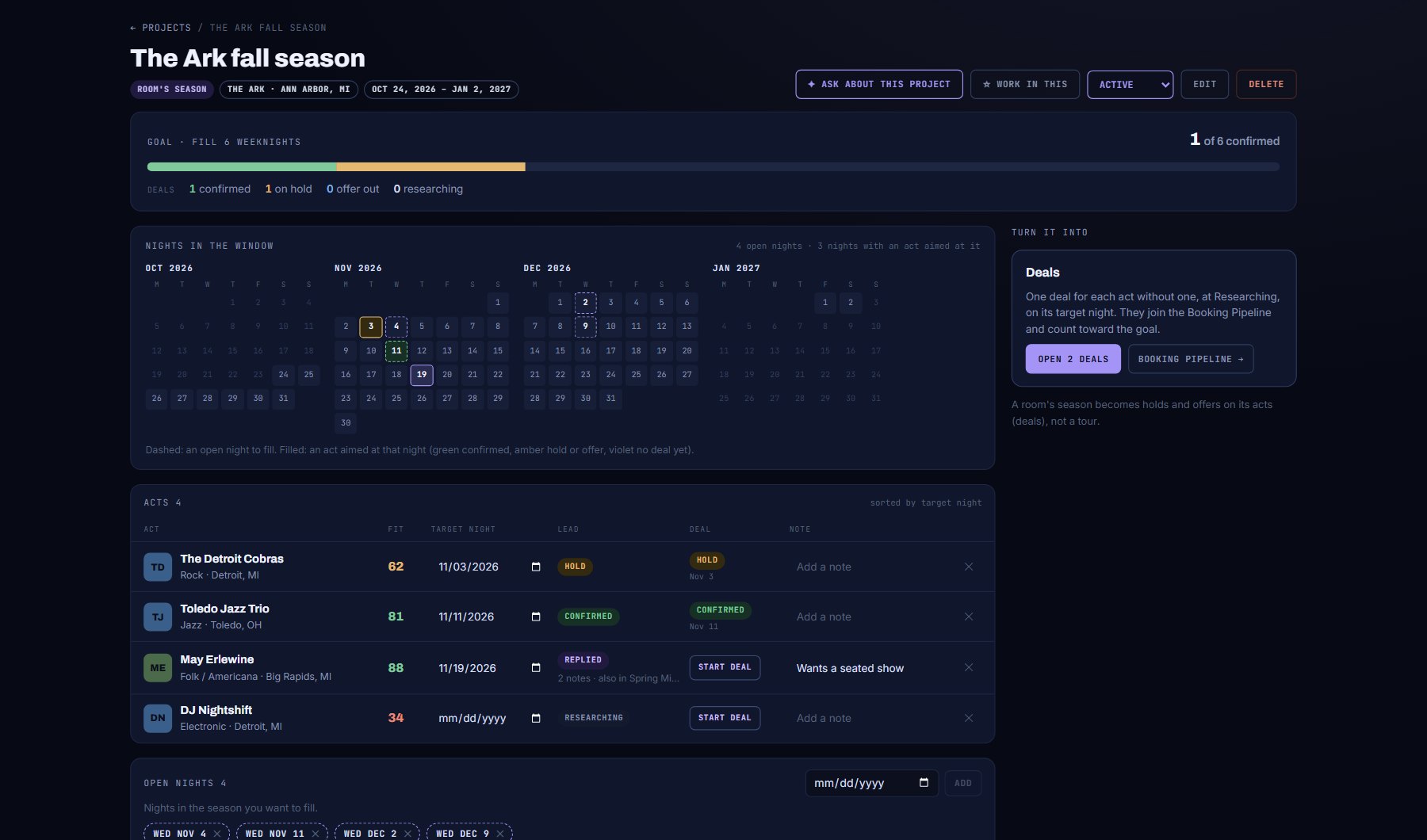
- Set the season's dates with Edit to see the calendar. Without dates, it uses the nights you have added.
- Add an open night under Open nights, or from the Competition Grid's quiet nights with its + button.
- Give each act a target night in the table; the calendar fills in as you go.
- A venue's calendar turns into deals only. Holds and offers on its acts are the booking; there is no tour to make.
Reports in a project
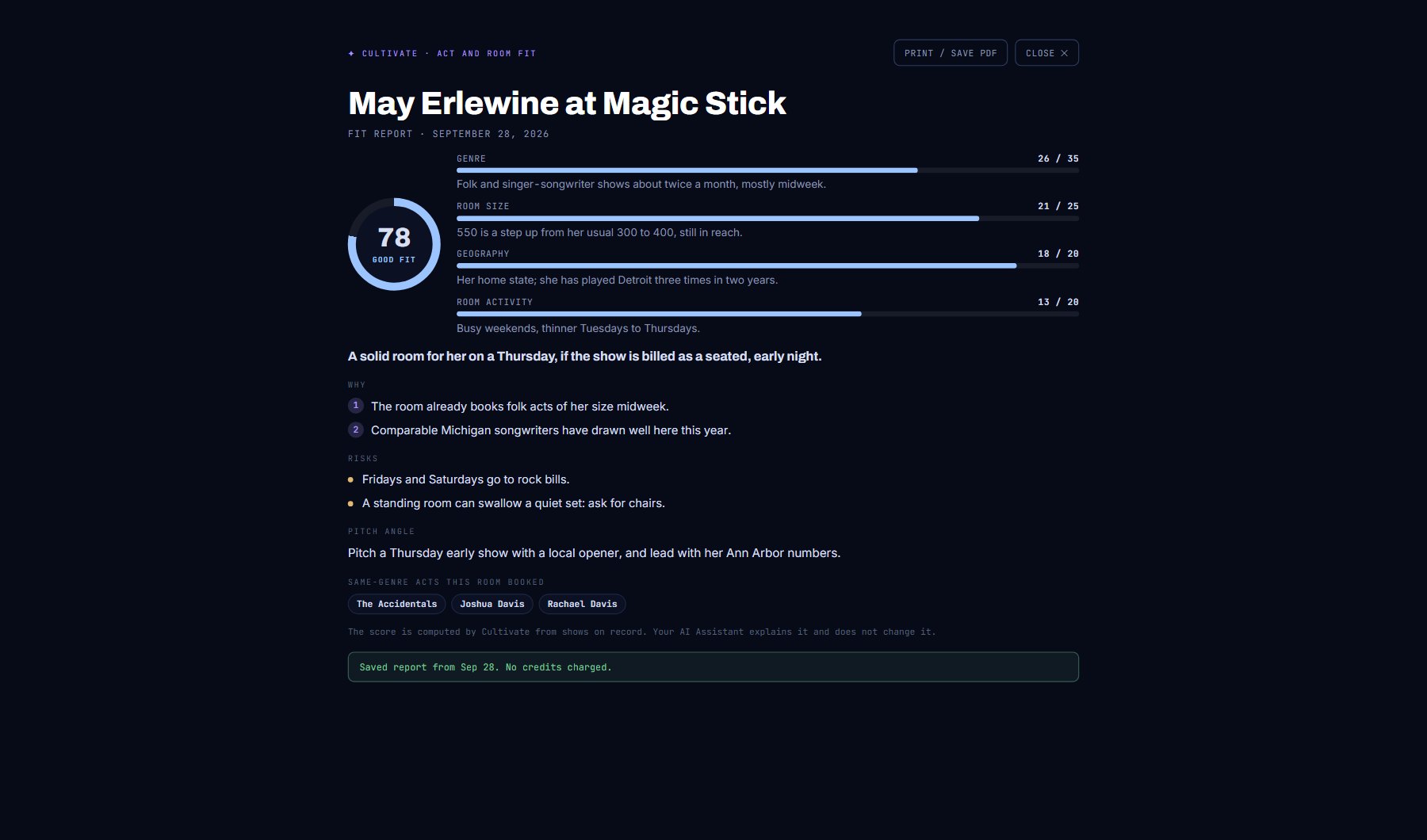
Any saved AI report can go into a project: a Venue Booking Profile, an Act and Venue Fit, a Market Entry report, or an act's one-sheet pitch. Add it with the + at the bottom of the report (or under the one-sheet), from Saved > REPORTS, or tick it under Also add when you add the venue or act.
On the project, click a report's card and the whole report opens full-page over the project, exactly as it was saved. Opening it is free: no credits are used. Press PRINT / SAVE PDF to print it or keep a PDF, and CLOSE (or Escape) to go back.
What to add next
Under the rows, What to add next suggests the next venues, acts or nights, read straight from the market data. It uses no AI and costs no credits, so it is there on every visit. Press + Add on one, or Add all on a card. What you add leaves the card, and the suggestions refresh with the next best thing.
A new act's tour fills itself from here: the venues the act has played are offered the moment the project exists, before it has a single venue, so Add all is often the first thing to press.
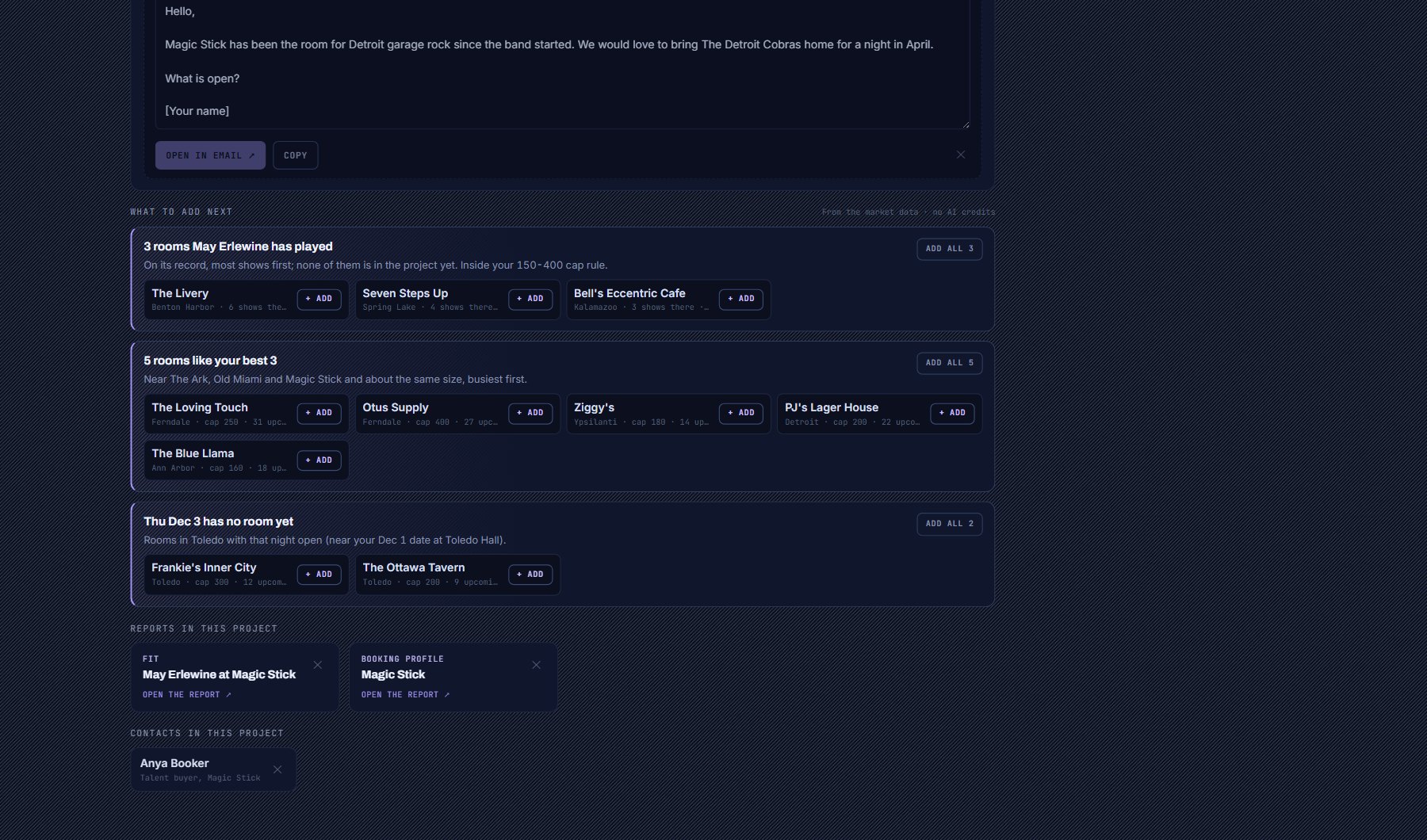
| Card | Shows on | What it is |
|---|---|---|
| Venues the act has played | An act's tour | The venues on the act's record (its live-music shows with a known, listed venue), most shows first, then most recent, with how many times it played there and when last. Venues already in the project are left out. Offered first, and before the project has any venue. Only for an act picked from the list: a typed name has no record. |
| Venues like your best ones | An act's tour | Venues near your strongest venues (the same state, and the same region or kind of venue) and about the same size, that are booking shows, busiest first. Your strongest venues are the ones with a confirmed or held date, then ones you are talking to, then a good Fit (65 or more), then a lead that replied. With nothing like that yet, the venues closest to the project's typical size stand in. |
| A night has no venue yet | An act's tour | For each of the next two upcoming target nights with no venue on it: venues in the city of your nearest dated venue that book live music and have nothing on that night. Added venues come in aimed at that night. |
| Acts routing through | A venue's calendar | Acts with live-music dates in the venue's region (its state, when it has no region) during the season, in the genre the venue books most (or any genre when none match), most dates first. |
| Quiet nights | A venue's calendar | The nights in the next two months of the window with the fewest live-music shows in the venue's region, with community events shown alongside. Added nights become open nights. |
Ask about this project
Press ✦ Ask about this project at the top of a project. Your AI Assistant opens in a panel on the right, already knowing this project: its rows, nights, deals, Fit scores, your notes on its rows, its reports and its contacts.
Ask in your own words, or press one of the starter questions. It can look up venues like your best ones, venues with a night free, quiet nights and acts routing through, and it shows what it found as cards under its answer. When you agree, it adds venues, acts or nights to the project for you, says exactly what it added, and the page shows the new rows at once. It only adds when you ask.
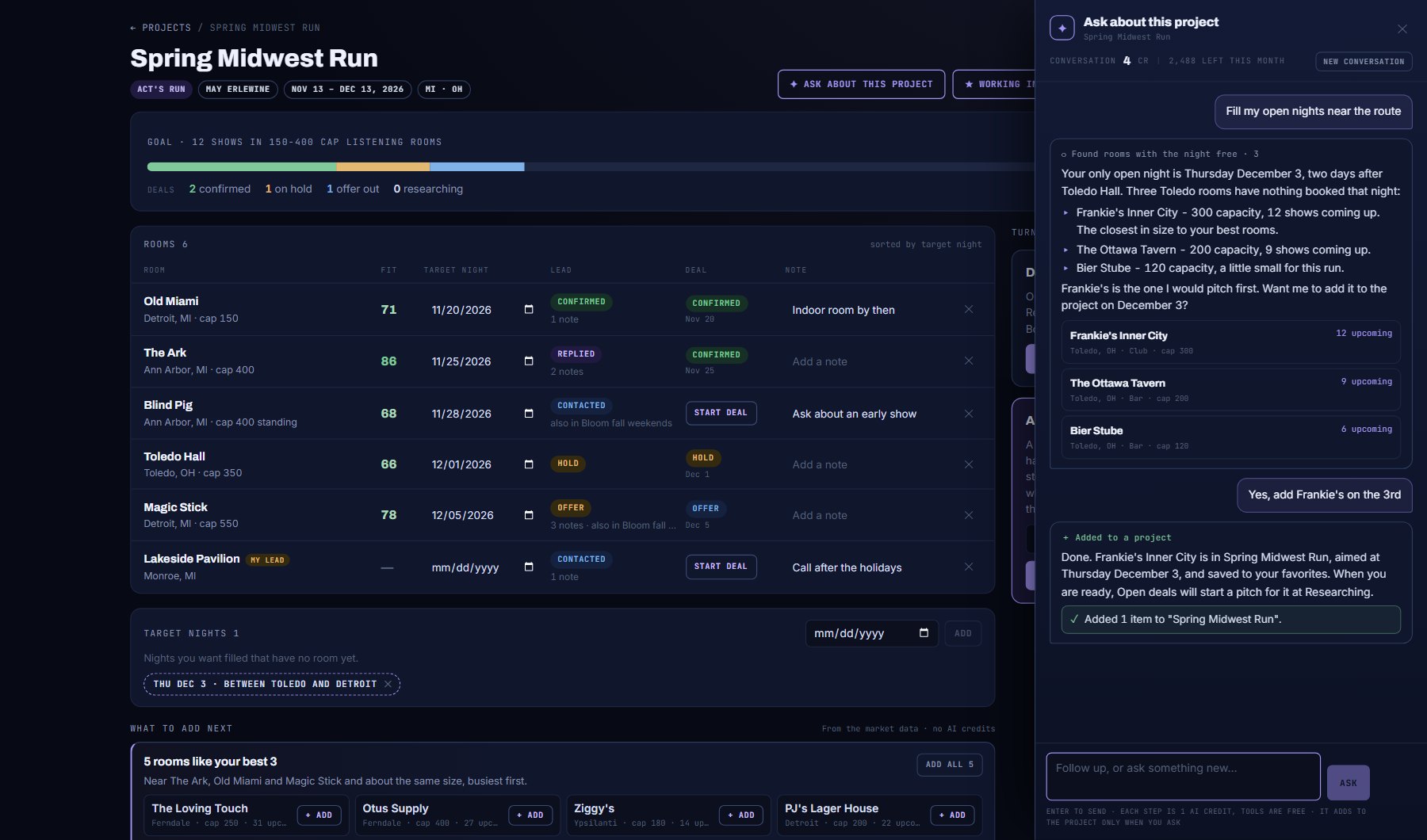
- On an act's tour, try: "Which of these venues should I call first?", "Fill my open nights near the route" or "Find venues like my best ones".
- On a venue's calendar, try: "Which acts routing through fit this venue?", "Which of my open nights are quietest?" or "Which of these acts should I make an offer to first?"
- Credits: each step your AI Assistant takes costs 1 AI credit, the same as Ask the Data, and looking things up is free. A question it answers straight from the project is 1 credit; one where it looks something up first is usually 2 or 3. The meter at the top shows what the conversation has cost so far and what is left this month.
- New conversation clears the panel and starts again. Closing the panel keeps the conversation until you leave the project.
Turning a project into deals and a tour
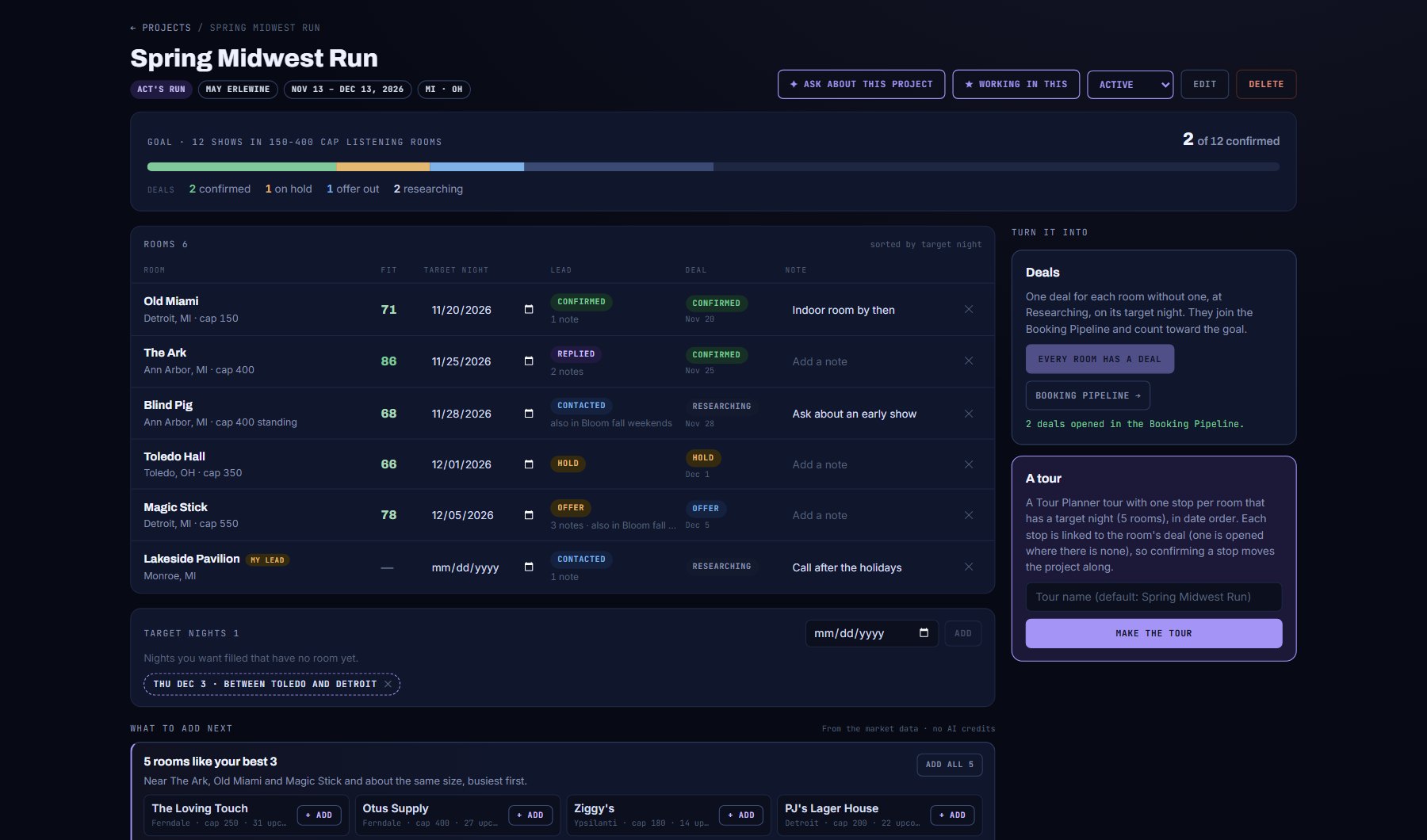
When the plan is ready, Turn it into on the right of the project makes the real work out of it. You can do this as many times as you need: rows that already have a deal are left alone.
| Button | What it does |
|---|---|
| Open deals | Opens a deal for every venue (act's tour) or act (venue's calendar) that has no deal in this project yet, at Researching, on the row's target night. Each is named "{act} at {venue}". The deals join the Booking Pipeline and count toward the goal as they move. The button says how many it will open. |
| Start deal (on a row) | The same, for that one row. |
| Make the tour (act's tour only) | Builds a Tour Planner tour named after the project (or the name you type), with one show stop for each venue that has a target night, in date order. Each stop is linked to the venue's deal, and a deal is opened at Researching for any venue that had none. A venue you typed in yourself becomes a stop by its city and state when it has them. Then Open in Tour Planner takes you there. |
- Rows that are no longer listed, reports, contacts and nights never get deals.
- Because every stop is linked to its deal, confirming a stop in the Tour Planner moves the deal, and the project's progress with it. Moving the deal on the board moves the stop.
- Making the tour marks an Active or Draft project as Converted.
- A tour needs at least one venue with a target night: each stop needs a date.
Where the deals go
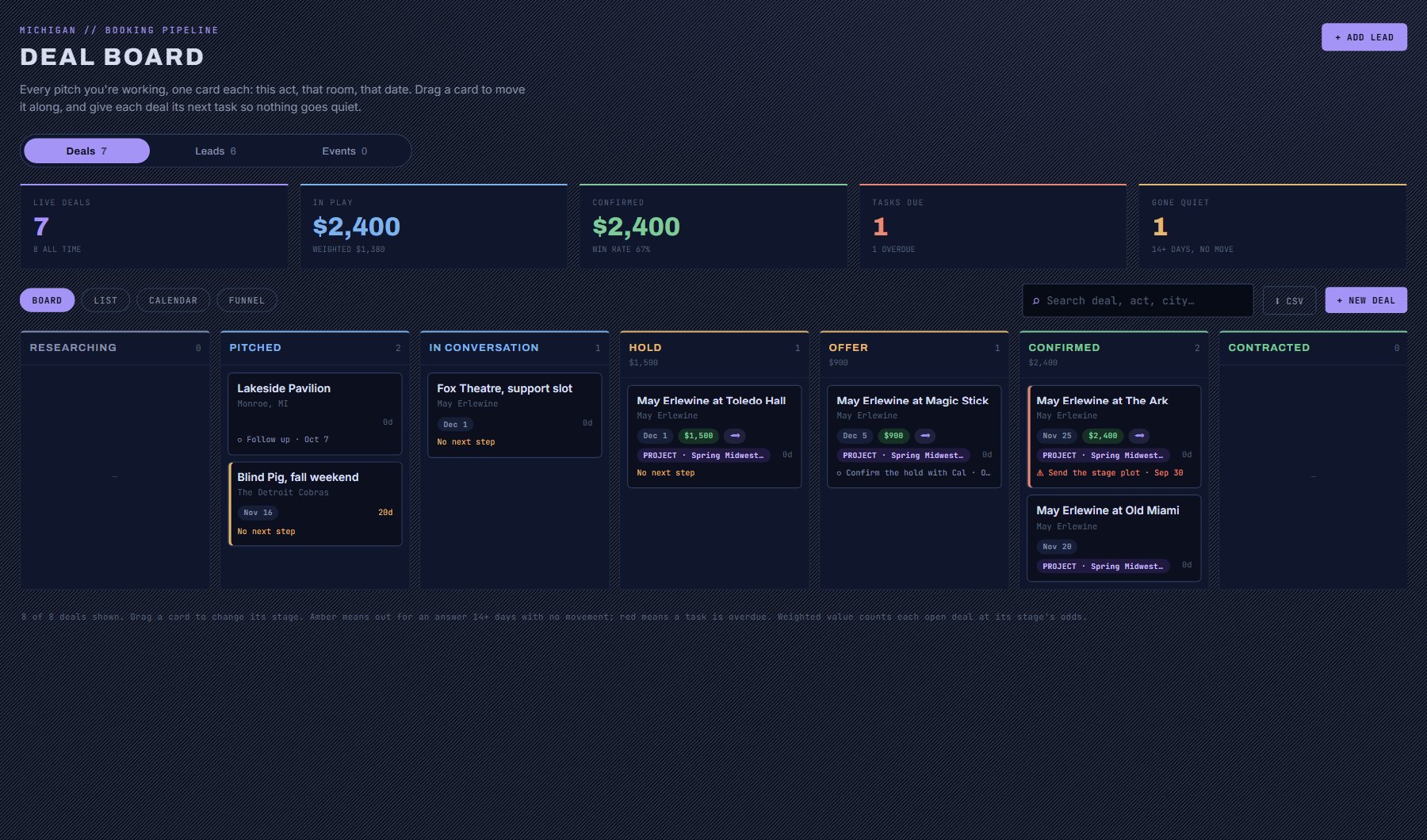
Deals opened from a project are ordinary deals in My Work > Booking Pipeline. They carry a violet PROJECT chip with the project's name, on the card and inside the deal. Click the chip to open the project.
Work them exactly as you work any deal: drag them across the board, add tasks and notes, set the money. The project's progress bar and its index card follow their stages. A deal belongs to at most one project.
Status, reminders and finishing
Every project has a status. Change it with the selector at the top of the project. The chips on the Projects screen show or hide each status; Closed is hidden until you turn it on.
| Status | It means | How it gets there |
|---|---|---|
| Draft | Still taking shape. | You set it. |
| Active | You are working on it. | Every new project starts here. |
| Converted | It has become a tour. | Make the tour sets it, from Active or Draft. You can also set it yourself. |
| Closed | Done. It leaves the picker, gets no suggestions, and no longer shows in other rows' "also in". | Marking its tour Complete in the Tour Planner closes it. You can also close it yourself, and reopen it the same way. |
- Idle reminder: a Draft or Active project with nothing added or changed for 14 days, in the project or its deals, shows as "Project idle" under Needs attention on your Dashboard. It is also listed in the weekly digest email under "Your pipeline needs you".
- Hold reminder: a deal on hold with an expiry set (Hold until, on the deal) shows as "Hold expires" under Needs attention from a week before the day, and as overdue once it has lapsed, until you confirm the date or release it. The project row says the same beside the deal's stage. The weekly digest lists it too.
- Delete: removes the project and its links, after you confirm. The venues, acts, leads, notes, reports, contacts and deals it held all stay where they are. It cannot be undone.
Who can see and change projects
Projects belong to the account, so everyone on the team who can see projects sees all of them. What each role can do is set by its Projects permission, plus the permissions for deals and tours when a project is turned into them.
| Role | Projects | Turn into deals | Make the tour | Ask about this project |
|---|---|---|---|---|
| Owner, Admin, Booker | See and change every project. | Yes | Yes | Yes |
| Researcher | See every project; change and delete only the ones they created. | No | No | Yes |
| Viewer | See projects, but not change them. No + Add to project buttons. | No | No | No |
| Tour crew | No access to Projects. | No | No | No |
Questions people ask
| Question | Answer |
|---|---|
| Can the same venue be in two projects? | Yes. It stays one venue with one lead; each project links to it. The Lead column says which other projects it is also in. |
| If I delete a project, what do I lose? | Only the project and its links. Venues, acts, leads, notes, reports, contacts and deals all stay. Its deals lose their PROJECT chip. |
| If I take a venue out of a project, is it unsaved? | No. It stays in Saved and in your leads, with its notes and deals. |
| Why is Fit blank on a row? | No Act and Venue Fit report has been saved for that pair yet, or the project's act or venue was typed rather than picked from the list. Run Fit from the venue's window (Booking tab) or the Tour Planner and it shows here. |
| Why does the picker say "holds acts, not venues"? | That project is a venue's calendar, which gathers acts for its venue. Add venues to an act's tour instead. If you ran a Fit report in the venue's window, the season can still take that report: it then says "adds the Fit report only". |
| Does What to add next cost credits? | No. It is read from the market data with no AI. Only Ask about this project uses credits. |
| Why is the recommended kind wrong for me? | It follows the I am a line of Your AI on the Account page. Change it there, or just press the other card: the mark is a hint. |
| Why does a row say Act committed when I only have one project? | The act has a show stop on one of your tours, or a live deal with a show date, on that night. Hover the flag: it names the tour or deal. |
| Is the night read the same as Night Pressure? | No. It is the number of live-music shows in the venue's region that night, banded against the window's busiest night, with no AI. Night Pressure on the Competition Grid also weighs venue sizes, headliners and community events. Use the read to spot a night worth checking, and the Grid to decide. |
| Can my AI Assistant change my project without asking? | No. It looks things up freely, but it adds to the project only when you ask it to, and it says exactly what it added. |
| Can I add to a project from Ask the Data? | Yes. Ask the Data can read your projects and add venues, acts, nights and saved reports to one when you ask, the same way. |
| Why is there no tour button on my venue's calendar? | A season becomes holds and offers on its acts (deals). Tours are for an act's tour. |
| Can I use Projects on my phone? | The Projects screen needs a wider screen. On a phone you can still add venues and acts to projects from the Venue Search, Artist Search and Artist Spotlight sheets. |
| How do I put a contact in a project? | Contacts in a project show on its page, and your AI Assistant reads them. Adding them is not yet offered from the Contacts screen. |
| Who else can see my projects? | Everyone with a seat on your account whose role includes Projects. |
Where to find it
In the console: My Work > Projects. Press ? on that screen for the short version, or open the screen if you are signed in. The screen's own page: Projects.