Track a pitch in the Booking Pipeline
Turn a venue you like into a lead, open a deal for one night, give it a next step, and move it across the board as the venue answers. About five minutes.
What you will set up
A lead is someone you could pitch; a deal is one actual pitch. The Ark is a lead; "The Detroit Cobras at The Ark, April 3" is a deal. You will make one of each, put a task on the deal so it never goes quiet, and move it along the board.
Nothing here uses AI credits.
1. Save the venue as a lead
- Anywhere a venue appears, press the heart on it (its window, a search card, a leaderboard row). A saved venue is a lead.
- Open My Work > Booking Pipeline and the Leads tab. The venue is there with its booking contact, your notes and any activity.
2. Open the deal
- Click the lead and press + New Deal.
- Type the act you are pitching and pick the show date if you have one (put the last day in Through if you offered a range).
- Leave the stage on Researching, or set it to Pitched if you have already written. Press Create Deal.
- The deal opens. Set the deal type and amount if you know them; they feed the money totals on the board.
3. Give it a next step
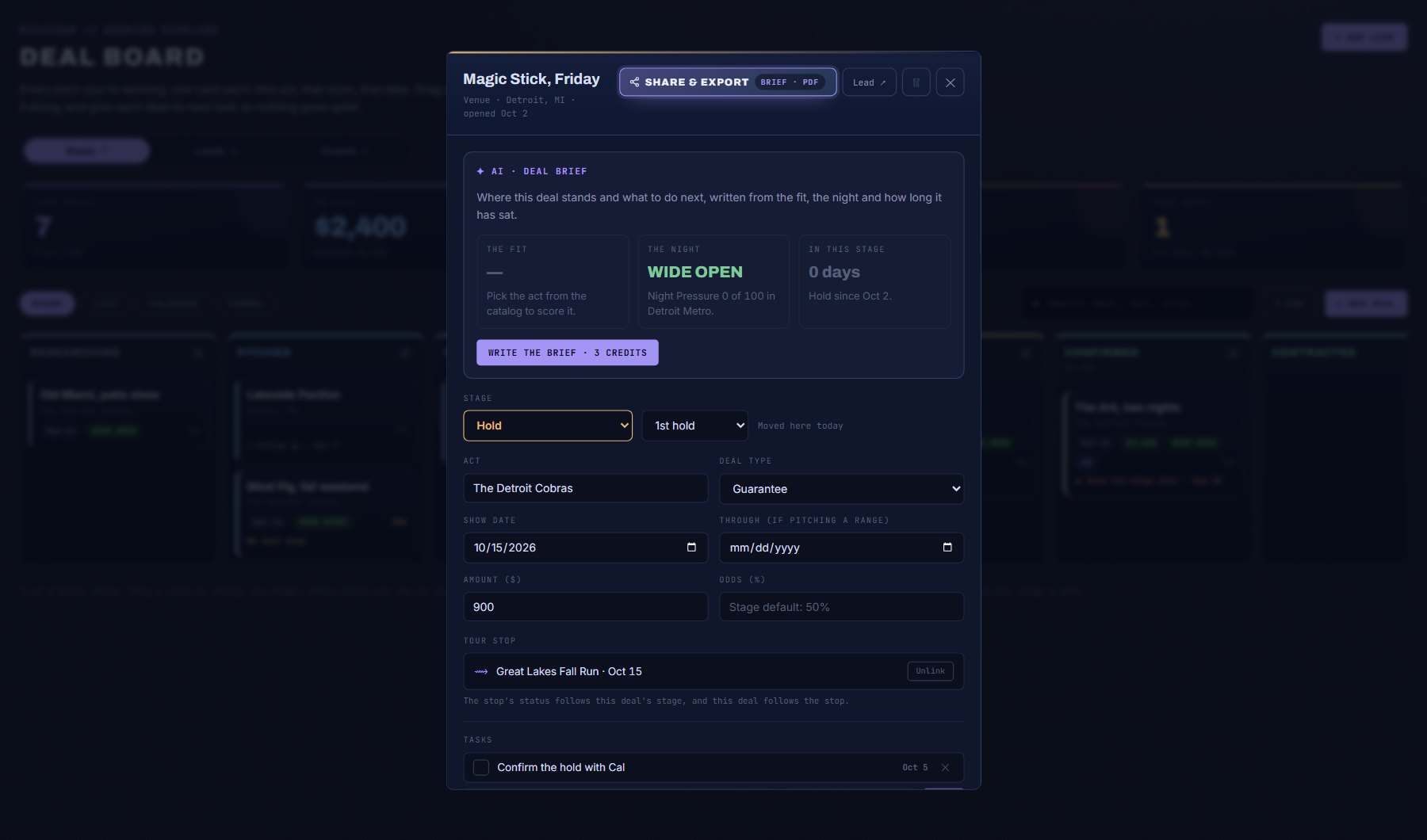
- Under Tasks, type the next thing you need to do ("Follow up if no reply"), pick a due date, and press Add.
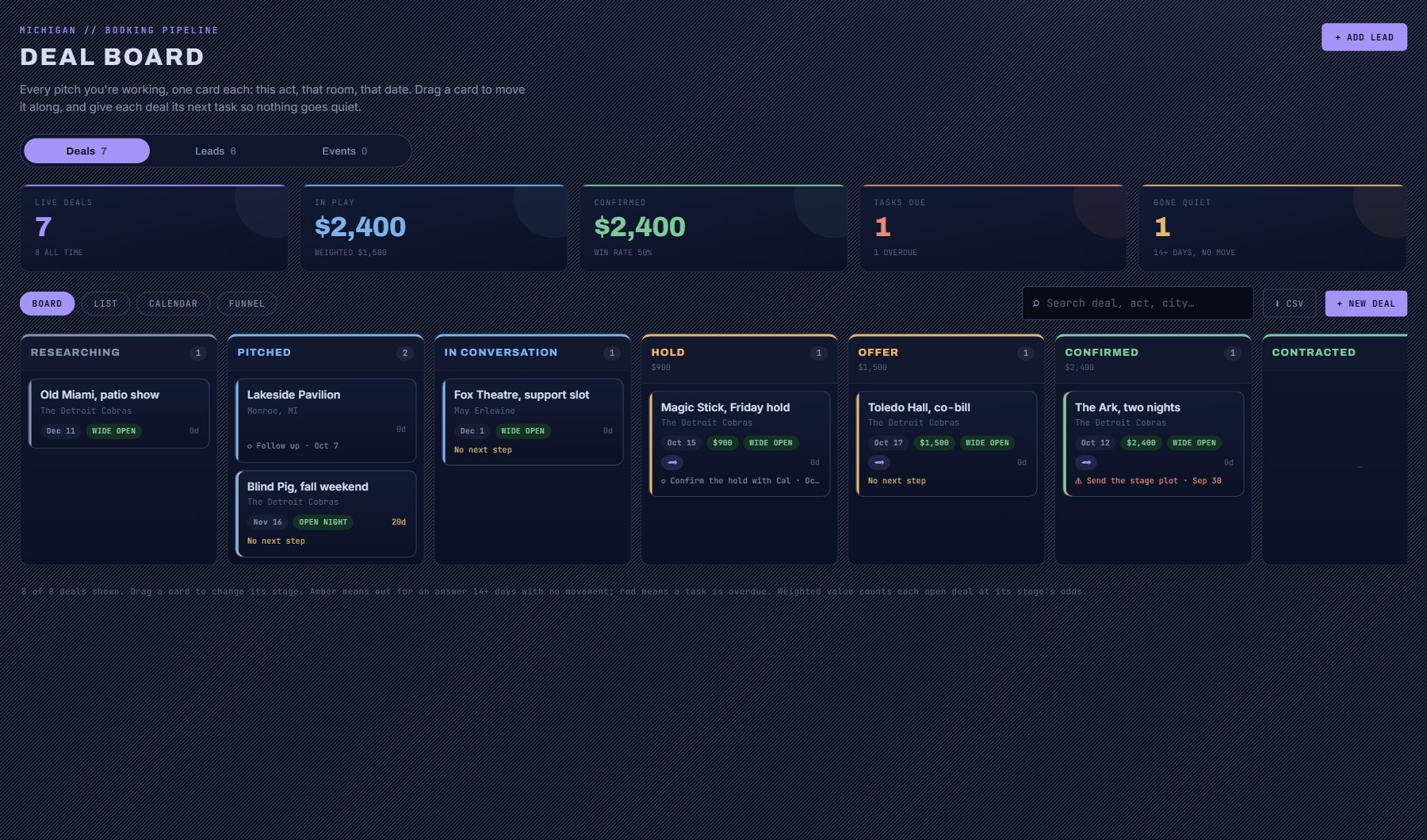
- Close the deal. It is now a card on the Deals board, showing its next task.
4. Move it as the venue answers
| Stage | Move it here when |
|---|---|
| Researching | You start thinking about a venue or a date. |
| Pitched | You send the first email or make the first call. |
| In conversation | You get any real reply. |
| Hold | They confirm a hold. Set your hold position. |
| Offer | An offer is made, by either side. |
| Confirmed | Both sides say yes. |
| Contracted | The contract or written confirmation is back. |
| Played | Moves here by itself the day after the show; tick Paid when the money is in. |
| Lost | They pass, the date goes, or you walk away. Add the reason. |
- Drag the card to the next column, or open the deal and change its stage.
- Pitched when you have asked; In conversation when they reply; Hold when they hold a date (set your hold position); Offer when terms are on the table; Confirmed when both sides say yes; Contracted when the paperwork is back.
- If it falls through, move it to Lost and give the reason. The Funnel report groups lost deals by reason.
Where to go next
Every stage change is kept in the deal's Stage history. The Funnel report on the Deals tab reads the whole board: where deals stall and why they are lost.
A deal can sit on a stop of one of your tours (Tour stop on the deal): confirming the stop moves the deal, and moving the deal moves the stop.
Where to find it
In the console: My Work > Booking Pipeline. Press ? on that screen for the short version, or open the screen if you are signed in. The screen's own page: Booking Pipeline.